

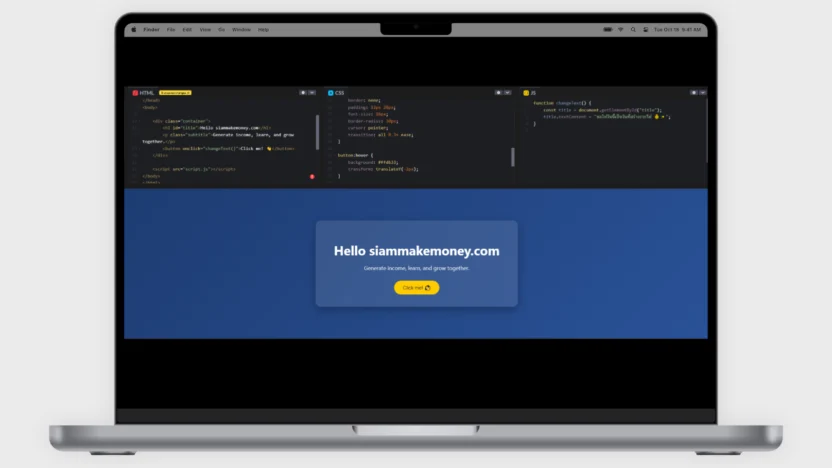
Incluye código HTML, CSS y JS básico.
lista de contenidos
espectáculo
Enlaces simples en texto e imágenes.
Insertar el enlace en el mensaje.
<p>
  Visit my website:
  <a href="https://siammakemoney.com" target="_blank">
    SiamMakeMoney
  </a>
</p>
Insertar el enlace en la imagen.
<a href="https://siammakemoney.com" target="_blank">
  <img src="https://via.placeholder.com/300x200" alt="SiamMakeMoney">
</a>
Imagen ordinaria
<img src="https://via.placeholder.com/300x200" alt="Sample Image">1
Código de ejemplo para una lista con viñetas.
Esta es una etiqueta HTML que se utiliza para crear subelementos dentro de una lista. Se puede usar con listas de puntos o numeradas, donde cada elemento representa un elemento individual de la lista. Algunos ejemplos incluyen listas de productos, menús o instrucciones paso a paso. Es como tener "un elemento" en una lista, lo que permite que la información esté organizada, sea fácil de leer y comprender.
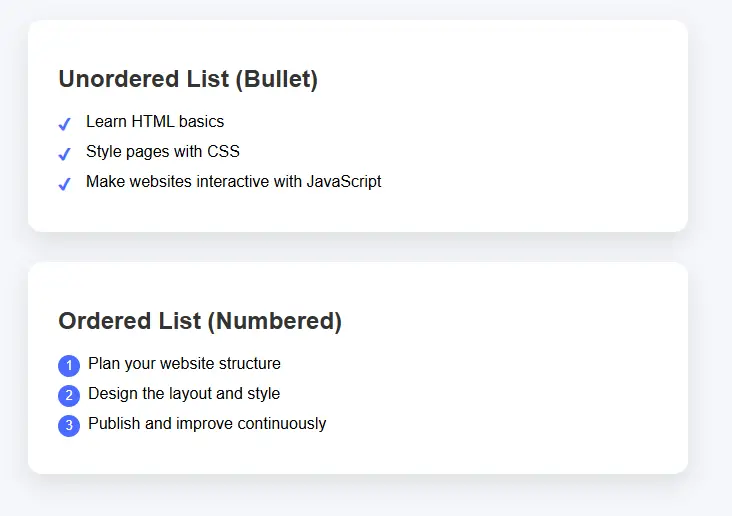
<style>
body {
  font-family: Arial, sans-serif;
  background: #f5f7fa;
  padding: 40px;
}

/* Section box */
.list-box {
  max-width: 600px;
  background: #fff;
  padding: 25px 30px;
  border-radius: 14px;
  box-shadow: 0 10px 25px rgba(0,0,0,0.1);
  margin-bottom: 30px;
}

h2 {
  color: #333;
}

/* Unordered list */
ul.custom-ul {
  list-style: none;
  padding-left: 0;
}

ul.custom-ul li {
  padding-left: 28px;
  margin-bottom: 12px;
  position: relative;
}

ul.custom-ul li::before {
  content: "✔";
  position: absolute;
  left: 0;
  color: #4a6cff;
  font-weight: bold;
}

/* Ordered list */
ol.custom-ol {
  counter-reset: item;
  list-style: none;
  padding-left: 0;
}

ol.custom-ol li {
  counter-increment: item;
  margin-bottom: 12px;
  padding-left: 30px;
  position: relative;
}

ol.custom-ol li::before {
  content: counter(item);
  position: absolute;
  left: 0;
  background: #4a6cff;
  color: #fff;
  width: 22px;
  height: 22px;
  border-radius: 50%;
  text-align: center;
  line-height: 22px;
  font-size: 13px;
}
</style>


<div class="list-box">
  <h2>Unordered List (Bullet)</h2>
  <ul class="custom-ul">
    <li>Learn HTML basics</li>
    <li>Style pages with CSS</li>
    <li>Make websites interactive with JavaScript</li>
  </ul>
</div>

<div class="list-box">
  <h2>Ordered List (Numbered)</h2>
  <ol class="custom-ol">
    <li>Plan your website structure</li>
    <li>Design the layout and style</li>
    <li>Publish and improve continuously</li>
  </ol>
</div>
Código CSS para eliminar un punto. <li> bala
Eliminar viñetas para todo. <ul> y <ol> No importa donde estés.
ul, ol {
  list-style: none !important;
  padding-left: 0 !important;
  margin-left: 0 !important;
}
Eliminar las viñetas que provienen de pseudoelementos.
li::before {
  content: none !important;
}
2
Añade una imagen de icono.
Los iconos son pequeñas imágenes que representan significados o funciones específicas. Por ejemplo, el icono de una casa representa la página de inicio, el de una lupa, la función de búsqueda, y el de una papelera, la función de eliminación. Ayudan a los usuarios a comprender rápidamente lo que el sitio web o la aplicación intenta transmitir sin tener que leer mucho texto, lo que facilita su uso, su diseño moderno y la comunicación rápida.
2.1 Agregue una imagen simple de 20x20 px.
<img src="https://example.com/icon.png" alt="icon" width="20" height="20">3
Iconos de Font Awesome
Los iconos de Font Awesome son conjuntos de iconos listos para usar en sitios web. Están disponibles en formato de fuente y vectorial, lo que facilita su cambio de tamaño, color y estilo, al igual que la personalización de fuentes. Pueden usarse para reemplazar diversos símbolos, como iconos de inicio, teléfono, correo electrónico o redes sociales, lo que ayuda a que los sitios web se vean atractivos, modernos y carguen más rápido sin necesidad de múltiples archivos de imagen.
3.1 Agregue Font Awesome CDN (si aún no lo tiene).
<head>
  <!-- Font Awesome CDN -->
  <link rel="stylesheet" href="https://cdnjs.cloudflare.com/ajax/libs/font-awesome/6.5.0/css/all.min.css">
</head>
3.2 Agregar íconos y ajustar su tamaño.
<i class="fa-solid fa-house" style="font-size:20px;"></i>

<i class="fa-solid fa-star" style="font-size:20px;"></i>
3.3 (Si necesitas el CSS separado)
<style>
.icon-small {
  font-size: 20px;
  color: #000;
}
</style>

<i class="fa-solid fa-heart icon-small"></i>
4
Un iFrame se utiliza para incrustar una página web de otro sitio web.
Un iframe es una etiqueta HTML que se utiliza para incrustar páginas web o contenido de otros sitios web en tu propia página. Esto podría incluir vídeos de YouTube, Google Maps u otros sitios web externos. Es como colocar una "pequeña ventana" de otro sitio web dentro del tuyo, donde el contenido sigue siendo del sitio web original, pero los usuarios pueden verlo e interactuar con él sin salir de la página.
4.1 iFrame para incrustar páginas web.
<iframe
  src="https://www.example.com"
  width="800"
  height="600">
</iframe>
4.2 Incrustar vídeos de YouTube en un iFrame.
<iframe
  width="1349"
  height="759"
  src="https://www.youtube.com/embed/DZIASl9q90s"
  frameborder="0"
  allow="accelerometer; autoplay; clipboard-write; encrypted-media; gyroscope; picture-in-picture"
  allowfullscreen>
</iframe>
5
Mostrar texto explicativo (información sobre herramientas)
Una descripción emergente es un pequeño cuadro de texto que muestra explicaciones adicionales al pasar el cursor sobre texto, iconos o botones o al pulsarlos. No obstruye la pantalla principal, lo que ayuda a explicar el significado o cómo usar algo de forma más sencilla. Es ideal para proporcionar instrucciones breves, facilitando el uso de sitios web o aplicaciones y dándoles un aspecto más profesional.
5.1 Información sobre herramientas básica
<style>
.tooltip {
  position: relative;
  cursor: pointer;
  color: #6a5acd;
  font-weight: bold;
}

.tooltip::after {
  content: attr(data-text);
  position: absolute;
  bottom: 140%;
  left: 50%;
  transform: translateX(-50%);
  background: #333;
  color: #fff;
  padding: 8px 12px;
  border-radius: 8px;
  white-space: nowrap;
  opacity: 0;
  pointer-events: none;
  transition: 0.3s;
}

.tooltip::before {
  content: "";
  position: absolute;
  bottom: 120%;
  left: 50%;
  transform: translateX(-50%);
  border: 6px solid transparent;
  border-top-color: #333;
  opacity: 0;
  transition: 0.3s;
}

.tooltip:hover::after,
.tooltip:hover::before {
  opacity: 1;
}
</style>

<p>
  Hover over <span class="tooltip" data-text="HTML defines the structure of a web page">HTML</span>
</p>
5.2 Desvanecimiento y deslizamiento de información sobre herramientas: aspecto premium
<style>
.tooltip-box {
  position: relative;
  display: inline-block;
  color: #009688;
  cursor: pointer;
}

.tooltip-box .tooltip-text {
  position: absolute;
  bottom: 130%;
  left: 50%;
  transform: translateX(-50%) translateY(10px);
  background-color: #009688;
  color: #fff;
  padding: 8px 14px;
  border-radius: 20px;
  opacity: 0;
  white-space: nowrap;
  transition: all 0.3s ease;
}

.tooltip-box:hover .tooltip-text {
  opacity: 1;
  transform: translateX(-50%) translateY(0);
}
</style>

<p>
  Hover over
  <span class="tooltip-box">
    CSS
    <span class="tooltip-text">CSS styles the website</span>
  </span>
</p>
5.3 La información sobre herramientas se muestra cuando se hace clic en el texto.
<style>
.click-tooltip {
  position: relative;
  display: inline-block;
  color: #e91e63;
  cursor: pointer;
}

.click-tooltip .tooltip-content {
  display: none;
  position: absolute;
  top: 120%;
  left: 50%;
  transform: translateX(-50%);
  background-color: #e91e63;
  color: #fff;
  padding: 10px;
  border-radius: 10px;
  white-space: nowrap;
}
</style>

<p>
  <span class="click-tooltip" onclick="toggleTooltip(this)">
    JavaScript
    <span class="tooltip-content">JavaScript makes websites interactive</span>
  </span>
</p>

<script>
function toggleTooltip(element) {
  const tooltip = element.querySelector(".tooltip-content");
  tooltip.style.display = tooltip.style.display === "block" ? "none" : "block";
}
</script>
6
Tarjeta emergente: haga clic en la tarjeta emergente.
Las tarjetas emergentes clicables son una forma de mostrar información. Al hacer clic en un botón, texto o imagen, se abre una tarjeta en la pantalla que muestra más detalles, como una imagen, un nombre, un icono o una descripción, sin necesidad de cambiar de página web. Esto facilita la visualización de la información, mantiene el sitio web ordenado y ofrece al usuario una apariencia moderna y profesional.
6.1 Haga clic en la tarjeta emergente (HTML + CSS + JS)
<style>
body {
  font-family: Arial, sans-serif;
  background: #f4f6f8;
  text-align: center;
  padding-top: 100px;
}

/* Button */
.open-btn {
  padding: 12px 24px;
  font-size: 16px;
  background: #4a6cff;
  color: #fff;
  border: none;
  border-radius: 30px;
  cursor: pointer;
}

/* Overlay */
.overlay {
  position: fixed;
  top: 0;
  left: 0;
  width: 100%;
  height: 100%;
  background: rgba(0,0,0,0.5);
  display: none;
  justify-content: center;
  align-items: center;
}

/* Card */
.popup-card {
  background: #fff;
  width: 360px;
  padding: 30px;
  border-radius: 16px;
  box-shadow: 0 20px 40px rgba(0,0,0,0.2);
  animation: pop 0.3s ease;
}

@keyframes pop {
  from {
    transform: scale(0.8);
    opacity: 0;
  }
  to {
    transform: scale(1);
    opacity: 1;
  }
}

/* Close button */
.close-btn {
  margin-top: 20px;
  padding: 8px 18px;
  border: none;
  background: #e91e63;
  color: #fff;
  border-radius: 20px;
  cursor: pointer;
}
</style>


<body>

<button class="open-btn" onclick="openCard()">Click Me</button>

<div class="overlay" id="overlay">
  <div class="popup-card">
    <h2>Hello 👋</h2>
    <p>This is a popup card shown after clicking.</p>
    <button class="close-btn" onclick="closeCard()">Close</button>
  </div>
</div>

<script>
function openCard() {
  document.getElementById("overlay").style.display = "flex";
}

function closeCard() {
  document.getElementById("overlay").style.display = "none";
}
</script>

</body>
6.2 Haga clic en la tarjeta emergente que contiene la imagen, el ícono y la descripción.
<!DOCTYPE html>
<html lang="en">
<head>
<meta charset="UTF-8">
<title>Popup Card with Image</title>

<!-- Font Awesome -->
<link rel="stylesheet" href="https://cdnjs.cloudflare.com/ajax/libs/font-awesome/6.5.0/css/all.min.css">

<style>
body {
  font-family: Arial, sans-serif;
  background: #f2f4f8;
  text-align: center;
  padding-top: 100px;
}

/* Button */
.open-btn {
  padding: 12px 26px;
  background: #4a6cff;
  color: #fff;
  border: none;
  border-radius: 30px;
  font-size: 16px;
  cursor: pointer;
}

/* Overlay */
.overlay {
  position: fixed;
  inset: 0;
  background: rgba(0,0,0,0.5);
  display: none;
  justify-content: center;
  align-items: center;
}

/* Card */
.card {
  background: #fff;
  width: 360px;
  border-radius: 18px;
  overflow: hidden;
  box-shadow: 0 20px 40px rgba(0,0,0,0.25);
  animation: pop 0.3s ease;
}

@keyframes pop {
  from { transform: scale(0.85); opacity: 0; }
  to { transform: scale(1); opacity: 1; }
}

/* Image */
.card img {
  width: 100%;
  height: 200px;
  object-fit: cover;
}

/* Content */
.card-content {
  padding: 24px;
}

.card-content h2 {
  margin: 10px 0;
}

.icon {
  font-size: 32px;
  color: #4a6cff;
}

.description {
  color: #555;
  margin-top: 10px;
  font-size: 15px;
}

/* Close button */
.close-btn {
  margin-top: 20px;
  padding: 8px 20px;
  border: none;
  background: #e91e63;
  color: #fff;
  border-radius: 20px;
  cursor: pointer;
}
</style>
</head>

<body>

<button class="open-btn" onclick="openCard()">Show Card</button>

<div class="overlay" id="overlay" onclick="closeCard()">
  <div class="card" onclick="event.stopPropagation()">

    <img src="https://images.unsplash.com/photo-1522202176988-66273c2fd55f" alt="Image">

    <div class="card-content">
      <div class="icon">
        <i class="fa-solid fa-lightbulb"></i>
      </div>

      <h2>SiamMakeMoney</h2>

      <p class="description">
        Learn digital skills and build online income with practical knowledge.
      </p>

      <button class="close-btn" onclick="closeCard()">Close</button>
    </div>

  </div>
</div>

<script>
function openCard() {
  document.getElementById("overlay").style.display = "flex";
}

function closeCard() {
  document.getElementById("overlay").style.display = "none";
}
</script>

</body>
</html>
6.3 Tarjetas emergentes hermosas y optimizadas para SEO
<!DOCTYPE html>
<html lang="en">
<head>
<meta charset="UTF-8">
<title>SiamMakeMoney – SEO Friendly Popup</title>
<meta name="description" content="Learn digital skills and build online income with SiamMakeMoney">

<!-- Font Awesome -->
<link rel="stylesheet" href="https://cdnjs.cloudflare.com/ajax/libs/font-awesome/6.5.0/css/all.min.css">

<style>
body {
  font-family: Arial, sans-serif;
  background: #f5f7fa;
  padding: 60px;
  text-align: center;
}

/* Main content */
h1 {
  color: #333;
}

p {
  color: #555;
  max-width: 600px;
  margin: 20px auto;
}

/* Button */
.open-btn {
  padding: 10px 22px;
  border-radius: 25px;
  border: none;
  background: #4a6cff;
  color: #fff;
  cursor: pointer;
  font-size: 15px;
}

/* Overlay */
.popup-overlay {
  position: fixed;
  inset: 0;
  background: rgba(0,0,0,0.5);
  display: none;
  justify-content: center;
  align-items: center;
}

/* Card */
.popup-card {
  background: #fff;
  width: 380px;
  border-radius: 18px;
  overflow: hidden;
  box-shadow: 0 20px 40px rgba(0,0,0,0.25);
  animation: popup 0.3s ease;
}

@keyframes popup {
  from { transform: scale(0.9); opacity: 0; }
  to { transform: scale(1); opacity: 1; }
}

/* Image */
.popup-card img {
  width: 100%;
  height: 200px;
  object-fit: cover;
}

/* Content */
.card-content {
  padding: 24px;
}

.card-content h2 {
  margin: 12px 0;
  color: #333;
}

.icon {
  font-size: 30px;
  color: #4a6cff;
}

.description {
  font-size: 15px;
  color: #555;
  margin-top: 10px;
}

/* Close button */
.close-btn {
  margin-top: 18px;
  padding: 8px 18px;
  border: none;
  background: #e91e63;
  color: #fff;
  border-radius: 20px;
  cursor: pointer;
}
</style>
</head>

<body>

<main>
  <!-- SEO main content -->
  <h1>SiamMakeMoney</h1>
  <p>
    SiamMakeMoney helps people learn digital skills and build sustainable
    online income with practical knowledge.
  </p>

  <button class="open-btn" onclick="openPopup()">Learn More</button>

  <!-- Popup (content already in HTML = SEO friendly) -->
  <section class="popup-overlay" id="popup" onclick="closePopup()">
    <article class="popup-card" onclick="event.stopPropagation()">

      <img src="https://images.unsplash.com/photo-1522202176988-66273c2fd55f" alt="Digital learning">

      <div class="card-content">
        <div class="icon">
          <i class="fa-solid fa-lightbulb"></i>
        </div>

        <h2>Digital Knowledge</h2>

        <p class="description">
          Learn online business, marketing, and digital skills with step-by-step
          guidance designed for real results.
        </p>

        <button class="close-btn" onclick="closePopup()">Close</button>
      </div>

    </article>
  </section>
</main>

<script>
function openPopup() {
  document.getElementById("popup").style.display = "flex";
}

function closePopup() {
  document.getElementById("popup").style.display = "none";
}
</script>

</body>
</html>
6.4 Tarjetas emergentes dinámicas (archivo HTML único)
<!DOCTYPE html>
<html lang="en">
<head>
<meta charset="UTF-8">
<title>SiamMakeMoney – Dynamic Cards</title>
<meta name="description" content="Learn digital skills and build online income with SiamMakeMoney">

<link rel="stylesheet" href="https://cdnjs.cloudflare.com/ajax/libs/font-awesome/6.5.0/css/all.min.css">

<style>
body {
  font-family: Arial, sans-serif;
  background: #f5f7fa;
  padding: 40px;
  text-align: center;
}

/* Grid */
.card-grid {
  display: grid;
  grid-template-columns: repeat(auto-fit, minmax(220px, 1fr));
  gap: 20px;
  max-width: 900px;
  margin: 40px auto;
}

/* Card item */
.card-item {
  background: #fff;
  padding: 20px;
  border-radius: 16px;
  box-shadow: 0 10px 25px rgba(0,0,0,0.1);
  cursor: pointer;
  transition: transform 0.2s;
}

.card-item:hover {
  transform: translateY(-5px);
}

.card-item i {
  font-size: 32px;
  color: #4a6cff;
}

.card-item h3 {
  margin-top: 10px;
  color: #333;
}

/* Popup */
.popup-overlay {
  position: fixed;
  inset: 0;
  background: rgba(0,0,0,0.5);
  display: none;
  justify-content: center;
  align-items: center;
}

.popup-card {
  background: #fff;
  width: 380px;
  border-radius: 18px;
  overflow: hidden;
  box-shadow: 0 20px 40px rgba(0,0,0,0.25);
  animation: popup 0.3s ease;
}

@keyframes popup {
  from { transform: scale(0.9); opacity: 0; }
  to { transform: scale(1); opacity: 1; }
}

.popup-card img {
  width: 100%;
  height: 200px;
  object-fit: cover;
}

.popup-content {
  padding: 24px;
}

.popup-content h2 {
  margin: 10px 0;
}

.popup-content p {
  color: #555;
}

.close-btn {
  margin-top: 15px;
  padding: 8px 18px;
  border: none;
  background: #e91e63;
  color: #fff;
  border-radius: 20px;
  cursor: pointer;
}
</style>
</head>

<body>

<h1>SiamMakeMoney</h1>
<p>Click a card to learn more</p>

<!-- Cards -->
<div class="card-grid" id="cardGrid"></div>

<!-- Popup -->
<div class="popup-overlay" id="popup" onclick="closePopup()">
  <div class="popup-card" onclick="event.stopPropagation()">
    <img id="popupImage" src="" alt="">
    <div class="popup-content">
      <i id="popupIcon" class=""></i>
      <h2 id="popupTitle"></h2>
      <p id="popupDescription"></p>
      <button class="close-btn" onclick="closePopup()">Close</button>
    </div>
  </div>
</div>

<script>
// Card data (Dynamic)
const cards = [
  {
    title: "Online Business",
    icon: "fa-solid fa-briefcase",
    image: "https://images.unsplash.com/photo-1522202176988-66273c2fd55f",
    description: "Learn how to build and grow online businesses step by step."
  },
  {
    title: "Digital Marketing",
    icon: "fa-solid fa-bullhorn",
    image: "https://images.unsplash.com/photo-1557838923-2985c318be48",
    description: "Understand SEO, ads, and social media marketing strategies."
  },
  {
    title: "Passive Income",
    icon: "fa-solid fa-coins",
    image: "https://images.unsplash.com/photo-1605902711622-cfb43c44367f",
    description: "Create income streams that work for you automatically."
  }
];

// Render cards
const cardGrid = document.getElementById("cardGrid");

cards.forEach((card, index) => {
  const div = document.createElement("div");
  div.className = "card-item";
  div.innerHTML = `
    <i class="${card.icon}"></i>
    <h3>${card.title}</h3>
  `;
  div.onclick = () => openPopup(card);
  cardGrid.appendChild(div);
});

// Popup functions
function openPopup(card) {
  document.getElementById("popupImage").src = card.image;
  document.getElementById("popupImage").alt = card.title;
  document.getElementById("popupIcon").className = card.icon;
  document.getElementById("popupTitle").textContent = card.title;
  document.getElementById("popupDescription").textContent = card.description;
  document.getElementById("popup").style.display = "flex";
}

function closePopup() {
  document.getElementById("popup").style.display = "none";
}
</script>

</body>
</html>
7
Código de tabla básico
Una tabla es un formato para organizar datos en celdas, dispuestas en filas y columnas, para que la información se vea organizada y sea fácil de comparar. Algunos ejemplos incluyen tablas de precios, listas de nombres o tablas de resultados de puntuaciones. Esto permite a los lectores ver la información con claridad, comprenderla rápidamente y encontrar fácilmente la información que necesitan.
7.1 Código básico de tabla responsiva (compatible con todos los dispositivos)
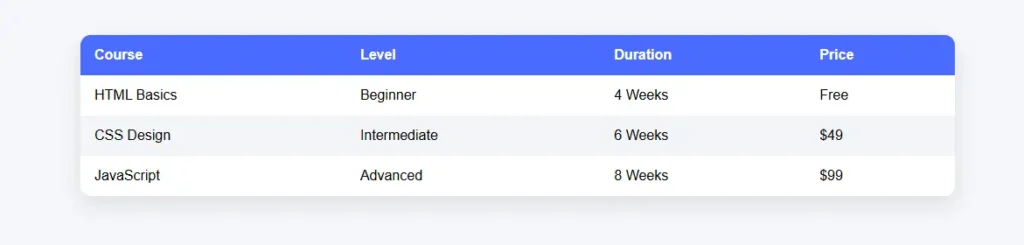
<!DOCTYPE html>
<html lang="en">
<head>
<meta charset="UTF-8">
<title>Responsive Table</title>
<meta name="viewport" content="width=device-width, initial-scale=1.0">

<style>
body {
  font-family: Arial, sans-serif;
  background: #f5f7fa;
  padding: 40px;
}

/* Table wrapper */
.table-container {
  max-width: 1000px;
  margin: auto;
  overflow-x: auto;
  background: #fff;
  border-radius: 12px;
  box-shadow: 0 10px 25px rgba(0,0,0,0.1);
}

/* Table */
table {
  width: 100%;
  border-collapse: collapse;
  min-width: 600px;
}

thead {
  background: #4a6cff;
  color: #fff;
}

th, td {
  padding: 14px 16px;
  text-align: left;
}

th {
  font-weight: bold;
}

tbody tr:nth-child(even) {
  background: #f2f4f8;
}

tbody tr:hover {
  background: #eaf0ff;
}

/* Mobile view */
@media (max-width: 600px) {
  table {
    min-width: 100%;
  }
}
</style>
</head>

<body>

<h2>Course List</h2>

<div class="table-container">
  <table>
    <thead>
      <tr>
        <th>Course</th>
        <th>Level</th>
        <th>Duration</th>
        <th>Price</th>
      </tr>
    </thead>
    <tbody>
      <tr>
        <td>HTML Basics</td>
        <td>Beginner</td>
        <td>4 Weeks</td>
        <td>Free</td>
      </tr>
      <tr>
        <td>CSS Design</td>
        <td>Intermediate</td>
        <td>6 Weeks</td>
        <td>$49</td>
      </tr>
      <tr>
        <td>JavaScript</td>
        <td>Advanced</td>
        <td>8 Weeks</td>
        <td>$99</td>
      </tr>
    </tbody>
  </table>
</div>

</body>
</html>
7.2 Tabla con iconos clicables + nombres + ventana emergente + botón de sitio web.
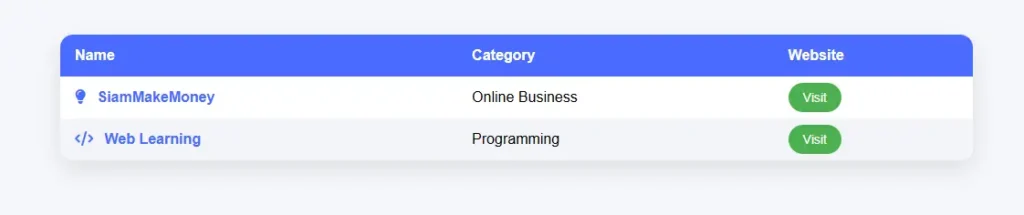
<!DOCTYPE html>
<html lang="en">
<head>
<meta charset="UTF-8">
<title>Interactive Table</title>
<meta name="viewport" content="width=device-width, initial-scale=1.0">

<!-- Font Awesome -->
<link rel="stylesheet" href="https://cdnjs.cloudflare.com/ajax/libs/font-awesome/6.5.0/css/all.min.css">

<style>
body {
  font-family: Arial, sans-serif;
  background: #f5f7fa;
  padding: 40px;
}

/* Table container */
.table-container {
  max-width: 1000px;
  margin: auto;
  overflow-x: auto;
  background: #fff;
  border-radius: 14px;
  box-shadow: 0 10px 25px rgba(0,0,0,0.1);
}

table {
  width: 100%;
  border-collapse: collapse;
  min-width: 700px;
}

thead {
  background: #4a6cff;
  color: #fff;
}

th, td {
  padding: 14px 16px;
  text-align: left;
}

tbody tr:nth-child(even) {
  background: #f2f4f8;
}

/* Name clickable */
.name {
  color: #4a6cff;
  font-weight: bold;
  cursor: pointer;
}

.icon {
  margin-right: 8px;
  color: #4a6cff;
}

/* Button */
.visit-btn {
  padding: 8px 16px;
  background: #4caf50;
  color: #fff;
  text-decoration: none;
  border-radius: 20px;
  font-size: 14px;
}

/* Popup */
.popup-overlay {
  position: fixed;
  inset: 0;
  background: rgba(0,0,0,0.5);
  display: none;
  justify-content: center;
  align-items: center;
}

.popup-card {
  background: #fff;
  width: 360px;
  border-radius: 16px;
  padding: 24px;
  box-shadow: 0 20px 40px rgba(0,0,0,0.25);
  animation: pop 0.3s ease;
}

@keyframes pop {
  from { transform: scale(0.9); opacity: 0; }
  to { transform: scale(1); opacity: 1; }
}

.close-btn {
  margin-top: 16px;
  padding: 8px 18px;
  border: none;
  background: #e91e63;
  color: #fff;
  border-radius: 20px;
  cursor: pointer;
}
</style>
</head>

<body>

<h2>Learning Platforms</h2>

<div class="table-container">
<table>
  <thead>
    <tr>
      <th>Name</th>
      <th>Category</th>
      <th>Website</th>
    </tr>
  </thead>
  <tbody>
    <tr>
      <td>
        <i class="fa-solid fa-lightbulb icon"></i>
        <span class="name" onclick="openPopup('SiamMakeMoney','A platform that teaches digital skills and online income step by step.')">
          SiamMakeMoney
        </span>
      </td>
      <td>Online Business</td>
      <td>
        <a class="visit-btn" href="https://siammakemoney.com" target="_blank">
          Visit
        </a>
      </td>
    </tr>

    <tr>
      <td>
        <i class="fa-solid fa-code icon"></i>
        <span class="name" onclick="openPopup('Web Learning','Learn HTML, CSS, and JavaScript from beginner to advanced.')">
          Web Learning
        </span>
      </td>
      <td>Programming</td>
      <td>
        <a class="visit-btn" href="https://www.w3schools.com" target="_blank">
          Visit
        </a>
      </td>
    </tr>
  </tbody>
</table>
</div>

<!-- Popup -->
<div class="popup-overlay" id="popup" onclick="closePopup()">
  <div class="popup-card" onclick="event.stopPropagation()">
    <h3 id="popupTitle"></h3>
    <p id="popupDescription"></p>
    <button class="close-btn" onclick="closePopup()">Close</button>
  </div>
</div>

<script>
function openPopup(title, description) {
  document.getElementById("popupTitle").textContent = title;
  document.getElementById("popupDescription").textContent = description;
  document.getElementById("popup").style.display = "flex";
}

function closePopup() {
  document.getElementById("popup").style.display = "none";
}
</script>

</body>
</html>
7.3 Tabla con iconos clicables + nombres + ventanas emergentes + botones de sitio web.
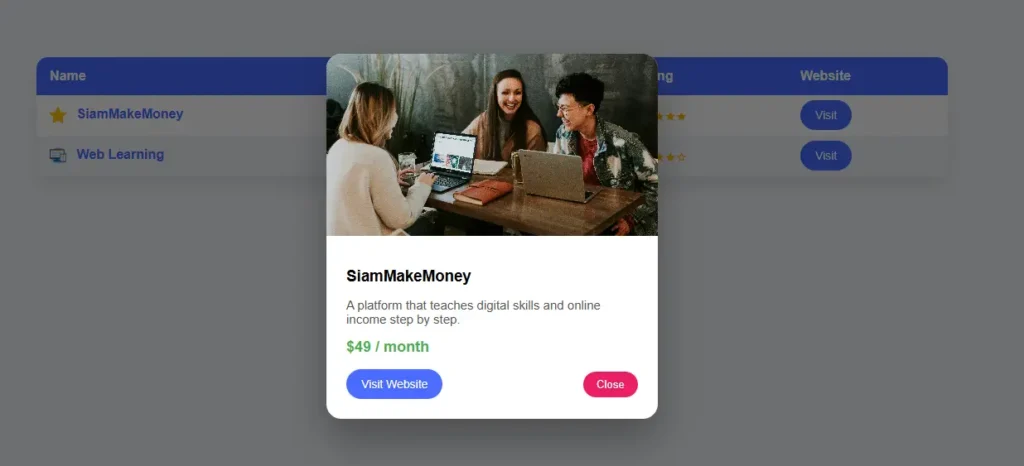
<!DOCTYPE html>
<html lang="en">
<head>
<meta charset="UTF-8">
<title>Advanced Table with Popup</title>
<meta name="viewport" content="width=device-width, initial-scale=1.0">

<style>
body {
  font-family: Arial, sans-serif;
  background: #f5f7fa;
  padding: 40px;
}

/* Table container */
.table-container {
  max-width: 1100px;
  margin: auto;
  overflow-x: auto;
  background: #fff;
  border-radius: 14px;
  box-shadow: 0 10px 25px rgba(0,0,0,0.1);
}

table {
  width: 100%;
  border-collapse: collapse;
  min-width: 800px;
}

thead {
  background: #4a6cff;
  color: #fff;
}

th, td {
  padding: 14px 16px;
  text-align: left;
}

tbody tr:nth-child(even) {
  background: #f2f4f8;
}

/* Icon image */
.icon-img {
  width: 20px;
  height: 20px;
  vertical-align: middle;
  margin-right: 8px;
}

/* Clickable name */
.name {
  color: #4a6cff;
  font-weight: bold;
  cursor: pointer;
}

/* Stars */
.stars {
  color: #ffb400;
  font-size: 16px;
}

/* Popup */
.popup-overlay {
  position: fixed;
  inset: 0;
  background: rgba(0,0,0,0.55);
  display: none;
  justify-content: center;
  align-items: center;
}

.popup-card {
  background: #fff;
  width: 400px;
  border-radius: 18px;
  overflow: hidden;
  box-shadow: 0 25px 50px rgba(0,0,0,0.3);
  animation: popup 0.3s ease;
}

@keyframes popup {
  from { transform: scale(0.9); opacity: 0; }
  to { transform: scale(1); opacity: 1; }
}

.popup-card img {
  width: 100%;
  height: 220px;
  object-fit: cover;
}

.popup-content {
  padding: 24px;
}

.popup-content h3 {
  margin: 10px 0;
}

.popup-content p {
  color: #555;
  font-size: 15px;
}

.price {
  margin: 12px 0;
  font-size: 18px;
  font-weight: bold;
  color: #4caf50;
}

.popup-actions {
  display: flex;
  justify-content: space-between;
  align-items: center;
  margin-top: 16px;
}

.visit-btn {
  padding: 10px 18px;
  background: #4a6cff;
  color: #fff;
  text-decoration: none;
  border-radius: 22px;
  font-size: 14px;
}

.close-btn {
  padding: 8px 16px;
  border: none;
  background: #e91e63;
  color: #fff;
  border-radius: 20px;
  cursor: pointer;
}
</style>
</head>

<body>

<h2>Recommended Platforms</h2>

<div class="table-container">
<table>
  <thead>
    <tr>
      <th>Name</th>
      <th>Category</th>
      <th>Rating</th>
      <th>Website</th>
    </tr>
  </thead>
  <tbody>
    <tr>
      <td>
        <img src="https://cdn-icons-png.flaticon.com/512/1828/1828884.png" class="icon-img" alt="icon">
        <span class="name"
          onclick="openPopup(
            'SiamMakeMoney',
            'https://images.unsplash.com/photo-1522202176988-66273c2fd55f',
            'A platform that teaches digital skills and online income step by step.',
            '$49 / month',
            'https://siammakemoney.com'
          )">
          SiamMakeMoney
        </span>
      </td>
      <td>Online Business</td>
      <td class="stars">★★★★★</td>
      <td>
        <a class="visit-btn" href="https://siammakemoney.com" target="_blank">Visit</a>
      </td>
    </tr>

    <tr>
      <td>
        <img src="https://cdn-icons-png.flaticon.com/512/1055/1055687.png" class="icon-img" alt="icon">
        <span class="name"
          onclick="openPopup(
            'Web Learning',
            'https://images.unsplash.com/photo-1518770660439-4636190af475',
            'Learn HTML, CSS, and JavaScript from beginner to advanced.',
            'Free',
            'https://www.w3schools.com'
          )">
          Web Learning
        </span>
      </td>
      <td>Programming</td>
      <td class="stars">★★★★☆</td>
      <td>
        <a class="visit-btn" href="https://www.w3schools.com" target="_blank">Visit</a>
      </td>
    </tr>
  </tbody>
</table>
</div>

<!-- Popup -->
<div class="popup-overlay" id="popup" onclick="closePopup()">
  <div class="popup-card" onclick="event.stopPropagation()">
    <img id="popupImage" src="" alt="">
    <div class="popup-content">
      <h3 id="popupTitle"></h3>
      <p id="popupDescription"></p>
      <div class="price" id="popupPrice"></div>

      <div class="popup-actions">
        <a id="popupLink" class="visit-btn" href="#" target="_blank">Visit Website</a>
        <button class="close-btn" onclick="closePopup()">Close</button>
      </div>
    </div>
  </div>
</div>

<script>
function openPopup(title, image, description, price, link) {
  document.getElementById("popupTitle").textContent = title;
  document.getElementById("popupImage").src = image;
  document.getElementById("popupDescription").textContent = description;
  document.getElementById("popupPrice").textContent = price;
  document.getElementById("popupLink").href = link;
  document.getElementById("popup").style.display = "flex";
}

function closePopup() {
  document.getElementById("popup").style.display = "none";
}
</script>

</body>
</html>
8
El código de botón de enlace más simple.
Botón de enlace Los enlaces web, generalmente de texto sin formato, están diseñados para parecerse a botones, lo que los hace más visibles, atractivos e indica claramente a qué conducirá el clic (por ejemplo, visitar otro sitio web, registrarse o ver más detalles). Estos botones suelen crearse con HTML y CSS, manteniendo la funcionalidad de los enlaces normales (buenos para el SEO y fáciles de usar), pero con un diseño visualmente más atractivo que aumenta la probabilidad de clics.
<style>
.btn {
  display: inline-block;
  padding: 12px 24px;
  background: #4a6cff;
  color: #ffffff;
  text-decoration: none;
  border-radius: 25px;
  font-size: 16px;
}
</style>
<a href="https://siammakemoney.com" class="btn" target="_blank">
  Visit Website
</a>
8.1 Botón de enlace con efecto de desplazamiento.
<style>
.btn {
  padding: 12px 24px;
  background: #4a6cff;
  color: white;
  text-decoration: none;
  border-radius: 30px;
  transition: 0.3s;
}

.btn:hover {
  background: #324de3;
  transform: translateY(-2px);
}
</style>

<br>
<a href="https://siammakemoney.com" class="btn" target="_blank">
  Visit Website
</a>
9
El código de menú es un conjunto de instrucciones que se utiliza para crear una barra de menú en un sitio web, permitiendo a los usuarios navegar a diferentes páginas, como la página de inicio, la de "Sobre nosotros", la de "Servicios" o la de "Contacto". Generalmente, el código de menú consta de HTML para la estructura de enlaces, CSS para el estilo y puede incluir JavaScript para añadir funciones especiales, como menús ampliables o menús móviles. El código de menú ayuda a que los sitios web sean intuitivos y organizados, y permite a los usuarios encontrar la información que necesitan con mayor rapidez.
<!DOCTYPE html>
<html lang="en">
<head>
<meta charset="UTF-8">
<title>Simple Menu</title>
<style>
body {
  margin: 0;
  font-family: Arial, sans-serif;
}

nav {
  background: #4a6cff;
  padding: 12px 24px;
}

nav a {
  color: #fff;
  text-decoration: none;
  margin-right: 20px;
  font-weight: bold;
}
</style>
</head>

<body>

<nav>
  <a href="#">Home</a>
  <a href="#">About</a>
  <a href="#">Services</a>
  <a href="#">Contact</a>
</nav>

</body>
</html>
<!DOCTYPE html>
<html lang="en">
<head>
<meta charset="UTF-8">
<title>Responsive Menu</title>
<meta name="viewport" content="width=device-width, initial-scale=1.0">

<style>
body {
  margin: 0;
  font-family: Arial, sans-serif;
}

nav {
  background: #4a6cff;
  padding: 14px 20px;
  display: flex;
  justify-content: space-between;
  align-items: center;
}

.logo {
  color: #fff;
  font-size: 20px;
  font-weight: bold;
}

.menu {
  display: flex;
  gap: 20px;
}

.menu a {
  color: #fff;
  text-decoration: none;
  font-weight: bold;
}

.menu-btn {
  display: none;
  font-size: 24px;
  color: #fff;
  cursor: pointer;
}

/* Mobile */
@media (max-width: 768px) {
  .menu {
    display: none;
    flex-direction: column;
    background: #4a6cff;
    position: absolute;
    top: 56px;
    right: 0;
    width: 100%;
    text-align: center;
    padding: 20px 0;
  }

  .menu.show {
    display: flex;
  }

  .menu-btn {
    display: block;
  }
}
</style>
</head>

<body>

<nav>
  <div class="logo">MyWebsite</div>

  <div class="menu-btn" onclick="toggleMenu()">☰</div>

  <div class="menu" id="menu">
    <a href="#">Home</a>
    <a href="#">About</a>
    <a href="#">Services</a>
    <a href="#">Contact</a>
  </div>
</nav>

<script>
function toggleMenu() {
  document.getElementById("menu").classList.toggle("show");
}
</script>

</body>
</html>
10
Código de cuadrícula de tarjetas
Tarjeta de cuadrícula La cuadrícula es un formato de diseño de contenido web que utiliza múltiples tarjetas dispuestas en cuadrícula. Cada tarjeta suele contener una imagen, un título, una descripción y un botón o información importante. Es ideal para mostrar listados de productos, artículos, servicios o cursos. Las ventajas de la cuadrícula de tarjetas son su organización, su estética, su facilidad de lectura y el ajuste automático del número de columnas según el tamaño de la pantalla, lo que la hace compatible tanto con ordenadores como con dispositivos móviles.
10.1 Cuadrícula de tarjetas (responsiva)

<!DOCTYPE html>
<html lang="en">
<head>
<meta charset="UTF-8">
<title>Beautiful Card Grid</title>
<meta name="viewport" content="width=device-width, initial-scale=1.0">

<style>
body {
  margin: 0;
  padding: 40px;
  font-family: Arial, sans-serif;
  background: #f0f2f5;
}

/* Grid */
.grid {
  max-width: 1200px;
  margin: auto;
  display: grid;
  grid-template-columns: repeat(auto-fit, minmax(280px, 1fr));
  gap: 30px;
}

/* Card */
.card {
  background: #fff;
  border-radius: 20px;
  padding: 24px;
  box-shadow: 0 15px 35px rgba(0,0,0,0.1);
  position: relative;
  transition: 0.3s;
}

.card:hover {
  transform: translateY(-8px);
  box-shadow: 0 25px 50px rgba(0,0,0,0.15);
}

/* Badge */
.badge {
  position: absolute;
  top: 16px;
  right: 16px;
  background: #ff5722;
  color: #fff;
  font-size: 12px;
  padding: 6px 12px;
  border-radius: 20px;
}

/* Icon */
.icon {
  font-size: 40px;
  margin-bottom: 16px;
}

/* Content */
.card h3 {
  margin: 0 0 10px;
}

.card p {
  font-size: 14px;
  color: #555;
}

/* Button */
.card a {
  display: inline-block;
  margin-top: 16px;
  padding: 10px 18px;
  background: #4a6cff;
  color: #fff;
  text-decoration: none;
  border-radius: 24px;
  font-size: 14px;
}
</style>
</head>

<body>

<h2 style="text-align:center;">Our Services</h2>

<div class="grid">

  <div class="card">
    <span class="badge">Popular</span>
    <div class="icon">🚀</div>
    <h3>Online Business</h3>
    <p>Learn how to build online income step by step.</p>
    <a href="#">Learn More</a>
  </div>

  <div class="card">
    <span class="badge">New</span>
    <div class="icon">💻</div>
    <h3>Web Development</h3>
    <p>HTML, CSS, JavaScript for beginners.</p>
    <a href="#">Learn More</a>
  </div>

  <div class="card">
    <div class="icon">📈</div>
    <h3>Digital Marketing</h3>
    <p>Grow your business with online marketing.</p>
    <a href="#">Learn More</a>
  </div>

</div>

</body>
</html>

 Thai
Thai  English
  Japanese
  Korean
  German
  French
  Russian
  Spanish
  Chinese
  Hindi
Hindi