

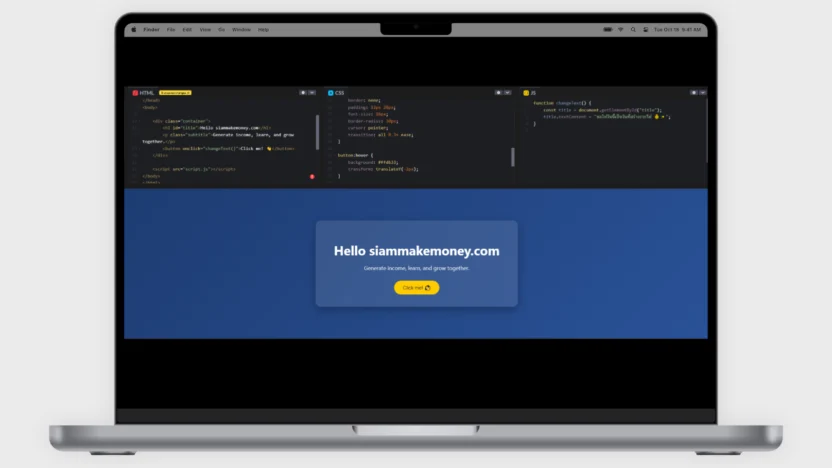
Comprend le code JS de base de données HTML CSS
liste des matières
montrer
Lien en texte et images simples
Entrez un lien dans un message.
<p>
  Visit my website:
  <a href="https://siammakemoney.com" target="_blank">
    SiamMakeMoney
  </a>
</p>
Ajoutez un lien dans l'image.
<a href="https://siammakemoney.com" target="_blank">
  <img src="https://via.placeholder.com/300x200" alt="SiamMakeMoney">
</a>
images ordinaires
<img src="https://via.placeholder.com/300x200" alt="Sample Image">1
Exemple de code à puce (liste de points)
Il s'agit d'une balise HTML utilisée pour créer une sous-liste dans la liste. Il est utilisé en conjonction avec (liste de points) ou (liste de nombres). et clairement compréhensible
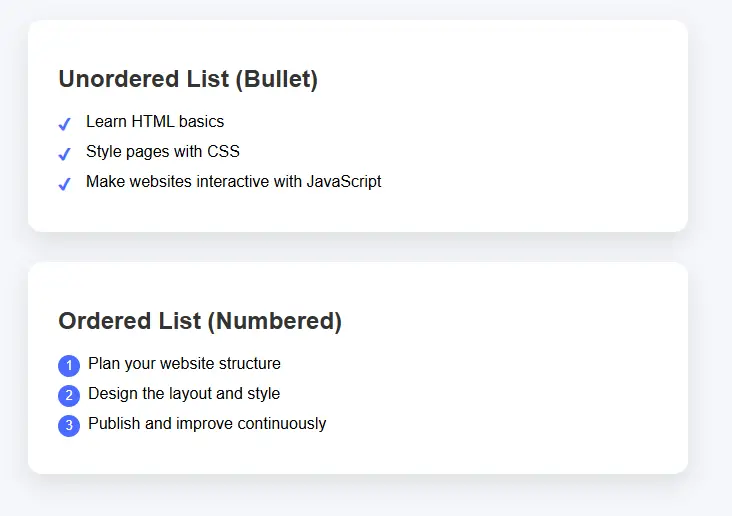
<style>
body {
  font-family: Arial, sans-serif;
  background: #f5f7fa;
  padding: 40px;
}

/* Section box */
.list-box {
  max-width: 600px;
  background: #fff;
  padding: 25px 30px;
  border-radius: 14px;
  box-shadow: 0 10px 25px rgba(0,0,0,0.1);
  margin-bottom: 30px;
}

h2 {
  color: #333;
}

/* Unordered list */
ul.custom-ul {
  list-style: none;
  padding-left: 0;
}

ul.custom-ul li {
  padding-left: 28px;
  margin-bottom: 12px;
  position: relative;
}

ul.custom-ul li::before {
  content: "✔";
  position: absolute;
  left: 0;
  color: #4a6cff;
  font-weight: bold;
}

/* Ordered list */
ol.custom-ol {
  counter-reset: item;
  list-style: none;
  padding-left: 0;
}

ol.custom-ol li {
  counter-increment: item;
  margin-bottom: 12px;
  padding-left: 30px;
  position: relative;
}

ol.custom-ol li::before {
  content: counter(item);
  position: absolute;
  left: 0;
  background: #4a6cff;
  color: #fff;
  width: 22px;
  height: 22px;
  border-radius: 50%;
  text-align: center;
  line-height: 22px;
  font-size: 13px;
}
</style>


<div class="list-box">
  <h2>Unordered List (Bullet)</h2>
  <ul class="custom-ul">
    <li>Learn HTML basics</li>
    <li>Style pages with CSS</li>
    <li>Make websites interactive with JavaScript</li>
  </ul>
</div>

<div class="list-box">
  <h2>Ordered List (Numbered)</h2>
  <ol class="custom-ol">
    <li>Plan your website structure</li>
    <li>Design the layout and style</li>
    <li>Publish and improve continuously</li>
  </ol>
</div>
Point de suppression du code CSS <li> balle
Supprimer la puce pour tout <ul> et <ol> peu importe où
ul, ol {
  list-style: none !important;
  padding-left: 0 !important;
  margin-left: 0 !important;
}
Supprimer la puce des pseudo-éléments
li::before {
  content: none !important;
}
2
Ajouter une image d'icône
L'icône est une petite image qui représente une signification ou une fonction, telle qu'une maison au lieu de la première page. L'image de la loupe au lieu de chercher ou une poubelle au lieu de supprimer, elle aide les utilisateurs à comprendre ce que le Web ou l'application souhaite transmettre immédiatement sans avoir à lire beaucoup de lettres. Rendez-le facile à utiliser, à l'air moderne et à communiquer rapidement.
2.1 Ajoutez une image simple de 20 × 20 px.
<img src="https://example.com/icon.png" alt="icon" width="20" height="20">3
Icône de police impressionnante
L'icône Font Awesome est un ensemble d'icônes prêtes à l'emploi utilisées sur le site Web. Il se présente sous la forme de lettres ou de vecteurs. Il est facile d'ajuster la taille, la couleur et le motif, comme ajuster la police. Utilisez-le à la place des symboles tels que les icônes d'accueil, les téléphones, les e-mails ou les médias sociaux. Aidez le site Web à être beau, moderne et chargement rapide sans avoir à utiliser plusieurs fichiers d'images.
3.1 Ajout de la police CDN géniale (si ce n'est pas encore le cas)
<head>
  <!-- Font Awesome CDN -->
  <link rel="stylesheet" href="https://cdnjs.cloudflare.com/ajax/libs/font-awesome/6.5.0/css/all.min.css">
</head>
3.2 Insérer une icône et redimensionner
<i class="fa-solid fa-house" style="font-size:20px;"></i>

<i class="fa-solid fa-star" style="font-size:20px;"></i>
3.3 (si besoin de CSS séparé)
<style>
.icon-small {
  font-size: 20px;
  color: #000;
}
</style>

<i class="fa-solid fa-heart icon-small"></i>
4
iFrame intègre une autre page Web
iFrame est une balise de HTML qui est utilisée pour intégrer des pages Web ou du contenu d'autres sites Web à afficher sur nos pages Web telles que des vidéos YouTube, des cartes, des cartes Google ou des sites Web externes. Comme prendre "petites fenêtres" d'un autre site Web à mettre sur notre site Web. Le contenu à l'intérieur provient également du site Web d'origine. Mais les utilisateurs peuvent afficher et interagir sans quitter cette page Web.
4.1 iFrame intègre une page Web
<iframe
  src="https://www.example.com"
  width="800"
  height="600">
</iframe>
4.2 Intégrer les vidéos YouTube d'iFrame
<iframe
  width="1349"
  height="759"
  src="https://www.youtube.com/embed/DZIASl9q90s"
  frameborder="0"
  allow="accelerometer; autoplay; clipboard-write; encrypted-media; gyroscope; picture-in-picture"
  allowfullscreen>
</iframe>
5
Afficher une description (info-bulle)
L'info-bulle est une petite zone de texte qui affiche une explication supplémentaire lorsque l'utilisateur pointe la souris ou tape sur un texte, une icône ou un bouton sans perturber l'écran d'accueil. Aidez à expliquer le sens ou comment l'utiliser pour être plus facile à comprendre. Idéal pour fournir un guide court, rendre le Web ou l'application facile à utiliser et plus professionnel.
5.1 Info-bulle de base
<style>
.tooltip {
  position: relative;
  cursor: pointer;
  color: #6a5acd;
  font-weight: bold;
}

.tooltip::after {
  content: attr(data-text);
  position: absolute;
  bottom: 140%;
  left: 50%;
  transform: translateX(-50%);
  background: #333;
  color: #fff;
  padding: 8px 12px;
  border-radius: 8px;
  white-space: nowrap;
  opacity: 0;
  pointer-events: none;
  transition: 0.3s;
}

.tooltip::before {
  content: "";
  position: absolute;
  bottom: 120%;
  left: 50%;
  transform: translateX(-50%);
  border: 6px solid transparent;
  border-top-color: #333;
  opacity: 0;
  transition: 0.3s;
}

.tooltip:hover::after,
.tooltip:hover::before {
  opacity: 1;
}
</style>

<p>
  Hover over <span class="tooltip" data-text="HTML defines the structure of a web page">HTML</span>
</p>
5.2 Fade de l'info-bulle + Vue de la diapositive Premium
<style>
.tooltip-box {
  position: relative;
  display: inline-block;
  color: #009688;
  cursor: pointer;
}

.tooltip-box .tooltip-text {
  position: absolute;
  bottom: 130%;
  left: 50%;
  transform: translateX(-50%) translateY(10px);
  background-color: #009688;
  color: #fff;
  padding: 8px 14px;
  border-radius: 20px;
  opacity: 0;
  white-space: nowrap;
  transition: all 0.3s ease;
}

.tooltip-box:hover .tooltip-text {
  opacity: 1;
  transform: translateX(-50%) translateY(0);
}
</style>

<p>
  Hover over
  <span class="tooltip-box">
    CSS
    <span class="tooltip-text">CSS styles the website</span>
  </span>
</p>
5.3 L'info-bulle s'affiche en cliquant sur un message.
<style>
.click-tooltip {
  position: relative;
  display: inline-block;
  color: #e91e63;
  cursor: pointer;
}

.click-tooltip .tooltip-content {
  display: none;
  position: absolute;
  top: 120%;
  left: 50%;
  transform: translateX(-50%);
  background-color: #e91e63;
  color: #fff;
  padding: 10px;
  border-radius: 10px;
  white-space: nowrap;
}
</style>

<p>
  <span class="click-tooltip" onclick="toggleTooltip(this)">
    JavaScript
    <span class="tooltip-content">JavaScript makes websites interactive</span>
  </span>
</p>

<script>
function toggleTooltip(element) {
  const tooltip = element.querySelector(".tooltip-content");
  tooltip.style.display = tooltip.style.display === "block" ? "none" : "block";
}
</script>
6
Carte contextuelle Cliquez sur la carte contextuelle
Cliquez sur la carte contextuelle. Il s'agit d'un format pour afficher des informations que lorsqu'un utilisateur clique sur un bouton, un texte ou une image, une "carte" apparaîtra à l'écran pour afficher plus de détails tels que des images, des noms, des icônes ou des descriptions sans avoir à modifier la page Web. Aider à visualiser facilement les informations Le Web semble non encombré. Et donnez à l'utilisation un aspect moderne et professionnel
6.1 Cliquez sur la carte contextuelle (HTML + CSS + JS)
<style>
body {
  font-family: Arial, sans-serif;
  background: #f4f6f8;
  text-align: center;
  padding-top: 100px;
}

/* Button */
.open-btn {
  padding: 12px 24px;
  font-size: 16px;
  background: #4a6cff;
  color: #fff;
  border: none;
  border-radius: 30px;
  cursor: pointer;
}

/* Overlay */
.overlay {
  position: fixed;
  top: 0;
  left: 0;
  width: 100%;
  height: 100%;
  background: rgba(0,0,0,0.5);
  display: none;
  justify-content: center;
  align-items: center;
}

/* Card */
.popup-card {
  background: #fff;
  width: 360px;
  padding: 30px;
  border-radius: 16px;
  box-shadow: 0 20px 40px rgba(0,0,0,0.2);
  animation: pop 0.3s ease;
}

@keyframes pop {
  from {
    transform: scale(0.8);
    opacity: 0;
  }
  to {
    transform: scale(1);
    opacity: 1;
  }
}

/* Close button */
.close-btn {
  margin-top: 20px;
  padding: 8px 18px;
  border: none;
  background: #e91e63;
  color: #fff;
  border-radius: 20px;
  cursor: pointer;
}
</style>


<body>

<button class="open-btn" onclick="openCard()">Click Me</button>

<div class="overlay" id="overlay">
  <div class="popup-card">
    <h2>Hello 👋</h2>
    <p>This is a popup card shown after clicking.</p>
    <button class="close-btn" onclick="closeCard()">Close</button>
  </div>
</div>

<script>
function openCard() {
  document.getElementById("overlay").style.display = "flex";
}

function closeCard() {
  document.getElementById("overlay").style.display = "none";
}
</script>

</body>
6.2 Cliquez sur une carte contextuelle avec des images, des icônes et des descriptions.
<!DOCTYPE html>
<html lang="en">
<head>
<meta charset="UTF-8">
<title>Popup Card with Image</title>

<!-- Font Awesome -->
<link rel="stylesheet" href="https://cdnjs.cloudflare.com/ajax/libs/font-awesome/6.5.0/css/all.min.css">

<style>
body {
  font-family: Arial, sans-serif;
  background: #f2f4f8;
  text-align: center;
  padding-top: 100px;
}

/* Button */
.open-btn {
  padding: 12px 26px;
  background: #4a6cff;
  color: #fff;
  border: none;
  border-radius: 30px;
  font-size: 16px;
  cursor: pointer;
}

/* Overlay */
.overlay {
  position: fixed;
  inset: 0;
  background: rgba(0,0,0,0.5);
  display: none;
  justify-content: center;
  align-items: center;
}

/* Card */
.card {
  background: #fff;
  width: 360px;
  border-radius: 18px;
  overflow: hidden;
  box-shadow: 0 20px 40px rgba(0,0,0,0.25);
  animation: pop 0.3s ease;
}

@keyframes pop {
  from { transform: scale(0.85); opacity: 0; }
  to { transform: scale(1); opacity: 1; }
}

/* Image */
.card img {
  width: 100%;
  height: 200px;
  object-fit: cover;
}

/* Content */
.card-content {
  padding: 24px;
}

.card-content h2 {
  margin: 10px 0;
}

.icon {
  font-size: 32px;
  color: #4a6cff;
}

.description {
  color: #555;
  margin-top: 10px;
  font-size: 15px;
}

/* Close button */
.close-btn {
  margin-top: 20px;
  padding: 8px 20px;
  border: none;
  background: #e91e63;
  color: #fff;
  border-radius: 20px;
  cursor: pointer;
}
</style>
</head>

<body>

<button class="open-btn" onclick="openCard()">Show Card</button>

<div class="overlay" id="overlay" onclick="closeCard()">
  <div class="card" onclick="event.stopPropagation()">

    <img src="https://images.unsplash.com/photo-1522202176988-66273c2fd55f" alt="Image">

    <div class="card-content">
      <div class="icon">
        <i class="fa-solid fa-lightbulb"></i>
      </div>

      <h2>SiamMakeMoney</h2>

      <p class="description">
        Learn digital skills and build online income with practical knowledge.
      </p>

      <button class="close-btn" onclick="closeCard()">Close</button>
    </div>

  </div>
</div>

<script>
function openCard() {
  document.getElementById("overlay").style.display = "flex";
}

function closeCard() {
  document.getElementById("overlay").style.display = "none";
}
</script>

</body>
</html>
6.3 Belle carte contextuelle + conviviale pour le référencement
<!DOCTYPE html>
<html lang="en">
<head>
<meta charset="UTF-8">
<title>SiamMakeMoney – SEO Friendly Popup</title>
<meta name="description" content="Learn digital skills and build online income with SiamMakeMoney">

<!-- Font Awesome -->
<link rel="stylesheet" href="https://cdnjs.cloudflare.com/ajax/libs/font-awesome/6.5.0/css/all.min.css">

<style>
body {
  font-family: Arial, sans-serif;
  background: #f5f7fa;
  padding: 60px;
  text-align: center;
}

/* Main content */
h1 {
  color: #333;
}

p {
  color: #555;
  max-width: 600px;
  margin: 20px auto;
}

/* Button */
.open-btn {
  padding: 10px 22px;
  border-radius: 25px;
  border: none;
  background: #4a6cff;
  color: #fff;
  cursor: pointer;
  font-size: 15px;
}

/* Overlay */
.popup-overlay {
  position: fixed;
  inset: 0;
  background: rgba(0,0,0,0.5);
  display: none;
  justify-content: center;
  align-items: center;
}

/* Card */
.popup-card {
  background: #fff;
  width: 380px;
  border-radius: 18px;
  overflow: hidden;
  box-shadow: 0 20px 40px rgba(0,0,0,0.25);
  animation: popup 0.3s ease;
}

@keyframes popup {
  from { transform: scale(0.9); opacity: 0; }
  to { transform: scale(1); opacity: 1; }
}

/* Image */
.popup-card img {
  width: 100%;
  height: 200px;
  object-fit: cover;
}

/* Content */
.card-content {
  padding: 24px;
}

.card-content h2 {
  margin: 12px 0;
  color: #333;
}

.icon {
  font-size: 30px;
  color: #4a6cff;
}

.description {
  font-size: 15px;
  color: #555;
  margin-top: 10px;
}

/* Close button */
.close-btn {
  margin-top: 18px;
  padding: 8px 18px;
  border: none;
  background: #e91e63;
  color: #fff;
  border-radius: 20px;
  cursor: pointer;
}
</style>
</head>

<body>

<main>
  <!-- SEO main content -->
  <h1>SiamMakeMoney</h1>
  <p>
    SiamMakeMoney helps people learn digital skills and build sustainable
    online income with practical knowledge.
  </p>

  <button class="open-btn" onclick="openPopup()">Learn More</button>

  <!-- Popup (content already in HTML = SEO friendly) -->
  <section class="popup-overlay" id="popup" onclick="closePopup()">
    <article class="popup-card" onclick="event.stopPropagation()">

      <img src="https://images.unsplash.com/photo-1522202176988-66273c2fd55f" alt="Digital learning">

      <div class="card-content">
        <div class="icon">
          <i class="fa-solid fa-lightbulb"></i>
        </div>

        <h2>Digital Knowledge</h2>

        <p class="description">
          Learn online business, marketing, and digital skills with step-by-step
          guidance designed for real results.
        </p>

        <button class="close-btn" onclick="closePopup()">Close</button>
      </div>

    </article>
  </section>
</main>

<script>
function openPopup() {
  document.getElementById("popup").style.display = "flex";
}

function closePopup() {
  document.getElementById("popup").style.display = "none";
}
</script>

</body>
</html>
6.4 Cartes contextuelles dynamiques (fichier HTML unique)
<!DOCTYPE html>
<html lang="en">
<head>
<meta charset="UTF-8">
<title>SiamMakeMoney – Dynamic Cards</title>
<meta name="description" content="Learn digital skills and build online income with SiamMakeMoney">

<link rel="stylesheet" href="https://cdnjs.cloudflare.com/ajax/libs/font-awesome/6.5.0/css/all.min.css">

<style>
body {
  font-family: Arial, sans-serif;
  background: #f5f7fa;
  padding: 40px;
  text-align: center;
}

/* Grid */
.card-grid {
  display: grid;
  grid-template-columns: repeat(auto-fit, minmax(220px, 1fr));
  gap: 20px;
  max-width: 900px;
  margin: 40px auto;
}

/* Card item */
.card-item {
  background: #fff;
  padding: 20px;
  border-radius: 16px;
  box-shadow: 0 10px 25px rgba(0,0,0,0.1);
  cursor: pointer;
  transition: transform 0.2s;
}

.card-item:hover {
  transform: translateY(-5px);
}

.card-item i {
  font-size: 32px;
  color: #4a6cff;
}

.card-item h3 {
  margin-top: 10px;
  color: #333;
}

/* Popup */
.popup-overlay {
  position: fixed;
  inset: 0;
  background: rgba(0,0,0,0.5);
  display: none;
  justify-content: center;
  align-items: center;
}

.popup-card {
  background: #fff;
  width: 380px;
  border-radius: 18px;
  overflow: hidden;
  box-shadow: 0 20px 40px rgba(0,0,0,0.25);
  animation: popup 0.3s ease;
}

@keyframes popup {
  from { transform: scale(0.9); opacity: 0; }
  to { transform: scale(1); opacity: 1; }
}

.popup-card img {
  width: 100%;
  height: 200px;
  object-fit: cover;
}

.popup-content {
  padding: 24px;
}

.popup-content h2 {
  margin: 10px 0;
}

.popup-content p {
  color: #555;
}

.close-btn {
  margin-top: 15px;
  padding: 8px 18px;
  border: none;
  background: #e91e63;
  color: #fff;
  border-radius: 20px;
  cursor: pointer;
}
</style>
</head>

<body>

<h1>SiamMakeMoney</h1>
<p>Click a card to learn more</p>

<!-- Cards -->
<div class="card-grid" id="cardGrid"></div>

<!-- Popup -->
<div class="popup-overlay" id="popup" onclick="closePopup()">
  <div class="popup-card" onclick="event.stopPropagation()">
    <img id="popupImage" src="" alt="">
    <div class="popup-content">
      <i id="popupIcon" class=""></i>
      <h2 id="popupTitle"></h2>
      <p id="popupDescription"></p>
      <button class="close-btn" onclick="closePopup()">Close</button>
    </div>
  </div>
</div>

<script>
// Card data (Dynamic)
const cards = [
  {
    title: "Online Business",
    icon: "fa-solid fa-briefcase",
    image: "https://images.unsplash.com/photo-1522202176988-66273c2fd55f",
    description: "Learn how to build and grow online businesses step by step."
  },
  {
    title: "Digital Marketing",
    icon: "fa-solid fa-bullhorn",
    image: "https://images.unsplash.com/photo-1557838923-2985c318be48",
    description: "Understand SEO, ads, and social media marketing strategies."
  },
  {
    title: "Passive Income",
    icon: "fa-solid fa-coins",
    image: "https://images.unsplash.com/photo-1605902711622-cfb43c44367f",
    description: "Create income streams that work for you automatically."
  }
];

// Render cards
const cardGrid = document.getElementById("cardGrid");

cards.forEach((card, index) => {
  const div = document.createElement("div");
  div.className = "card-item";
  div.innerHTML = `
    <i class="${card.icon}"></i>
    <h3>${card.title}</h3>
  `;
  div.onclick = () => openPopup(card);
  cardGrid.appendChild(div);
});

// Popup functions
function openPopup(card) {
  document.getElementById("popupImage").src = card.image;
  document.getElementById("popupImage").alt = card.title;
  document.getElementById("popupIcon").className = card.icon;
  document.getElementById("popupTitle").textContent = card.title;
  document.getElementById("popupDescription").textContent = card.description;
  document.getElementById("popup").style.display = "flex";
}

function closePopup() {
  document.getElementById("popup").style.display = "none";
}
</script>

</body>
</html>
7
Code de table de base
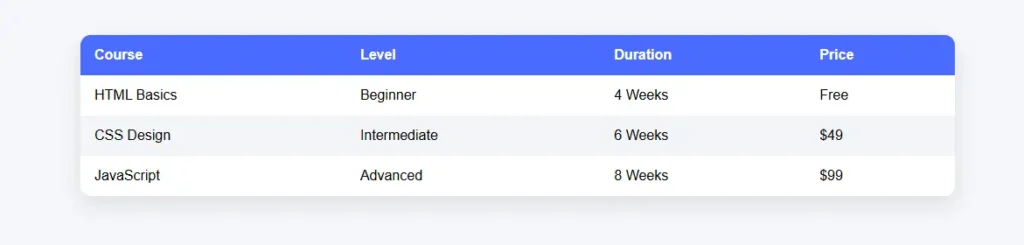
Une table est un format pour organiser des données dans des champs, disposés en lignes et en colonnes. Pour rendre les informations organisées et faciles à comparer, telles qu'un tableau de prix, un tableau de liste ou des résultats de score, permettant aux lecteurs de voir clairement, de comprendre rapidement et de trouver facilement les informations qu'ils souhaitent.
7.1 Le code de table réactif de base prend en charge tous les appareils
<!DOCTYPE html>
<html lang="en">
<head>
<meta charset="UTF-8">
<title>Responsive Table</title>
<meta name="viewport" content="width=device-width, initial-scale=1.0">

<style>
body {
  font-family: Arial, sans-serif;
  background: #f5f7fa;
  padding: 40px;
}

/* Table wrapper */
.table-container {
  max-width: 1000px;
  margin: auto;
  overflow-x: auto;
  background: #fff;
  border-radius: 12px;
  box-shadow: 0 10px 25px rgba(0,0,0,0.1);
}

/* Table */
table {
  width: 100%;
  border-collapse: collapse;
  min-width: 600px;
}

thead {
  background: #4a6cff;
  color: #fff;
}

th, td {
  padding: 14px 16px;
  text-align: left;
}

th {
  font-weight: bold;
}

tbody tr:nth-child(even) {
  background: #f2f4f8;
}

tbody tr:hover {
  background: #eaf0ff;
}

/* Mobile view */
@media (max-width: 600px) {
  table {
    min-width: 100%;
  }
}
</style>
</head>

<body>

<h2>Course List</h2>

<div class="table-container">
  <table>
    <thead>
      <tr>
        <th>Course</th>
        <th>Level</th>
        <th>Duration</th>
        <th>Price</th>
      </tr>
    </thead>
    <tbody>
      <tr>
        <td>HTML Basics</td>
        <td>Beginner</td>
        <td>4 Weeks</td>
        <td>Free</td>
      </tr>
      <tr>
        <td>CSS Design</td>
        <td>Intermediate</td>
        <td>6 Weeks</td>
        <td>$49</td>
      </tr>
      <tr>
        <td>JavaScript</td>
        <td>Advanced</td>
        <td>8 Weeks</td>
        <td>$99</td>
      </tr>
    </tbody>
  </table>
</div>

</body>
</html>
7.2 Tables avec icônes + noms cliquables + pop-ups + boutons du site Web
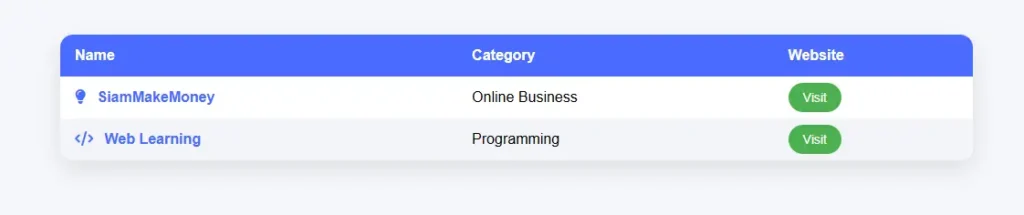
<!DOCTYPE html>
<html lang="en">
<head>
<meta charset="UTF-8">
<title>Interactive Table</title>
<meta name="viewport" content="width=device-width, initial-scale=1.0">

<!-- Font Awesome -->
<link rel="stylesheet" href="https://cdnjs.cloudflare.com/ajax/libs/font-awesome/6.5.0/css/all.min.css">

<style>
body {
  font-family: Arial, sans-serif;
  background: #f5f7fa;
  padding: 40px;
}

/* Table container */
.table-container {
  max-width: 1000px;
  margin: auto;
  overflow-x: auto;
  background: #fff;
  border-radius: 14px;
  box-shadow: 0 10px 25px rgba(0,0,0,0.1);
}

table {
  width: 100%;
  border-collapse: collapse;
  min-width: 700px;
}

thead {
  background: #4a6cff;
  color: #fff;
}

th, td {
  padding: 14px 16px;
  text-align: left;
}

tbody tr:nth-child(even) {
  background: #f2f4f8;
}

/* Name clickable */
.name {
  color: #4a6cff;
  font-weight: bold;
  cursor: pointer;
}

.icon {
  margin-right: 8px;
  color: #4a6cff;
}

/* Button */
.visit-btn {
  padding: 8px 16px;
  background: #4caf50;
  color: #fff;
  text-decoration: none;
  border-radius: 20px;
  font-size: 14px;
}

/* Popup */
.popup-overlay {
  position: fixed;
  inset: 0;
  background: rgba(0,0,0,0.5);
  display: none;
  justify-content: center;
  align-items: center;
}

.popup-card {
  background: #fff;
  width: 360px;
  border-radius: 16px;
  padding: 24px;
  box-shadow: 0 20px 40px rgba(0,0,0,0.25);
  animation: pop 0.3s ease;
}

@keyframes pop {
  from { transform: scale(0.9); opacity: 0; }
  to { transform: scale(1); opacity: 1; }
}

.close-btn {
  margin-top: 16px;
  padding: 8px 18px;
  border: none;
  background: #e91e63;
  color: #fff;
  border-radius: 20px;
  cursor: pointer;
}
</style>
</head>

<body>

<h2>Learning Platforms</h2>

<div class="table-container">
<table>
  <thead>
    <tr>
      <th>Name</th>
      <th>Category</th>
      <th>Website</th>
    </tr>
  </thead>
  <tbody>
    <tr>
      <td>
        <i class="fa-solid fa-lightbulb icon"></i>
        <span class="name" onclick="openPopup('SiamMakeMoney','A platform that teaches digital skills and online income step by step.')">
          SiamMakeMoney
        </span>
      </td>
      <td>Online Business</td>
      <td>
        <a class="visit-btn" href="https://siammakemoney.com" target="_blank">
          Visit
        </a>
      </td>
    </tr>

    <tr>
      <td>
        <i class="fa-solid fa-code icon"></i>
        <span class="name" onclick="openPopup('Web Learning','Learn HTML, CSS, and JavaScript from beginner to advanced.')">
          Web Learning
        </span>
      </td>
      <td>Programming</td>
      <td>
        <a class="visit-btn" href="https://www.w3schools.com" target="_blank">
          Visit
        </a>
      </td>
    </tr>
  </tbody>
</table>
</div>

<!-- Popup -->
<div class="popup-overlay" id="popup" onclick="closePopup()">
  <div class="popup-card" onclick="event.stopPropagation()">
    <h3 id="popupTitle"></h3>
    <p id="popupDescription"></p>
    <button class="close-btn" onclick="closePopup()">Close</button>
  </div>
</div>

<script>
function openPopup(title, description) {
  document.getElementById("popupTitle").textContent = title;
  document.getElementById("popupDescription").textContent = description;
  document.getElementById("popup").style.display = "flex";
}

function closePopup() {
  document.getElementById("popup").style.display = "none";
}
</script>

</body>
</html>
7.3 Tables avec icônes + noms cliquables + pop-ups + boutons du site Web
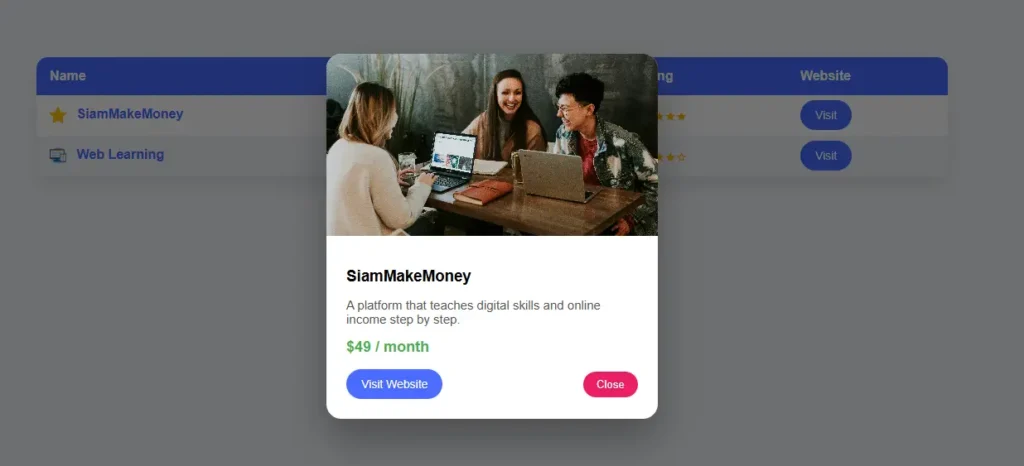
<!DOCTYPE html>
<html lang="en">
<head>
<meta charset="UTF-8">
<title>Advanced Table with Popup</title>
<meta name="viewport" content="width=device-width, initial-scale=1.0">

<style>
body {
  font-family: Arial, sans-serif;
  background: #f5f7fa;
  padding: 40px;
}

/* Table container */
.table-container {
  max-width: 1100px;
  margin: auto;
  overflow-x: auto;
  background: #fff;
  border-radius: 14px;
  box-shadow: 0 10px 25px rgba(0,0,0,0.1);
}

table {
  width: 100%;
  border-collapse: collapse;
  min-width: 800px;
}

thead {
  background: #4a6cff;
  color: #fff;
}

th, td {
  padding: 14px 16px;
  text-align: left;
}

tbody tr:nth-child(even) {
  background: #f2f4f8;
}

/* Icon image */
.icon-img {
  width: 20px;
  height: 20px;
  vertical-align: middle;
  margin-right: 8px;
}

/* Clickable name */
.name {
  color: #4a6cff;
  font-weight: bold;
  cursor: pointer;
}

/* Stars */
.stars {
  color: #ffb400;
  font-size: 16px;
}

/* Popup */
.popup-overlay {
  position: fixed;
  inset: 0;
  background: rgba(0,0,0,0.55);
  display: none;
  justify-content: center;
  align-items: center;
}

.popup-card {
  background: #fff;
  width: 400px;
  border-radius: 18px;
  overflow: hidden;
  box-shadow: 0 25px 50px rgba(0,0,0,0.3);
  animation: popup 0.3s ease;
}

@keyframes popup {
  from { transform: scale(0.9); opacity: 0; }
  to { transform: scale(1); opacity: 1; }
}

.popup-card img {
  width: 100%;
  height: 220px;
  object-fit: cover;
}

.popup-content {
  padding: 24px;
}

.popup-content h3 {
  margin: 10px 0;
}

.popup-content p {
  color: #555;
  font-size: 15px;
}

.price {
  margin: 12px 0;
  font-size: 18px;
  font-weight: bold;
  color: #4caf50;
}

.popup-actions {
  display: flex;
  justify-content: space-between;
  align-items: center;
  margin-top: 16px;
}

.visit-btn {
  padding: 10px 18px;
  background: #4a6cff;
  color: #fff;
  text-decoration: none;
  border-radius: 22px;
  font-size: 14px;
}

.close-btn {
  padding: 8px 16px;
  border: none;
  background: #e91e63;
  color: #fff;
  border-radius: 20px;
  cursor: pointer;
}
</style>
</head>

<body>

<h2>Recommended Platforms</h2>

<div class="table-container">
<table>
  <thead>
    <tr>
      <th>Name</th>
      <th>Category</th>
      <th>Rating</th>
      <th>Website</th>
    </tr>
  </thead>
  <tbody>
    <tr>
      <td>
        <img src="https://cdn-icons-png.flaticon.com/512/1828/1828884.png" class="icon-img" alt="icon">
        <span class="name"
          onclick="openPopup(
            'SiamMakeMoney',
            'https://images.unsplash.com/photo-1522202176988-66273c2fd55f',
            'A platform that teaches digital skills and online income step by step.',
            '$49 / month',
            'https://siammakemoney.com'
          )">
          SiamMakeMoney
        </span>
      </td>
      <td>Online Business</td>
      <td class="stars">★★★★★</td>
      <td>
        <a class="visit-btn" href="https://siammakemoney.com" target="_blank">Visit</a>
      </td>
    </tr>

    <tr>
      <td>
        <img src="https://cdn-icons-png.flaticon.com/512/1055/1055687.png" class="icon-img" alt="icon">
        <span class="name"
          onclick="openPopup(
            'Web Learning',
            'https://images.unsplash.com/photo-1518770660439-4636190af475',
            'Learn HTML, CSS, and JavaScript from beginner to advanced.',
            'Free',
            'https://www.w3schools.com'
          )">
          Web Learning
        </span>
      </td>
      <td>Programming</td>
      <td class="stars">★★★★☆</td>
      <td>
        <a class="visit-btn" href="https://www.w3schools.com" target="_blank">Visit</a>
      </td>
    </tr>
  </tbody>
</table>
</div>

<!-- Popup -->
<div class="popup-overlay" id="popup" onclick="closePopup()">
  <div class="popup-card" onclick="event.stopPropagation()">
    <img id="popupImage" src="" alt="">
    <div class="popup-content">
      <h3 id="popupTitle"></h3>
      <p id="popupDescription"></p>
      <div class="price" id="popupPrice"></div>

      <div class="popup-actions">
        <a id="popupLink" class="visit-btn" href="#" target="_blank">Visit Website</a>
        <button class="close-btn" onclick="closePopup()">Close</button>
      </div>
    </div>
  </div>
</div>

<script>
function openPopup(title, image, description, price, link) {
  document.getElementById("popupTitle").textContent = title;
  document.getElementById("popupImage").src = image;
  document.getElementById("popupDescription").textContent = description;
  document.getElementById("popupPrice").textContent = price;
  document.getElementById("popupLink").href = link;
  document.getElementById("popup").style.display = "flex";
}

function closePopup() {
  document.getElementById("popup").style.display = "none";
}
</script>

</body>
</html>
8
Le code de lien le plus simple
Bouton de lien est d'apporter un lien de site Web qui est normalement un texte brut à concevoir pour ressembler à un bouton afin que les utilisateurs voient clairement, cliquables et comprennent immédiatement ce qu'ils vont faire, comme aller sur un autre site Web, enregistrer ou consulter plus de détails. Fonctionne toujours comme des liens normaux (bon pour le référencement et faciles à utiliser), mais avec une belle apparence et augmente les chances de cliquer sur les utilisateurs.
<style>
.btn {
  display: inline-block;
  padding: 12px 24px;
  background: #4a6cff;
  color: #ffffff;
  text-decoration: none;
  border-radius: 25px;
  font-size: 16px;
}
</style>
<a href="https://siammakemoney.com" class="btn" target="_blank">
  Visit Website
</a>
8.1 Bouton de lien avec effet de survol
<style>
.btn {
  padding: 12px 24px;
  background: #4a6cff;
  color: white;
  text-decoration: none;
  border-radius: 30px;
  transition: 0.3s;
}

.btn:hover {
  background: #324de3;
  transform: translateY(-2px);
}
</style>

<br>
<a href="https://siammakemoney.com" class="btn" target="_blank">
  Visit Website
</a>
9
Le code de menu est un ensemble de commandes utilisées pour créer une barre de menus sur un site Web. Pour que les utilisateurs puissent cliquer sur des pages telles que Home About Us, Services ou Contactez-nous, le code de menu se compose généralement de HTML pour les structures de liens, de CSS pour les décorations et peut contenir du JavaScript pour améliorer les fonctionnalités spéciales, telles que les menus de zoom ou les menus mobiles. Le code de menu rend le site Web facile à utiliser, organisé et permet aux utilisateurs de trouver plus rapidement les informations dont ils ont besoin.
<!DOCTYPE html>
<html lang="en">
<head>
<meta charset="UTF-8">
<title>Simple Menu</title>
<style>
body {
  margin: 0;
  font-family: Arial, sans-serif;
}

nav {
  background: #4a6cff;
  padding: 12px 24px;
}

nav a {
  color: #fff;
  text-decoration: none;
  margin-right: 20px;
  font-weight: bold;
}
</style>
</head>

<body>

<nav>
  <a href="#">Home</a>
  <a href="#">About</a>
  <a href="#">Services</a>
  <a href="#">Contact</a>
</nav>

</body>
</html>
<!DOCTYPE html>
<html lang="en">
<head>
<meta charset="UTF-8">
<title>Responsive Menu</title>
<meta name="viewport" content="width=device-width, initial-scale=1.0">

<style>
body {
  margin: 0;
  font-family: Arial, sans-serif;
}

nav {
  background: #4a6cff;
  padding: 14px 20px;
  display: flex;
  justify-content: space-between;
  align-items: center;
}

.logo {
  color: #fff;
  font-size: 20px;
  font-weight: bold;
}

.menu {
  display: flex;
  gap: 20px;
}

.menu a {
  color: #fff;
  text-decoration: none;
  font-weight: bold;
}

.menu-btn {
  display: none;
  font-size: 24px;
  color: #fff;
  cursor: pointer;
}

/* Mobile */
@media (max-width: 768px) {
  .menu {
    display: none;
    flex-direction: column;
    background: #4a6cff;
    position: absolute;
    top: 56px;
    right: 0;
    width: 100%;
    text-align: center;
    padding: 20px 0;
  }

  .menu.show {
    display: flex;
  }

  .menu-btn {
    display: block;
  }
}
</style>
</head>

<body>

<nav>
  <div class="logo">MyWebsite</div>

  <div class="menu-btn" onclick="toggleMenu()">☰</div>

  <div class="menu" id="menu">
    <a href="#">Home</a>
    <a href="#">About</a>
    <a href="#">Services</a>
    <a href="#">Contact</a>
  </div>
</nav>

<script>
function toggleMenu() {
  document.getElementById("menu").classList.toggle("show");
}
</script>

</body>
</html>
10
Carte de grille de code (grille de carte)
carte réseau Il s'agit du format du contenu du site Web à l'aide de plusieurs "cartes" disposées dans une grille (grille). Convient à la liste des produits, articles, services ou cours. L'avantage d'une carte de grille est qu'elle a l'air organisée, belle, facile à lire et que le nombre de colonnes peut être ajusté automatiquement en fonction de la taille de l'écran. Faites-le bien fonctionner sur les ordinateurs et les téléphones portables.
10.1 Grille de cartes – Réactif

<!DOCTYPE html>
<html lang="en">
<head>
<meta charset="UTF-8">
<title>Beautiful Card Grid</title>
<meta name="viewport" content="width=device-width, initial-scale=1.0">

<style>
body {
  margin: 0;
  padding: 40px;
  font-family: Arial, sans-serif;
  background: #f0f2f5;
}

/* Grid */
.grid {
  max-width: 1200px;
  margin: auto;
  display: grid;
  grid-template-columns: repeat(auto-fit, minmax(280px, 1fr));
  gap: 30px;
}

/* Card */
.card {
  background: #fff;
  border-radius: 20px;
  padding: 24px;
  box-shadow: 0 15px 35px rgba(0,0,0,0.1);
  position: relative;
  transition: 0.3s;
}

.card:hover {
  transform: translateY(-8px);
  box-shadow: 0 25px 50px rgba(0,0,0,0.15);
}

/* Badge */
.badge {
  position: absolute;
  top: 16px;
  right: 16px;
  background: #ff5722;
  color: #fff;
  font-size: 12px;
  padding: 6px 12px;
  border-radius: 20px;
}

/* Icon */
.icon {
  font-size: 40px;
  margin-bottom: 16px;
}

/* Content */
.card h3 {
  margin: 0 0 10px;
}

.card p {
  font-size: 14px;
  color: #555;
}

/* Button */
.card a {
  display: inline-block;
  margin-top: 16px;
  padding: 10px 18px;
  background: #4a6cff;
  color: #fff;
  text-decoration: none;
  border-radius: 24px;
  font-size: 14px;
}
</style>
</head>

<body>

<h2 style="text-align:center;">Our Services</h2>

<div class="grid">

  <div class="card">
    <span class="badge">Popular</span>
    <div class="icon">🚀</div>
    <h3>Online Business</h3>
    <p>Learn how to build online income step by step.</p>
    <a href="#">Learn More</a>
  </div>

  <div class="card">
    <span class="badge">New</span>
    <div class="icon">💻</div>
    <h3>Web Development</h3>
    <p>HTML, CSS, JavaScript for beginners.</p>
    <a href="#">Learn More</a>
  </div>

  <div class="card">
    <div class="icon">📈</div>
    <h3>Digital Marketing</h3>
    <p>Grow your business with online marketing.</p>
    <a href="#">Learn More</a>
  </div>

</div>

</body>
</html>

 Thai
Thai  English
  Japanese
  Korean
  German
  French
  Russian
  Spanish
  Chinese
  Hindi
Hindi