

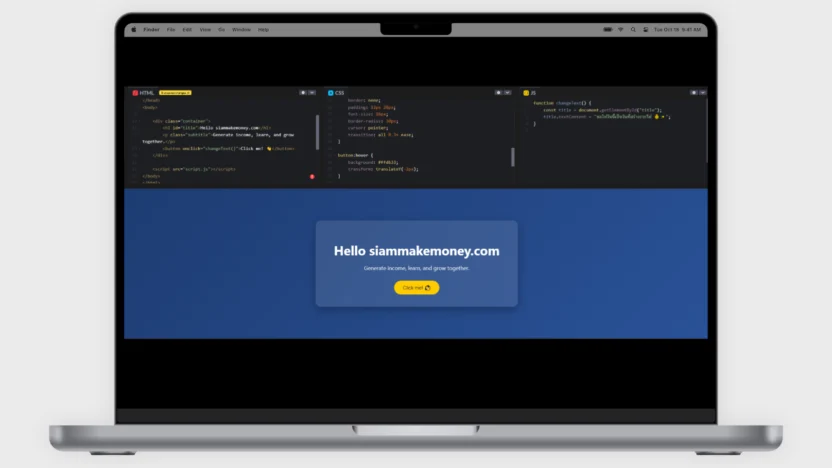
รวมโค้ด HTML CSS JS พื้นฐาน
สารบัญ
แสดง
ลิงค์ในข้อความ และรูปภาพแบบง่าย
ใส่ ลิงก์ในข้อความ
<p>
  Visit my website:
  <a href="https://siammakemoney.com" target="_blank">
    SiamMakeMoney
  </a>
</p>
ใส่ ลิงก์ในรูปภาพ
<a href="https://siammakemoney.com" target="_blank">
  <img src="https://via.placeholder.com/300x200" alt="SiamMakeMoney">
</a>
รูปภาพธรรมดา
<img src="https://via.placeholder.com/300x200" alt="Sample Image">1
ตัวอย่างโค้ด bullet (ลิสต์แบบจุด)
คือแท็ก HTML ที่ใช้สร้างรายการย่อยในลิสต์ ใช้ร่วมกับ (ลิสต์แบบจุด) หรือ (ลิสต์แบบตัวเลข) โดย แต่ละอันคือ 1 ข้อในรายการ เช่น รายการสินค้า เมนู หรือขั้นตอนต่าง ๆ เปรียบเหมือน “ข้อหนึ่งข้อ” ในรายการ ทำให้ข้อมูลดูเป็นระเบียบ อ่านง่าย และเข้าใจได้ชัดเจน
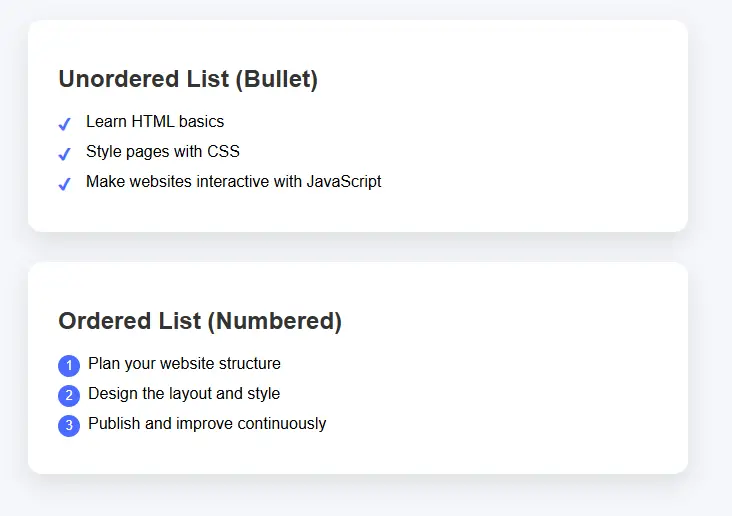
<style>
body {
  font-family: Arial, sans-serif;
  background: #f5f7fa;
  padding: 40px;
}

/* Section box */
.list-box {
  max-width: 600px;
  background: #fff;
  padding: 25px 30px;
  border-radius: 14px;
  box-shadow: 0 10px 25px rgba(0,0,0,0.1);
  margin-bottom: 30px;
}

h2 {
  color: #333;
}

/* Unordered list */
ul.custom-ul {
  list-style: none;
  padding-left: 0;
}

ul.custom-ul li {
  padding-left: 28px;
  margin-bottom: 12px;
  position: relative;
}

ul.custom-ul li::before {
  content: "✔";
  position: absolute;
  left: 0;
  color: #4a6cff;
  font-weight: bold;
}

/* Ordered list */
ol.custom-ol {
  counter-reset: item;
  list-style: none;
  padding-left: 0;
}

ol.custom-ol li {
  counter-increment: item;
  margin-bottom: 12px;
  padding-left: 30px;
  position: relative;
}

ol.custom-ol li::before {
  content: counter(item);
  position: absolute;
  left: 0;
  background: #4a6cff;
  color: #fff;
  width: 22px;
  height: 22px;
  border-radius: 50%;
  text-align: center;
  line-height: 22px;
  font-size: 13px;
}
</style>


<div class="list-box">
  <h2>Unordered List (Bullet)</h2>
  <ul class="custom-ul">
    <li>Learn HTML basics</li>
    <li>Style pages with CSS</li>
    <li>Make websites interactive with JavaScript</li>
  </ul>
</div>

<div class="list-box">
  <h2>Ordered List (Numbered)</h2>
  <ol class="custom-ol">
    <li>Plan your website structure</li>
    <li>Design the layout and style</li>
    <li>Publish and improve continuously</li>
  </ol>
</div>
โค้ด CSS ลบจุด <li> bullet
ลบ bullet สำหรับทุก <ul> และ <ol> ไม่ว่าจะอยู่ที่ไหน
ul, ol {
  list-style: none !important;
  padding-left: 0 !important;
  margin-left: 0 !important;
}
ลบ bullet ที่มาจาก pseudo-elements
li::before {
  content: none !important;
}
2
เพิ่มรูปภาพแบบไอคอน
รูปภาพไอคอน คือรูปขนาดเล็กที่ใช้แทนความหมายหรือการทำงานบางอย่าง เช่น รูปบ้านแทนหน้าแรก รูปแว่นขยายแทนการค้นหา หรือรูปถังขยะแทนการลบ ช่วยให้ผู้ใช้เข้าใจสิ่งที่เว็บหรือแอปต้องการสื่อได้ทันทีโดยไม่ต้องอ่านตัวอักษรเยอะ ทำให้ใช้งานง่าย ดูทันสมัย และสื่อสารได้รวดเร็วครับ
2.1 เพิ่มรูปภาพขนาด 20×20 px แบบง่ายๆ
<img src="https://example.com/icon.png" alt="icon" width="20" height="20">3
Font Awesome ไอคอน
Font Awesome ไอคอน คือชุดไอคอนสำเร็จรูปที่ใช้งานบนเว็บไซต์ โดยมาในรูปแบบตัวอักษรหรือเวกเตอร์ ทำให้ปรับขนาด สี และรูปแบบได้ง่ายเหมือนการปรับฟอนต์ ใช้แทนสัญลักษณ์ต่าง ๆ เช่น ไอคอนบ้าน โทรศัพท์ อีเมล หรือโซเชียลมีเดีย ช่วยให้เว็บดูสวย ทันสมัย และโหลดเร็ว โดยไม่ต้องใช้ไฟล์รูปภาพหลายไฟล์
3.1 เพิ่ม Font Awesome CDN (ถ้ายังไม่มี)
<head>
  <!-- Font Awesome CDN -->
  <link rel="stylesheet" href="https://cdnjs.cloudflare.com/ajax/libs/font-awesome/6.5.0/css/all.min.css">
</head>
3.2 ใส่ไอคอนและปรับขนาด
<i class="fa-solid fa-house" style="font-size:20px;"></i>

<i class="fa-solid fa-star" style="font-size:20px;"></i>
3.3 (ถ้าต้องการ CSS แยกออกมา)
<style>
.icon-small {
  font-size: 20px;
  color: #000;
}
</style>

<i class="fa-solid fa-heart icon-small"></i>
4
iFrame ฝังหน้าเว็บเว็บไซต์อื่น
iframe คือแท็กของ HTML ที่ใช้ฝังหน้าเว็บหรือเนื้อหาจากเว็บไซต์อื่นเข้ามาแสดงในหน้าเว็บของเรา เช่น วิดีโอ YouTube แผนที่ Google Maps หรือเว็บภายนอก เปรียบเหมือนการเอา “หน้าต่างเล็ก ๆ” ของอีกเว็บหนึ่งมาใส่ไว้ในเว็บเรา โดยเนื้อหาข้างในยังมาจากเว็บต้นทาง แต่ผู้ใช้สามารถดูและโต้ตอบได้โดยไม่ต้องออกจากหน้าเว็บนั้น
4.1 iFrame ฝังหน้าเว็บ
<iframe
  src="https://www.example.com"
  width="800"
  height="600">
</iframe>
4.2 iFrame ฝังวิดีโอ Youtube
<iframe
  width="1349"
  height="759"
  src="https://www.youtube.com/embed/DZIASl9q90s"
  frameborder="0"
  allow="accelerometer; autoplay; clipboard-write; encrypted-media; gyroscope; picture-in-picture"
  allowfullscreen>
</iframe>
5
แสดงข้อความอธิบาย (Tooltip)
Tooltip คือกล่องข้อความเล็ก ๆ ที่แสดงคำอธิบายเพิ่มเติมเมื่อผู้ใช้เอาเมาส์ไปชี้หรือแตะที่ข้อความ ไอคอน หรือปุ่มต่าง ๆ โดยไม่รบกวนหน้าจอหลัก ช่วยอธิบายความหมายหรือวิธีใช้งานให้เข้าใจง่ายขึ้น เหมาะสำหรับให้คำแนะนำสั้น ๆ ทำให้เว็บหรือแอปใช้งานง่ายและดูเป็นมืออาชีพมากขึ้น
5.1 Tooltip พื้นฐาน
<style>
.tooltip {
  position: relative;
  cursor: pointer;
  color: #6a5acd;
  font-weight: bold;
}

.tooltip::after {
  content: attr(data-text);
  position: absolute;
  bottom: 140%;
  left: 50%;
  transform: translateX(-50%);
  background: #333;
  color: #fff;
  padding: 8px 12px;
  border-radius: 8px;
  white-space: nowrap;
  opacity: 0;
  pointer-events: none;
  transition: 0.3s;
}

.tooltip::before {
  content: "";
  position: absolute;
  bottom: 120%;
  left: 50%;
  transform: translateX(-50%);
  border: 6px solid transparent;
  border-top-color: #333;
  opacity: 0;
  transition: 0.3s;
}

.tooltip:hover::after,
.tooltip:hover::before {
  opacity: 1;
}
</style>

<p>
  Hover over <span class="tooltip" data-text="HTML defines the structure of a web page">HTML</span>
</p>
5.2 Tooltip Fade + Slide ดูพรีเมียม
<style>
.tooltip-box {
  position: relative;
  display: inline-block;
  color: #009688;
  cursor: pointer;
}

.tooltip-box .tooltip-text {
  position: absolute;
  bottom: 130%;
  left: 50%;
  transform: translateX(-50%) translateY(10px);
  background-color: #009688;
  color: #fff;
  padding: 8px 14px;
  border-radius: 20px;
  opacity: 0;
  white-space: nowrap;
  transition: all 0.3s ease;
}

.tooltip-box:hover .tooltip-text {
  opacity: 1;
  transform: translateX(-50%) translateY(0);
}
</style>

<p>
  Hover over
  <span class="tooltip-box">
    CSS
    <span class="tooltip-text">CSS styles the website</span>
  </span>
</p>
5.3 Tooltip โชว์เมื่อคลิ๊กข้อความ
<style>
.click-tooltip {
  position: relative;
  display: inline-block;
  color: #e91e63;
  cursor: pointer;
}

.click-tooltip .tooltip-content {
  display: none;
  position: absolute;
  top: 120%;
  left: 50%;
  transform: translateX(-50%);
  background-color: #e91e63;
  color: #fff;
  padding: 10px;
  border-radius: 10px;
  white-space: nowrap;
}
</style>

<p>
  <span class="click-tooltip" onclick="toggleTooltip(this)">
    JavaScript
    <span class="tooltip-content">JavaScript makes websites interactive</span>
  </span>
</p>

<script>
function toggleTooltip(element) {
  const tooltip = element.querySelector(".tooltip-content");
  tooltip.style.display = tooltip.style.display === "block" ? "none" : "block";
}
</script>
6
Popup Card คลิกการ์ดป๊อปอัพ
คลิกการ์ดป๊อปอัพ คือรูปแบบการแสดงข้อมูลที่เมื่อผู้ใช้คลิกปุ่ม ข้อความ หรือรูปภาพแล้ว จะมี “การ์ด” เด้งขึ้นมาบนหน้าจอเพื่อโชว์รายละเอียดเพิ่มเติม เช่น รูปภาพ ชื่อ ไอคอน หรือคำอธิบาย โดยไม่ต้องเปลี่ยนหน้าเว็บ ช่วยให้ดูข้อมูลได้สะดวก หน้าตาเว็บไม่รก และทำให้การใช้งานดูทันสมัยและเป็นมืออาชีพ
6.1 คลิกการ์ดป๊อปอัพ (HTML + CSS + JS)
<style>
body {
  font-family: Arial, sans-serif;
  background: #f4f6f8;
  text-align: center;
  padding-top: 100px;
}

/* Button */
.open-btn {
  padding: 12px 24px;
  font-size: 16px;
  background: #4a6cff;
  color: #fff;
  border: none;
  border-radius: 30px;
  cursor: pointer;
}

/* Overlay */
.overlay {
  position: fixed;
  top: 0;
  left: 0;
  width: 100%;
  height: 100%;
  background: rgba(0,0,0,0.5);
  display: none;
  justify-content: center;
  align-items: center;
}

/* Card */
.popup-card {
  background: #fff;
  width: 360px;
  padding: 30px;
  border-radius: 16px;
  box-shadow: 0 20px 40px rgba(0,0,0,0.2);
  animation: pop 0.3s ease;
}

@keyframes pop {
  from {
    transform: scale(0.8);
    opacity: 0;
  }
  to {
    transform: scale(1);
    opacity: 1;
  }
}

/* Close button */
.close-btn {
  margin-top: 20px;
  padding: 8px 18px;
  border: none;
  background: #e91e63;
  color: #fff;
  border-radius: 20px;
  cursor: pointer;
}
</style>


<body>

<button class="open-btn" onclick="openCard()">Click Me</button>

<div class="overlay" id="overlay">
  <div class="popup-card">
    <h2>Hello 👋</h2>
    <p>This is a popup card shown after clicking.</p>
    <button class="close-btn" onclick="closeCard()">Close</button>
  </div>
</div>

<script>
function openCard() {
  document.getElementById("overlay").style.display = "flex";
}

function closeCard() {
  document.getElementById("overlay").style.display = "none";
}
</script>

</body>
6.2 คลิกการ์ดป๊อปอัพที่มีรูปภาพ ไอคอน และคำอธิบาย
<!DOCTYPE html>
<html lang="en">
<head>
<meta charset="UTF-8">
<title>Popup Card with Image</title>

<!-- Font Awesome -->
<link rel="stylesheet" href="https://cdnjs.cloudflare.com/ajax/libs/font-awesome/6.5.0/css/all.min.css">

<style>
body {
  font-family: Arial, sans-serif;
  background: #f2f4f8;
  text-align: center;
  padding-top: 100px;
}

/* Button */
.open-btn {
  padding: 12px 26px;
  background: #4a6cff;
  color: #fff;
  border: none;
  border-radius: 30px;
  font-size: 16px;
  cursor: pointer;
}

/* Overlay */
.overlay {
  position: fixed;
  inset: 0;
  background: rgba(0,0,0,0.5);
  display: none;
  justify-content: center;
  align-items: center;
}

/* Card */
.card {
  background: #fff;
  width: 360px;
  border-radius: 18px;
  overflow: hidden;
  box-shadow: 0 20px 40px rgba(0,0,0,0.25);
  animation: pop 0.3s ease;
}

@keyframes pop {
  from { transform: scale(0.85); opacity: 0; }
  to { transform: scale(1); opacity: 1; }
}

/* Image */
.card img {
  width: 100%;
  height: 200px;
  object-fit: cover;
}

/* Content */
.card-content {
  padding: 24px;
}

.card-content h2 {
  margin: 10px 0;
}

.icon {
  font-size: 32px;
  color: #4a6cff;
}

.description {
  color: #555;
  margin-top: 10px;
  font-size: 15px;
}

/* Close button */
.close-btn {
  margin-top: 20px;
  padding: 8px 20px;
  border: none;
  background: #e91e63;
  color: #fff;
  border-radius: 20px;
  cursor: pointer;
}
</style>
</head>

<body>

<button class="open-btn" onclick="openCard()">Show Card</button>

<div class="overlay" id="overlay" onclick="closeCard()">
  <div class="card" onclick="event.stopPropagation()">

    <img src="https://images.unsplash.com/photo-1522202176988-66273c2fd55f" alt="Image">

    <div class="card-content">
      <div class="icon">
        <i class="fa-solid fa-lightbulb"></i>
      </div>

      <h2>SiamMakeMoney</h2>

      <p class="description">
        Learn digital skills and build online income with practical knowledge.
      </p>

      <button class="close-btn" onclick="closeCard()">Close</button>
    </div>

  </div>
</div>

<script>
function openCard() {
  document.getElementById("overlay").style.display = "flex";
}

function closeCard() {
  document.getElementById("overlay").style.display = "none";
}
</script>

</body>
</html>
6.3 ป๊อปอัพการ์ดที่สวย + เป็นมิตรกับ SEO
<!DOCTYPE html>
<html lang="en">
<head>
<meta charset="UTF-8">
<title>SiamMakeMoney – SEO Friendly Popup</title>
<meta name="description" content="Learn digital skills and build online income with SiamMakeMoney">

<!-- Font Awesome -->
<link rel="stylesheet" href="https://cdnjs.cloudflare.com/ajax/libs/font-awesome/6.5.0/css/all.min.css">

<style>
body {
  font-family: Arial, sans-serif;
  background: #f5f7fa;
  padding: 60px;
  text-align: center;
}

/* Main content */
h1 {
  color: #333;
}

p {
  color: #555;
  max-width: 600px;
  margin: 20px auto;
}

/* Button */
.open-btn {
  padding: 10px 22px;
  border-radius: 25px;
  border: none;
  background: #4a6cff;
  color: #fff;
  cursor: pointer;
  font-size: 15px;
}

/* Overlay */
.popup-overlay {
  position: fixed;
  inset: 0;
  background: rgba(0,0,0,0.5);
  display: none;
  justify-content: center;
  align-items: center;
}

/* Card */
.popup-card {
  background: #fff;
  width: 380px;
  border-radius: 18px;
  overflow: hidden;
  box-shadow: 0 20px 40px rgba(0,0,0,0.25);
  animation: popup 0.3s ease;
}

@keyframes popup {
  from { transform: scale(0.9); opacity: 0; }
  to { transform: scale(1); opacity: 1; }
}

/* Image */
.popup-card img {
  width: 100%;
  height: 200px;
  object-fit: cover;
}

/* Content */
.card-content {
  padding: 24px;
}

.card-content h2 {
  margin: 12px 0;
  color: #333;
}

.icon {
  font-size: 30px;
  color: #4a6cff;
}

.description {
  font-size: 15px;
  color: #555;
  margin-top: 10px;
}

/* Close button */
.close-btn {
  margin-top: 18px;
  padding: 8px 18px;
  border: none;
  background: #e91e63;
  color: #fff;
  border-radius: 20px;
  cursor: pointer;
}
</style>
</head>

<body>

<main>
  <!-- SEO main content -->
  <h1>SiamMakeMoney</h1>
  <p>
    SiamMakeMoney helps people learn digital skills and build sustainable
    online income with practical knowledge.
  </p>

  <button class="open-btn" onclick="openPopup()">Learn More</button>

  <!-- Popup (content already in HTML = SEO friendly) -->
  <section class="popup-overlay" id="popup" onclick="closePopup()">
    <article class="popup-card" onclick="event.stopPropagation()">

      <img src="https://images.unsplash.com/photo-1522202176988-66273c2fd55f" alt="Digital learning">

      <div class="card-content">
        <div class="icon">
          <i class="fa-solid fa-lightbulb"></i>
        </div>

        <h2>Digital Knowledge</h2>

        <p class="description">
          Learn online business, marketing, and digital skills with step-by-step
          guidance designed for real results.
        </p>

        <button class="close-btn" onclick="closePopup()">Close</button>
      </div>

    </article>
  </section>
</main>

<script>
function openPopup() {
  document.getElementById("popup").style.display = "flex";
}

function closePopup() {
  document.getElementById("popup").style.display = "none";
}
</script>

</body>
</html>
6.4 Dynamic Popup Cards (Single HTML File)
<!DOCTYPE html>
<html lang="en">
<head>
<meta charset="UTF-8">
<title>SiamMakeMoney – Dynamic Cards</title>
<meta name="description" content="Learn digital skills and build online income with SiamMakeMoney">

<link rel="stylesheet" href="https://cdnjs.cloudflare.com/ajax/libs/font-awesome/6.5.0/css/all.min.css">

<style>
body {
  font-family: Arial, sans-serif;
  background: #f5f7fa;
  padding: 40px;
  text-align: center;
}

/* Grid */
.card-grid {
  display: grid;
  grid-template-columns: repeat(auto-fit, minmax(220px, 1fr));
  gap: 20px;
  max-width: 900px;
  margin: 40px auto;
}

/* Card item */
.card-item {
  background: #fff;
  padding: 20px;
  border-radius: 16px;
  box-shadow: 0 10px 25px rgba(0,0,0,0.1);
  cursor: pointer;
  transition: transform 0.2s;
}

.card-item:hover {
  transform: translateY(-5px);
}

.card-item i {
  font-size: 32px;
  color: #4a6cff;
}

.card-item h3 {
  margin-top: 10px;
  color: #333;
}

/* Popup */
.popup-overlay {
  position: fixed;
  inset: 0;
  background: rgba(0,0,0,0.5);
  display: none;
  justify-content: center;
  align-items: center;
}

.popup-card {
  background: #fff;
  width: 380px;
  border-radius: 18px;
  overflow: hidden;
  box-shadow: 0 20px 40px rgba(0,0,0,0.25);
  animation: popup 0.3s ease;
}

@keyframes popup {
  from { transform: scale(0.9); opacity: 0; }
  to { transform: scale(1); opacity: 1; }
}

.popup-card img {
  width: 100%;
  height: 200px;
  object-fit: cover;
}

.popup-content {
  padding: 24px;
}

.popup-content h2 {
  margin: 10px 0;
}

.popup-content p {
  color: #555;
}

.close-btn {
  margin-top: 15px;
  padding: 8px 18px;
  border: none;
  background: #e91e63;
  color: #fff;
  border-radius: 20px;
  cursor: pointer;
}
</style>
</head>

<body>

<h1>SiamMakeMoney</h1>
<p>Click a card to learn more</p>

<!-- Cards -->
<div class="card-grid" id="cardGrid"></div>

<!-- Popup -->
<div class="popup-overlay" id="popup" onclick="closePopup()">
  <div class="popup-card" onclick="event.stopPropagation()">
    <img id="popupImage" src="" alt="">
    <div class="popup-content">
      <i id="popupIcon" class=""></i>
      <h2 id="popupTitle"></h2>
      <p id="popupDescription"></p>
      <button class="close-btn" onclick="closePopup()">Close</button>
    </div>
  </div>
</div>

<script>
// Card data (Dynamic)
const cards = [
  {
    title: "Online Business",
    icon: "fa-solid fa-briefcase",
    image: "https://images.unsplash.com/photo-1522202176988-66273c2fd55f",
    description: "Learn how to build and grow online businesses step by step."
  },
  {
    title: "Digital Marketing",
    icon: "fa-solid fa-bullhorn",
    image: "https://images.unsplash.com/photo-1557838923-2985c318be48",
    description: "Understand SEO, ads, and social media marketing strategies."
  },
  {
    title: "Passive Income",
    icon: "fa-solid fa-coins",
    image: "https://images.unsplash.com/photo-1605902711622-cfb43c44367f",
    description: "Create income streams that work for you automatically."
  }
];

// Render cards
const cardGrid = document.getElementById("cardGrid");

cards.forEach((card, index) => {
  const div = document.createElement("div");
  div.className = "card-item";
  div.innerHTML = `
    <i class="${card.icon}"></i>
    <h3>${card.title}</h3>
  `;
  div.onclick = () => openPopup(card);
  cardGrid.appendChild(div);
});

// Popup functions
function openPopup(card) {
  document.getElementById("popupImage").src = card.image;
  document.getElementById("popupImage").alt = card.title;
  document.getElementById("popupIcon").className = card.icon;
  document.getElementById("popupTitle").textContent = card.title;
  document.getElementById("popupDescription").textContent = card.description;
  document.getElementById("popup").style.display = "flex";
}

function closePopup() {
  document.getElementById("popup").style.display = "none";
}
</script>

</body>
</html>
7
โค้ดตารางพื้นฐาน
ตาราง คือรูปแบบการจัดข้อมูลให้อยู่เป็นช่อง ๆ เรียงเป็นแถวและคอลัมน์ เพื่อให้ข้อมูลดูเป็นระเบียบและเปรียบเทียบกันได้ง่าย เช่น ตารางราคา ตารางรายชื่อ หรือผลคะแนน ทำให้ผู้อ่านมองเห็นข้อมูลชัดเจน เข้าใจเร็ว และค้นหาข้อมูลที่ต้องการได้สะดวก
7.1 โค้ดตารางขั้นพื้นฐาน Responsive รองรับทุกอุปกรณ์
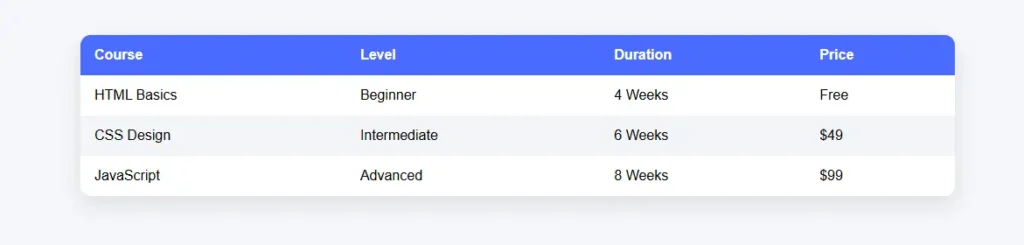
<!DOCTYPE html>
<html lang="en">
<head>
<meta charset="UTF-8">
<title>Responsive Table</title>
<meta name="viewport" content="width=device-width, initial-scale=1.0">

<style>
body {
  font-family: Arial, sans-serif;
  background: #f5f7fa;
  padding: 40px;
}

/* Table wrapper */
.table-container {
  max-width: 1000px;
  margin: auto;
  overflow-x: auto;
  background: #fff;
  border-radius: 12px;
  box-shadow: 0 10px 25px rgba(0,0,0,0.1);
}

/* Table */
table {
  width: 100%;
  border-collapse: collapse;
  min-width: 600px;
}

thead {
  background: #4a6cff;
  color: #fff;
}

th, td {
  padding: 14px 16px;
  text-align: left;
}

th {
  font-weight: bold;
}

tbody tr:nth-child(even) {
  background: #f2f4f8;
}

tbody tr:hover {
  background: #eaf0ff;
}

/* Mobile view */
@media (max-width: 600px) {
  table {
    min-width: 100%;
  }
}
</style>
</head>

<body>

<h2>Course List</h2>

<div class="table-container">
  <table>
    <thead>
      <tr>
        <th>Course</th>
        <th>Level</th>
        <th>Duration</th>
        <th>Price</th>
      </tr>
    </thead>
    <tbody>
      <tr>
        <td>HTML Basics</td>
        <td>Beginner</td>
        <td>4 Weeks</td>
        <td>Free</td>
      </tr>
      <tr>
        <td>CSS Design</td>
        <td>Intermediate</td>
        <td>6 Weeks</td>
        <td>$49</td>
      </tr>
      <tr>
        <td>JavaScript</td>
        <td>Advanced</td>
        <td>8 Weeks</td>
        <td>$99</td>
      </tr>
    </tbody>
  </table>
</div>

</body>
</html>
7.2 ตารางพร้อมไอคอน + ชื่อที่คลิกได้ + ป๊อปอัพ + ปุ่มเว็บไซต์
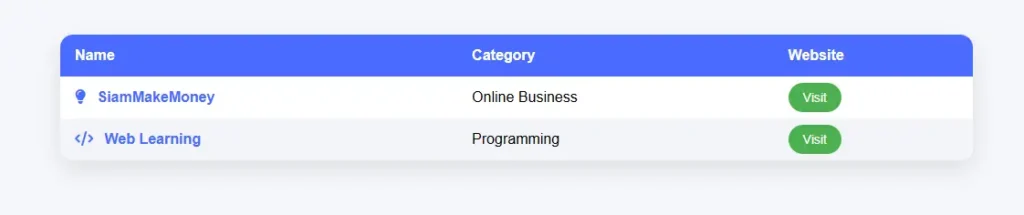
<!DOCTYPE html>
<html lang="en">
<head>
<meta charset="UTF-8">
<title>Interactive Table</title>
<meta name="viewport" content="width=device-width, initial-scale=1.0">

<!-- Font Awesome -->
<link rel="stylesheet" href="https://cdnjs.cloudflare.com/ajax/libs/font-awesome/6.5.0/css/all.min.css">

<style>
body {
  font-family: Arial, sans-serif;
  background: #f5f7fa;
  padding: 40px;
}

/* Table container */
.table-container {
  max-width: 1000px;
  margin: auto;
  overflow-x: auto;
  background: #fff;
  border-radius: 14px;
  box-shadow: 0 10px 25px rgba(0,0,0,0.1);
}

table {
  width: 100%;
  border-collapse: collapse;
  min-width: 700px;
}

thead {
  background: #4a6cff;
  color: #fff;
}

th, td {
  padding: 14px 16px;
  text-align: left;
}

tbody tr:nth-child(even) {
  background: #f2f4f8;
}

/* Name clickable */
.name {
  color: #4a6cff;
  font-weight: bold;
  cursor: pointer;
}

.icon {
  margin-right: 8px;
  color: #4a6cff;
}

/* Button */
.visit-btn {
  padding: 8px 16px;
  background: #4caf50;
  color: #fff;
  text-decoration: none;
  border-radius: 20px;
  font-size: 14px;
}

/* Popup */
.popup-overlay {
  position: fixed;
  inset: 0;
  background: rgba(0,0,0,0.5);
  display: none;
  justify-content: center;
  align-items: center;
}

.popup-card {
  background: #fff;
  width: 360px;
  border-radius: 16px;
  padding: 24px;
  box-shadow: 0 20px 40px rgba(0,0,0,0.25);
  animation: pop 0.3s ease;
}

@keyframes pop {
  from { transform: scale(0.9); opacity: 0; }
  to { transform: scale(1); opacity: 1; }
}

.close-btn {
  margin-top: 16px;
  padding: 8px 18px;
  border: none;
  background: #e91e63;
  color: #fff;
  border-radius: 20px;
  cursor: pointer;
}
</style>
</head>

<body>

<h2>Learning Platforms</h2>

<div class="table-container">
<table>
  <thead>
    <tr>
      <th>Name</th>
      <th>Category</th>
      <th>Website</th>
    </tr>
  </thead>
  <tbody>
    <tr>
      <td>
        <i class="fa-solid fa-lightbulb icon"></i>
        <span class="name" onclick="openPopup('SiamMakeMoney','A platform that teaches digital skills and online income step by step.')">
          SiamMakeMoney
        </span>
      </td>
      <td>Online Business</td>
      <td>
        <a class="visit-btn" href="https://siammakemoney.com" target="_blank">
          Visit
        </a>
      </td>
    </tr>

    <tr>
      <td>
        <i class="fa-solid fa-code icon"></i>
        <span class="name" onclick="openPopup('Web Learning','Learn HTML, CSS, and JavaScript from beginner to advanced.')">
          Web Learning
        </span>
      </td>
      <td>Programming</td>
      <td>
        <a class="visit-btn" href="https://www.w3schools.com" target="_blank">
          Visit
        </a>
      </td>
    </tr>
  </tbody>
</table>
</div>

<!-- Popup -->
<div class="popup-overlay" id="popup" onclick="closePopup()">
  <div class="popup-card" onclick="event.stopPropagation()">
    <h3 id="popupTitle"></h3>
    <p id="popupDescription"></p>
    <button class="close-btn" onclick="closePopup()">Close</button>
  </div>
</div>

<script>
function openPopup(title, description) {
  document.getElementById("popupTitle").textContent = title;
  document.getElementById("popupDescription").textContent = description;
  document.getElementById("popup").style.display = "flex";
}

function closePopup() {
  document.getElementById("popup").style.display = "none";
}
</script>

</body>
</html>
7.3 ตารางพร้อมไอคอน + ชื่อที่คลิกได้ + ป๊อปอัพ + ปุ่มเว็บไซต์
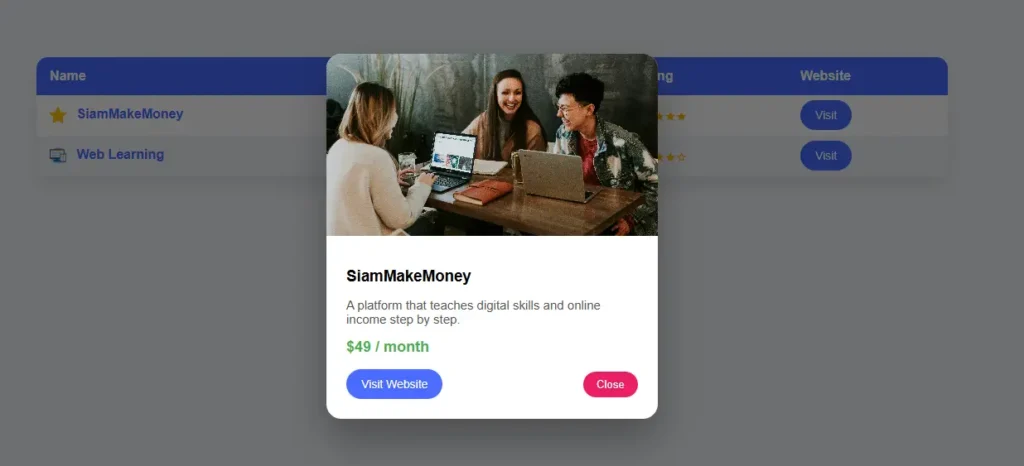
<!DOCTYPE html>
<html lang="en">
<head>
<meta charset="UTF-8">
<title>Advanced Table with Popup</title>
<meta name="viewport" content="width=device-width, initial-scale=1.0">

<style>
body {
  font-family: Arial, sans-serif;
  background: #f5f7fa;
  padding: 40px;
}

/* Table container */
.table-container {
  max-width: 1100px;
  margin: auto;
  overflow-x: auto;
  background: #fff;
  border-radius: 14px;
  box-shadow: 0 10px 25px rgba(0,0,0,0.1);
}

table {
  width: 100%;
  border-collapse: collapse;
  min-width: 800px;
}

thead {
  background: #4a6cff;
  color: #fff;
}

th, td {
  padding: 14px 16px;
  text-align: left;
}

tbody tr:nth-child(even) {
  background: #f2f4f8;
}

/* Icon image */
.icon-img {
  width: 20px;
  height: 20px;
  vertical-align: middle;
  margin-right: 8px;
}

/* Clickable name */
.name {
  color: #4a6cff;
  font-weight: bold;
  cursor: pointer;
}

/* Stars */
.stars {
  color: #ffb400;
  font-size: 16px;
}

/* Popup */
.popup-overlay {
  position: fixed;
  inset: 0;
  background: rgba(0,0,0,0.55);
  display: none;
  justify-content: center;
  align-items: center;
}

.popup-card {
  background: #fff;
  width: 400px;
  border-radius: 18px;
  overflow: hidden;
  box-shadow: 0 25px 50px rgba(0,0,0,0.3);
  animation: popup 0.3s ease;
}

@keyframes popup {
  from { transform: scale(0.9); opacity: 0; }
  to { transform: scale(1); opacity: 1; }
}

.popup-card img {
  width: 100%;
  height: 220px;
  object-fit: cover;
}

.popup-content {
  padding: 24px;
}

.popup-content h3 {
  margin: 10px 0;
}

.popup-content p {
  color: #555;
  font-size: 15px;
}

.price {
  margin: 12px 0;
  font-size: 18px;
  font-weight: bold;
  color: #4caf50;
}

.popup-actions {
  display: flex;
  justify-content: space-between;
  align-items: center;
  margin-top: 16px;
}

.visit-btn {
  padding: 10px 18px;
  background: #4a6cff;
  color: #fff;
  text-decoration: none;
  border-radius: 22px;
  font-size: 14px;
}

.close-btn {
  padding: 8px 16px;
  border: none;
  background: #e91e63;
  color: #fff;
  border-radius: 20px;
  cursor: pointer;
}
</style>
</head>

<body>

<h2>Recommended Platforms</h2>

<div class="table-container">
<table>
  <thead>
    <tr>
      <th>Name</th>
      <th>Category</th>
      <th>Rating</th>
      <th>Website</th>
    </tr>
  </thead>
  <tbody>
    <tr>
      <td>
        <img src="https://cdn-icons-png.flaticon.com/512/1828/1828884.png" class="icon-img" alt="icon">
        <span class="name"
          onclick="openPopup(
            'SiamMakeMoney',
            'https://images.unsplash.com/photo-1522202176988-66273c2fd55f',
            'A platform that teaches digital skills and online income step by step.',
            '$49 / month',
            'https://siammakemoney.com'
          )">
          SiamMakeMoney
        </span>
      </td>
      <td>Online Business</td>
      <td class="stars">★★★★★</td>
      <td>
        <a class="visit-btn" href="https://siammakemoney.com" target="_blank">Visit</a>
      </td>
    </tr>

    <tr>
      <td>
        <img src="https://cdn-icons-png.flaticon.com/512/1055/1055687.png" class="icon-img" alt="icon">
        <span class="name"
          onclick="openPopup(
            'Web Learning',
            'https://images.unsplash.com/photo-1518770660439-4636190af475',
            'Learn HTML, CSS, and JavaScript from beginner to advanced.',
            'Free',
            'https://www.w3schools.com'
          )">
          Web Learning
        </span>
      </td>
      <td>Programming</td>
      <td class="stars">★★★★☆</td>
      <td>
        <a class="visit-btn" href="https://www.w3schools.com" target="_blank">Visit</a>
      </td>
    </tr>
  </tbody>
</table>
</div>

<!-- Popup -->
<div class="popup-overlay" id="popup" onclick="closePopup()">
  <div class="popup-card" onclick="event.stopPropagation()">
    <img id="popupImage" src="" alt="">
    <div class="popup-content">
      <h3 id="popupTitle"></h3>
      <p id="popupDescription"></p>
      <div class="price" id="popupPrice"></div>

      <div class="popup-actions">
        <a id="popupLink" class="visit-btn" href="#" target="_blank">Visit Website</a>
        <button class="close-btn" onclick="closePopup()">Close</button>
      </div>
    </div>
  </div>
</div>

<script>
function openPopup(title, image, description, price, link) {
  document.getElementById("popupTitle").textContent = title;
  document.getElementById("popupImage").src = image;
  document.getElementById("popupDescription").textContent = description;
  document.getElementById("popupPrice").textContent = price;
  document.getElementById("popupLink").href = link;
  document.getElementById("popup").style.display = "flex";
}

function closePopup() {
  document.getElementById("popup").style.display = "none";
}
</script>

</body>
</html>
8
โค้ดปุ่มลิงก์แบบง่ายที่สุด
ปุ่มลิงก์ (Link Button) คือการนำลิงก์เว็บไซต์ที่ปกติเป็นข้อความธรรมดา มาออกแบบให้มีหน้าตาเหมือนปุ่ม เพื่อให้ผู้ใช้มองเห็นชัด น่าคลิก และเข้าใจทันทีว่ากดแล้วจะไปทำอะไร เช่น ไปหน้าเว็บไซต์อื่น สมัครสมาชิก หรือดูรายละเอียดเพิ่มเติม โดยปุ่มลิงก์มักสร้างจาก HTML ร่วมกับ CSS ทำให้ยังคงทำงานเหมือนลิงก์ปกติ (ดีต่อ SEO และใช้งานง่าย) แต่มีรูปลักษณ์สวยงามและช่วยเพิ่มโอกาสให้ผู้ใช้คลิกมากขึ้น
<style>
.btn {
  display: inline-block;
  padding: 12px 24px;
  background: #4a6cff;
  color: #ffffff;
  text-decoration: none;
  border-radius: 25px;
  font-size: 16px;
}
</style>
<a href="https://siammakemoney.com" class="btn" target="_blank">
  Visit Website
</a>
8.1 ปุ่มลิงก์พร้อมเอฟเฟกต์ Hover
<style>
.btn {
  padding: 12px 24px;
  background: #4a6cff;
  color: white;
  text-decoration: none;
  border-radius: 30px;
  transition: 0.3s;
}

.btn:hover {
  background: #324de3;
  transform: translateY(-2px);
}
</style>

<br>
<a href="https://siammakemoney.com" class="btn" target="_blank">
  Visit Website
</a>
9
โค้ดเมนู (Menu Code) คือชุดคำสั่งที่ใช้สร้างแถบเมนูบนเว็บไซต์ เพื่อให้ผู้ใช้งานคลิกนำทางไปยังหน้าต่าง ๆ เช่น หน้าแรก เกี่ยวกับเรา บริการ หรือ ติดต่อเรา โดยทั่วไปโค้ดเมนูจะประกอบด้วย HTML สำหรับโครงสร้างลิงก์, CSS สำหรับตกแต่งให้สวยงาม และอาจมี JavaScript เพื่อเพิ่มความสามารถพิเศษ เช่น เมนูย่อ–ขยายหรือเมนูบนมือถือ ซึ่งโค้ดเมนูช่วยให้เว็บไซต์ใช้งานง่าย เป็นระเบียบ และทำให้ผู้ใช้หาข้อมูลที่ต้องการได้รวดเร็วขึ้น
<!DOCTYPE html>
<html lang="en">
<head>
<meta charset="UTF-8">
<title>Simple Menu</title>
<style>
body {
  margin: 0;
  font-family: Arial, sans-serif;
}

nav {
  background: #4a6cff;
  padding: 12px 24px;
}

nav a {
  color: #fff;
  text-decoration: none;
  margin-right: 20px;
  font-weight: bold;
}
</style>
</head>

<body>

<nav>
  <a href="#">Home</a>
  <a href="#">About</a>
  <a href="#">Services</a>
  <a href="#">Contact</a>
</nav>

</body>
</html>
<!DOCTYPE html>
<html lang="en">
<head>
<meta charset="UTF-8">
<title>Responsive Menu</title>
<meta name="viewport" content="width=device-width, initial-scale=1.0">

<style>
body {
  margin: 0;
  font-family: Arial, sans-serif;
}

nav {
  background: #4a6cff;
  padding: 14px 20px;
  display: flex;
  justify-content: space-between;
  align-items: center;
}

.logo {
  color: #fff;
  font-size: 20px;
  font-weight: bold;
}

.menu {
  display: flex;
  gap: 20px;
}

.menu a {
  color: #fff;
  text-decoration: none;
  font-weight: bold;
}

.menu-btn {
  display: none;
  font-size: 24px;
  color: #fff;
  cursor: pointer;
}

/* Mobile */
@media (max-width: 768px) {
  .menu {
    display: none;
    flex-direction: column;
    background: #4a6cff;
    position: absolute;
    top: 56px;
    right: 0;
    width: 100%;
    text-align: center;
    padding: 20px 0;
  }

  .menu.show {
    display: flex;
  }

  .menu-btn {
    display: block;
  }
}
</style>
</head>

<body>

<nav>
  <div class="logo">MyWebsite</div>

  <div class="menu-btn" onclick="toggleMenu()">☰</div>

  <div class="menu" id="menu">
    <a href="#">Home</a>
    <a href="#">About</a>
    <a href="#">Services</a>
    <a href="#">Contact</a>
  </div>
</nav>

<script>
function toggleMenu() {
  document.getElementById("menu").classList.toggle("show");
}
</script>

</body>
</html>
10
โค้ดกริดการ์ด (Card Grid)
กริดการ์ด (Grid Card) คือรูปแบบการจัดวางเนื้อหาบนเว็บไซต์โดยใช้ “การ์ด” หลายใบเรียงกันเป็นตาราง (กริด) แต่ละการ์ดมักประกอบด้วยรูปภาพ ชื่อ คำอธิบาย และปุ่มหรือข้อมูลสำคัญ เหมาะสำหรับแสดงรายการสินค้า บทความ บริการ หรือคอร์สเรียน ข้อดีของกริดการ์ดคือดูเป็นระเบียบ สวยงาม อ่านง่าย และสามารถปรับจำนวนคอลัมน์อัตโนมัติตามขนาดหน้าจอ ทำให้ใช้งานได้ดีทั้งบนคอมพิวเตอร์และมือถือ
10.1 โค้ดกริดการ์ด (Card Grid – Responsive)
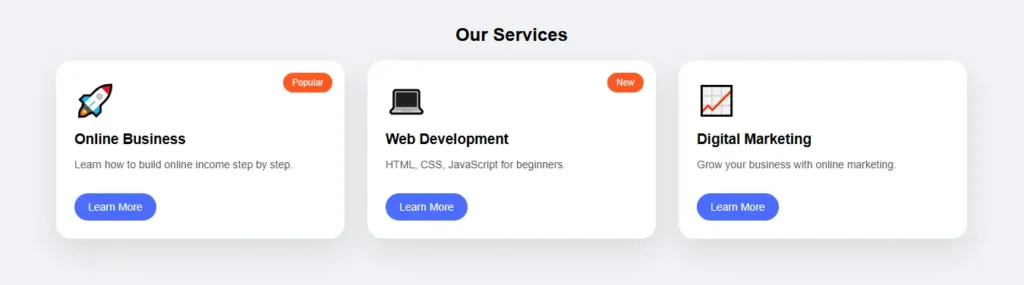
<!DOCTYPE html>
<html lang="en">
<head>
<meta charset="UTF-8">
<title>Beautiful Card Grid</title>
<meta name="viewport" content="width=device-width, initial-scale=1.0">

<style>
body {
  margin: 0;
  padding: 40px;
  font-family: Arial, sans-serif;
  background: #f0f2f5;
}

/* Grid */
.grid {
  max-width: 1200px;
  margin: auto;
  display: grid;
  grid-template-columns: repeat(auto-fit, minmax(280px, 1fr));
  gap: 30px;
}

/* Card */
.card {
  background: #fff;
  border-radius: 20px;
  padding: 24px;
  box-shadow: 0 15px 35px rgba(0,0,0,0.1);
  position: relative;
  transition: 0.3s;
}

.card:hover {
  transform: translateY(-8px);
  box-shadow: 0 25px 50px rgba(0,0,0,0.15);
}

/* Badge */
.badge {
  position: absolute;
  top: 16px;
  right: 16px;
  background: #ff5722;
  color: #fff;
  font-size: 12px;
  padding: 6px 12px;
  border-radius: 20px;
}

/* Icon */
.icon {
  font-size: 40px;
  margin-bottom: 16px;
}

/* Content */
.card h3 {
  margin: 0 0 10px;
}

.card p {
  font-size: 14px;
  color: #555;
}

/* Button */
.card a {
  display: inline-block;
  margin-top: 16px;
  padding: 10px 18px;
  background: #4a6cff;
  color: #fff;
  text-decoration: none;
  border-radius: 24px;
  font-size: 14px;
}
</style>
</head>

<body>

<h2 style="text-align:center;">Our Services</h2>

<div class="grid">

  <div class="card">
    <span class="badge">Popular</span>
    <div class="icon">🚀</div>
    <h3>Online Business</h3>
    <p>Learn how to build online income step by step.</p>
    <a href="#">Learn More</a>
  </div>

  <div class="card">
    <span class="badge">New</span>
    <div class="icon">💻</div>
    <h3>Web Development</h3>
    <p>HTML, CSS, JavaScript for beginners.</p>
    <a href="#">Learn More</a>
  </div>

  <div class="card">
    <div class="icon">📈</div>
    <h3>Digital Marketing</h3>
    <p>Grow your business with online marketing.</p>
    <a href="#">Learn More</a>
  </div>

</div>

</body>
</html>


 Thai
Thai  English
  Japanese
  Korean
  German
  French
  Russian
  Spanish
  Chinese
  Hindi
Hindi