

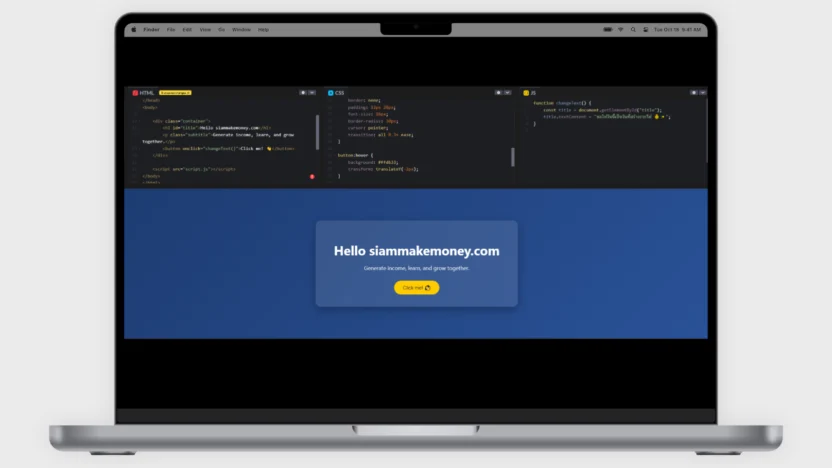
Includes basic HTML CSS JS code
list of contents
show
link in text and simple pictures
Enter a link in a message.
<p>
  Visit my website:
  <a href="https://siammakemoney.com" target="_blank">
    SiamMakeMoney
  </a>
</p>
Add a link in the picture.
<a href="https://siammakemoney.com" target="_blank">
  <img src="https://via.placeholder.com/300x200" alt="SiamMakeMoney">
</a>
ordinary pictures
<img src="https://via.placeholder.com/300x200" alt="Sample Image">1
Bullet code example (dot list)
It is an HTML tag used to create a sublist in the list. It is used in conjunction with (dot-list) or (number-listed list). and clearly understandable
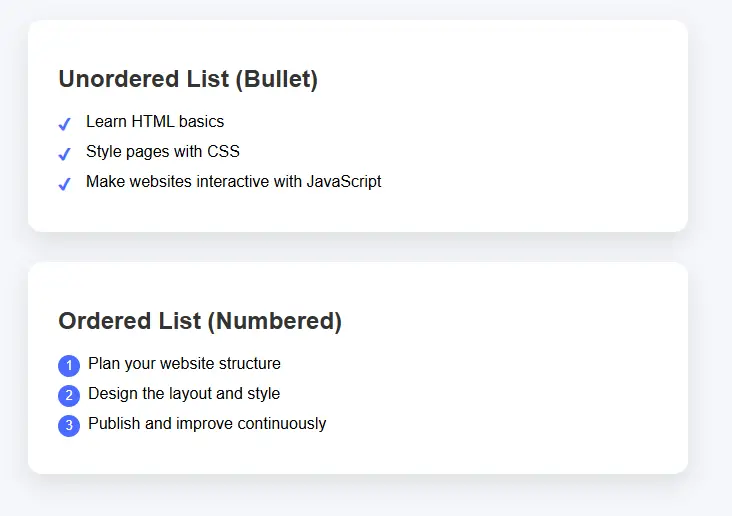
<style>
body {
  font-family: Arial, sans-serif;
  background: #f5f7fa;
  padding: 40px;
}

/* Section box */
.list-box {
  max-width: 600px;
  background: #fff;
  padding: 25px 30px;
  border-radius: 14px;
  box-shadow: 0 10px 25px rgba(0,0,0,0.1);
  margin-bottom: 30px;
}

h2 {
  color: #333;
}

/* Unordered list */
ul.custom-ul {
  list-style: none;
  padding-left: 0;
}

ul.custom-ul li {
  padding-left: 28px;
  margin-bottom: 12px;
  position: relative;
}

ul.custom-ul li::before {
  content: "✔";
  position: absolute;
  left: 0;
  color: #4a6cff;
  font-weight: bold;
}

/* Ordered list */
ol.custom-ol {
  counter-reset: item;
  list-style: none;
  padding-left: 0;
}

ol.custom-ol li {
  counter-increment: item;
  margin-bottom: 12px;
  padding-left: 30px;
  position: relative;
}

ol.custom-ol li::before {
  content: counter(item);
  position: absolute;
  left: 0;
  background: #4a6cff;
  color: #fff;
  width: 22px;
  height: 22px;
  border-radius: 50%;
  text-align: center;
  line-height: 22px;
  font-size: 13px;
}
</style>


<div class="list-box">
  <h2>Unordered List (Bullet)</h2>
  <ul class="custom-ul">
    <li>Learn HTML basics</li>
    <li>Style pages with CSS</li>
    <li>Make websites interactive with JavaScript</li>
  </ul>
</div>

<div class="list-box">
  <h2>Ordered List (Numbered)</h2>
  <ol class="custom-ol">
    <li>Plan your website structure</li>
    <li>Design the layout and style</li>
    <li>Publish and improve continuously</li>
  </ol>
</div>
css code delete point <li> bullet
Delete Bullet for all <ul> and <ol> no matter where
ul, ol {
  list-style: none !important;
  padding-left: 0 !important;
  margin-left: 0 !important;
}
Delete Bullet from Pseudo-Elements
li::before {
  content: none !important;
}
2
Add an icon image
Icon is a small image that represents a meaning or some function, such as a house instead of the first page. Magnifier image instead of searching or a trash bin instead of deletion It helps users to understand what the web or app wants to convey immediately without having to read a lot of letters. Make it easy to use, look modern and communicate quickly.
2.1 Add a simple 20×20 px image.
<img src="https://example.com/icon.png" alt="icon" width="20" height="20">3
Font Awesome Icon
Font Awesome Icon is a set of ready-made icons used on the website. It comes in the form of letters or vectors. Makes it easy to adjust the size, color and pattern like adjusting the font. Use it in place of symbols such as home icons, phones, emails, or social media. Help the website look beautiful, modern and fast loading without having to use multiple image files.
3.1 Add Awesome CDN Font (if not yet)
<head>
  <!-- Font Awesome CDN -->
  <link rel="stylesheet" href="https://cdnjs.cloudflare.com/ajax/libs/font-awesome/6.5.0/css/all.min.css">
</head>
3.2 Insert icon and resize
<i class="fa-solid fa-house" style="font-size:20px;"></i>

<i class="fa-solid fa-star" style="font-size:20px;"></i>
3.3 (if need separate CSS)
<style>
.icon-small {
  font-size: 20px;
  color: #000;
}
</style>

<i class="fa-solid fa-heart icon-small"></i>
4
iframe embeds another web page
Iframe is a tag of HTML that is used to embed web pages or content from other websites to show on our web pages such as YouTube videos, maps, Google Maps or external websites. like taking “Small windows” of another website to put on our website. The content inside is also from the original website. But users can view and interact without leaving that web page.
4.1 Iframe embeds a web page
<iframe
  src="https://www.example.com"
  width="800"
  height="600">
</iframe>
4.2 Iframe Embed YouTube Videos
<iframe
  width="1349"
  height="759"
  src="https://www.youtube.com/embed/DZIASl9q90s"
  frameborder="0"
  allow="accelerometer; autoplay; clipboard-write; encrypted-media; gyroscope; picture-in-picture"
  allowfullscreen>
</iframe>
5
Show a description (tooltip)
Tooltip is a small text box that displays an additional explanation when the user points the mouse or taps on a text, icon or button without disturbing the home screen. Help explain the meaning or how to use it to be easier to understand. Great for providing a short guide, making the web or app easy to use and look more professional.
5.1 Basic Tooltip
<style>
.tooltip {
  position: relative;
  cursor: pointer;
  color: #6a5acd;
  font-weight: bold;
}

.tooltip::after {
  content: attr(data-text);
  position: absolute;
  bottom: 140%;
  left: 50%;
  transform: translateX(-50%);
  background: #333;
  color: #fff;
  padding: 8px 12px;
  border-radius: 8px;
  white-space: nowrap;
  opacity: 0;
  pointer-events: none;
  transition: 0.3s;
}

.tooltip::before {
  content: "";
  position: absolute;
  bottom: 120%;
  left: 50%;
  transform: translateX(-50%);
  border: 6px solid transparent;
  border-top-color: #333;
  opacity: 0;
  transition: 0.3s;
}

.tooltip:hover::after,
.tooltip:hover::before {
  opacity: 1;
}
</style>

<p>
  Hover over <span class="tooltip" data-text="HTML defines the structure of a web page">HTML</span>
</p>
5.2 Tooltip Fade + Slide Premium View
<style>
.tooltip-box {
  position: relative;
  display: inline-block;
  color: #009688;
  cursor: pointer;
}

.tooltip-box .tooltip-text {
  position: absolute;
  bottom: 130%;
  left: 50%;
  transform: translateX(-50%) translateY(10px);
  background-color: #009688;
  color: #fff;
  padding: 8px 14px;
  border-radius: 20px;
  opacity: 0;
  white-space: nowrap;
  transition: all 0.3s ease;
}

.tooltip-box:hover .tooltip-text {
  opacity: 1;
  transform: translateX(-50%) translateY(0);
}
</style>

<p>
  Hover over
  <span class="tooltip-box">
    CSS
    <span class="tooltip-text">CSS styles the website</span>
  </span>
</p>
5.3 Tooltip shows when clicking a message.
<style>
.click-tooltip {
  position: relative;
  display: inline-block;
  color: #e91e63;
  cursor: pointer;
}

.click-tooltip .tooltip-content {
  display: none;
  position: absolute;
  top: 120%;
  left: 50%;
  transform: translateX(-50%);
  background-color: #e91e63;
  color: #fff;
  padding: 10px;
  border-radius: 10px;
  white-space: nowrap;
}
</style>

<p>
  <span class="click-tooltip" onclick="toggleTooltip(this)">
    JavaScript
    <span class="tooltip-content">JavaScript makes websites interactive</span>
  </span>
</p>

<script>
function toggleTooltip(element) {
  const tooltip = element.querySelector(".tooltip-content");
  tooltip.style.display = tooltip.style.display === "block" ? "none" : "block";
}
</script>
6
Popup Card Click Pop-up Card
Click the pop-up card. It is a format for displaying information that when a user clicks a button, text or image, a “card” will pop up on the screen to show more details such as pictures, names, icons or descriptions without having to change the web page. Helping to view information conveniently The web looks not cluttered. and make the use look modern and professional
6.1 Click Pop-up Card (HTML + CSS + JS)
<style>
body {
  font-family: Arial, sans-serif;
  background: #f4f6f8;
  text-align: center;
  padding-top: 100px;
}

/* Button */
.open-btn {
  padding: 12px 24px;
  font-size: 16px;
  background: #4a6cff;
  color: #fff;
  border: none;
  border-radius: 30px;
  cursor: pointer;
}

/* Overlay */
.overlay {
  position: fixed;
  top: 0;
  left: 0;
  width: 100%;
  height: 100%;
  background: rgba(0,0,0,0.5);
  display: none;
  justify-content: center;
  align-items: center;
}

/* Card */
.popup-card {
  background: #fff;
  width: 360px;
  padding: 30px;
  border-radius: 16px;
  box-shadow: 0 20px 40px rgba(0,0,0,0.2);
  animation: pop 0.3s ease;
}

@keyframes pop {
  from {
    transform: scale(0.8);
    opacity: 0;
  }
  to {
    transform: scale(1);
    opacity: 1;
  }
}

/* Close button */
.close-btn {
  margin-top: 20px;
  padding: 8px 18px;
  border: none;
  background: #e91e63;
  color: #fff;
  border-radius: 20px;
  cursor: pointer;
}
</style>


<body>

<button class="open-btn" onclick="openCard()">Click Me</button>

<div class="overlay" id="overlay">
  <div class="popup-card">
    <h2>Hello 👋</h2>
    <p>This is a popup card shown after clicking.</p>
    <button class="close-btn" onclick="closeCard()">Close</button>
  </div>
</div>

<script>
function openCard() {
  document.getElementById("overlay").style.display = "flex";
}

function closeCard() {
  document.getElementById("overlay").style.display = "none";
}
</script>

</body>
6.2 Click a pop-up card with pictures, icons and descriptions.
<!DOCTYPE html>
<html lang="en">
<head>
<meta charset="UTF-8">
<title>Popup Card with Image</title>

<!-- Font Awesome -->
<link rel="stylesheet" href="https://cdnjs.cloudflare.com/ajax/libs/font-awesome/6.5.0/css/all.min.css">

<style>
body {
  font-family: Arial, sans-serif;
  background: #f2f4f8;
  text-align: center;
  padding-top: 100px;
}

/* Button */
.open-btn {
  padding: 12px 26px;
  background: #4a6cff;
  color: #fff;
  border: none;
  border-radius: 30px;
  font-size: 16px;
  cursor: pointer;
}

/* Overlay */
.overlay {
  position: fixed;
  inset: 0;
  background: rgba(0,0,0,0.5);
  display: none;
  justify-content: center;
  align-items: center;
}

/* Card */
.card {
  background: #fff;
  width: 360px;
  border-radius: 18px;
  overflow: hidden;
  box-shadow: 0 20px 40px rgba(0,0,0,0.25);
  animation: pop 0.3s ease;
}

@keyframes pop {
  from { transform: scale(0.85); opacity: 0; }
  to { transform: scale(1); opacity: 1; }
}

/* Image */
.card img {
  width: 100%;
  height: 200px;
  object-fit: cover;
}

/* Content */
.card-content {
  padding: 24px;
}

.card-content h2 {
  margin: 10px 0;
}

.icon {
  font-size: 32px;
  color: #4a6cff;
}

.description {
  color: #555;
  margin-top: 10px;
  font-size: 15px;
}

/* Close button */
.close-btn {
  margin-top: 20px;
  padding: 8px 20px;
  border: none;
  background: #e91e63;
  color: #fff;
  border-radius: 20px;
  cursor: pointer;
}
</style>
</head>

<body>

<button class="open-btn" onclick="openCard()">Show Card</button>

<div class="overlay" id="overlay" onclick="closeCard()">
  <div class="card" onclick="event.stopPropagation()">

    <img src="https://images.unsplash.com/photo-1522202176988-66273c2fd55f" alt="Image">

    <div class="card-content">
      <div class="icon">
        <i class="fa-solid fa-lightbulb"></i>
      </div>

      <h2>SiamMakeMoney</h2>

      <p class="description">
        Learn digital skills and build online income with practical knowledge.
      </p>

      <button class="close-btn" onclick="closeCard()">Close</button>
    </div>

  </div>
</div>

<script>
function openCard() {
  document.getElementById("overlay").style.display = "flex";
}

function closeCard() {
  document.getElementById("overlay").style.display = "none";
}
</script>

</body>
</html>
6.3 Beautiful Popup Card + SEO Friendly
<!DOCTYPE html>
<html lang="en">
<head>
<meta charset="UTF-8">
<title>SiamMakeMoney – SEO Friendly Popup</title>
<meta name="description" content="Learn digital skills and build online income with SiamMakeMoney">

<!-- Font Awesome -->
<link rel="stylesheet" href="https://cdnjs.cloudflare.com/ajax/libs/font-awesome/6.5.0/css/all.min.css">

<style>
body {
  font-family: Arial, sans-serif;
  background: #f5f7fa;
  padding: 60px;
  text-align: center;
}

/* Main content */
h1 {
  color: #333;
}

p {
  color: #555;
  max-width: 600px;
  margin: 20px auto;
}

/* Button */
.open-btn {
  padding: 10px 22px;
  border-radius: 25px;
  border: none;
  background: #4a6cff;
  color: #fff;
  cursor: pointer;
  font-size: 15px;
}

/* Overlay */
.popup-overlay {
  position: fixed;
  inset: 0;
  background: rgba(0,0,0,0.5);
  display: none;
  justify-content: center;
  align-items: center;
}

/* Card */
.popup-card {
  background: #fff;
  width: 380px;
  border-radius: 18px;
  overflow: hidden;
  box-shadow: 0 20px 40px rgba(0,0,0,0.25);
  animation: popup 0.3s ease;
}

@keyframes popup {
  from { transform: scale(0.9); opacity: 0; }
  to { transform: scale(1); opacity: 1; }
}

/* Image */
.popup-card img {
  width: 100%;
  height: 200px;
  object-fit: cover;
}

/* Content */
.card-content {
  padding: 24px;
}

.card-content h2 {
  margin: 12px 0;
  color: #333;
}

.icon {
  font-size: 30px;
  color: #4a6cff;
}

.description {
  font-size: 15px;
  color: #555;
  margin-top: 10px;
}

/* Close button */
.close-btn {
  margin-top: 18px;
  padding: 8px 18px;
  border: none;
  background: #e91e63;
  color: #fff;
  border-radius: 20px;
  cursor: pointer;
}
</style>
</head>

<body>

<main>
  <!-- SEO main content -->
  <h1>SiamMakeMoney</h1>
  <p>
    SiamMakeMoney helps people learn digital skills and build sustainable
    online income with practical knowledge.
  </p>

  <button class="open-btn" onclick="openPopup()">Learn More</button>

  <!-- Popup (content already in HTML = SEO friendly) -->
  <section class="popup-overlay" id="popup" onclick="closePopup()">
    <article class="popup-card" onclick="event.stopPropagation()">

      <img src="https://images.unsplash.com/photo-1522202176988-66273c2fd55f" alt="Digital learning">

      <div class="card-content">
        <div class="icon">
          <i class="fa-solid fa-lightbulb"></i>
        </div>

        <h2>Digital Knowledge</h2>

        <p class="description">
          Learn online business, marketing, and digital skills with step-by-step
          guidance designed for real results.
        </p>

        <button class="close-btn" onclick="closePopup()">Close</button>
      </div>

    </article>
  </section>
</main>

<script>
function openPopup() {
  document.getElementById("popup").style.display = "flex";
}

function closePopup() {
  document.getElementById("popup").style.display = "none";
}
</script>

</body>
</html>
6.4 Dynamic Popup Cards (Single HTML File)
<!DOCTYPE html>
<html lang="en">
<head>
<meta charset="UTF-8">
<title>SiamMakeMoney – Dynamic Cards</title>
<meta name="description" content="Learn digital skills and build online income with SiamMakeMoney">

<link rel="stylesheet" href="https://cdnjs.cloudflare.com/ajax/libs/font-awesome/6.5.0/css/all.min.css">

<style>
body {
  font-family: Arial, sans-serif;
  background: #f5f7fa;
  padding: 40px;
  text-align: center;
}

/* Grid */
.card-grid {
  display: grid;
  grid-template-columns: repeat(auto-fit, minmax(220px, 1fr));
  gap: 20px;
  max-width: 900px;
  margin: 40px auto;
}

/* Card item */
.card-item {
  background: #fff;
  padding: 20px;
  border-radius: 16px;
  box-shadow: 0 10px 25px rgba(0,0,0,0.1);
  cursor: pointer;
  transition: transform 0.2s;
}

.card-item:hover {
  transform: translateY(-5px);
}

.card-item i {
  font-size: 32px;
  color: #4a6cff;
}

.card-item h3 {
  margin-top: 10px;
  color: #333;
}

/* Popup */
.popup-overlay {
  position: fixed;
  inset: 0;
  background: rgba(0,0,0,0.5);
  display: none;
  justify-content: center;
  align-items: center;
}

.popup-card {
  background: #fff;
  width: 380px;
  border-radius: 18px;
  overflow: hidden;
  box-shadow: 0 20px 40px rgba(0,0,0,0.25);
  animation: popup 0.3s ease;
}

@keyframes popup {
  from { transform: scale(0.9); opacity: 0; }
  to { transform: scale(1); opacity: 1; }
}

.popup-card img {
  width: 100%;
  height: 200px;
  object-fit: cover;
}

.popup-content {
  padding: 24px;
}

.popup-content h2 {
  margin: 10px 0;
}

.popup-content p {
  color: #555;
}

.close-btn {
  margin-top: 15px;
  padding: 8px 18px;
  border: none;
  background: #e91e63;
  color: #fff;
  border-radius: 20px;
  cursor: pointer;
}
</style>
</head>

<body>

<h1>SiamMakeMoney</h1>
<p>Click a card to learn more</p>

<!-- Cards -->
<div class="card-grid" id="cardGrid"></div>

<!-- Popup -->
<div class="popup-overlay" id="popup" onclick="closePopup()">
  <div class="popup-card" onclick="event.stopPropagation()">
    <img id="popupImage" src="" alt="">
    <div class="popup-content">
      <i id="popupIcon" class=""></i>
      <h2 id="popupTitle"></h2>
      <p id="popupDescription"></p>
      <button class="close-btn" onclick="closePopup()">Close</button>
    </div>
  </div>
</div>

<script>
// Card data (Dynamic)
const cards = [
  {
    title: "Online Business",
    icon: "fa-solid fa-briefcase",
    image: "https://images.unsplash.com/photo-1522202176988-66273c2fd55f",
    description: "Learn how to build and grow online businesses step by step."
  },
  {
    title: "Digital Marketing",
    icon: "fa-solid fa-bullhorn",
    image: "https://images.unsplash.com/photo-1557838923-2985c318be48",
    description: "Understand SEO, ads, and social media marketing strategies."
  },
  {
    title: "Passive Income",
    icon: "fa-solid fa-coins",
    image: "https://images.unsplash.com/photo-1605902711622-cfb43c44367f",
    description: "Create income streams that work for you automatically."
  }
];

// Render cards
const cardGrid = document.getElementById("cardGrid");

cards.forEach((card, index) => {
  const div = document.createElement("div");
  div.className = "card-item";
  div.innerHTML = `
    <i class="${card.icon}"></i>
    <h3>${card.title}</h3>
  `;
  div.onclick = () => openPopup(card);
  cardGrid.appendChild(div);
});

// Popup functions
function openPopup(card) {
  document.getElementById("popupImage").src = card.image;
  document.getElementById("popupImage").alt = card.title;
  document.getElementById("popupIcon").className = card.icon;
  document.getElementById("popupTitle").textContent = card.title;
  document.getElementById("popupDescription").textContent = card.description;
  document.getElementById("popup").style.display = "flex";
}

function closePopup() {
  document.getElementById("popup").style.display = "none";
}
</script>

</body>
</html>
7
Basic table code
A table is a format for arranging data into fields, arranged in rows and columns. To make the information look organized and easy to compare, such as a price table, a list table, or score results, allowing readers to see the information clearly, understand quickly and find the information they want easily.
7.1 Basic Responsive Table Code Supports All Devices
<!DOCTYPE html>
<html lang="en">
<head>
<meta charset="UTF-8">
<title>Responsive Table</title>
<meta name="viewport" content="width=device-width, initial-scale=1.0">

<style>
body {
  font-family: Arial, sans-serif;
  background: #f5f7fa;
  padding: 40px;
}

/* Table wrapper */
.table-container {
  max-width: 1000px;
  margin: auto;
  overflow-x: auto;
  background: #fff;
  border-radius: 12px;
  box-shadow: 0 10px 25px rgba(0,0,0,0.1);
}

/* Table */
table {
  width: 100%;
  border-collapse: collapse;
  min-width: 600px;
}

thead {
  background: #4a6cff;
  color: #fff;
}

th, td {
  padding: 14px 16px;
  text-align: left;
}

th {
  font-weight: bold;
}

tbody tr:nth-child(even) {
  background: #f2f4f8;
}

tbody tr:hover {
  background: #eaf0ff;
}

/* Mobile view */
@media (max-width: 600px) {
  table {
    min-width: 100%;
  }
}
</style>
</head>

<body>

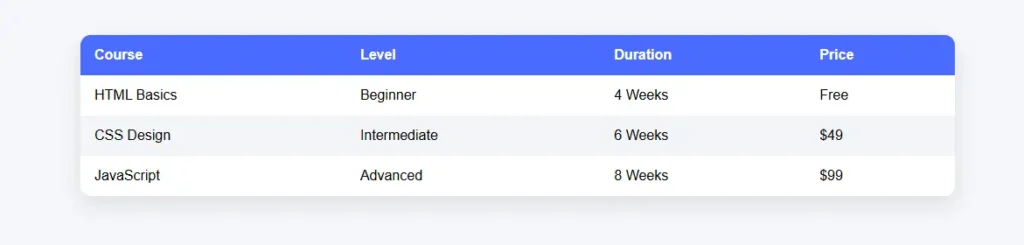
<h2>Course List</h2>

<div class="table-container">
  <table>
    <thead>
      <tr>
        <th>Course</th>
        <th>Level</th>
        <th>Duration</th>
        <th>Price</th>
      </tr>
    </thead>
    <tbody>
      <tr>
        <td>HTML Basics</td>
        <td>Beginner</td>
        <td>4 Weeks</td>
        <td>Free</td>
      </tr>
      <tr>
        <td>CSS Design</td>
        <td>Intermediate</td>
        <td>6 Weeks</td>
        <td>$49</td>
      </tr>
      <tr>
        <td>JavaScript</td>
        <td>Advanced</td>
        <td>8 Weeks</td>
        <td>$99</td>
      </tr>
    </tbody>
  </table>
</div>

</body>
</html>
7.2 Tables with icons + clickable names + pop-ups + website buttons
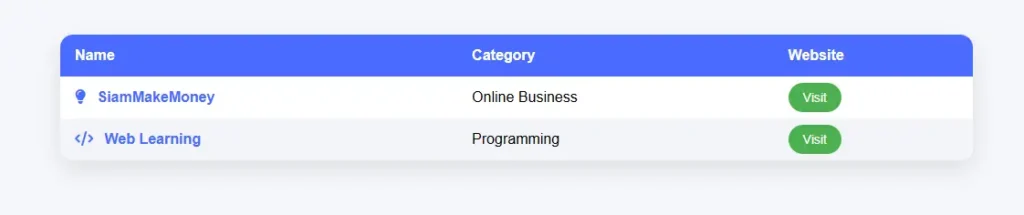
<!DOCTYPE html>
<html lang="en">
<head>
<meta charset="UTF-8">
<title>Interactive Table</title>
<meta name="viewport" content="width=device-width, initial-scale=1.0">

<!-- Font Awesome -->
<link rel="stylesheet" href="https://cdnjs.cloudflare.com/ajax/libs/font-awesome/6.5.0/css/all.min.css">

<style>
body {
  font-family: Arial, sans-serif;
  background: #f5f7fa;
  padding: 40px;
}

/* Table container */
.table-container {
  max-width: 1000px;
  margin: auto;
  overflow-x: auto;
  background: #fff;
  border-radius: 14px;
  box-shadow: 0 10px 25px rgba(0,0,0,0.1);
}

table {
  width: 100%;
  border-collapse: collapse;
  min-width: 700px;
}

thead {
  background: #4a6cff;
  color: #fff;
}

th, td {
  padding: 14px 16px;
  text-align: left;
}

tbody tr:nth-child(even) {
  background: #f2f4f8;
}

/* Name clickable */
.name {
  color: #4a6cff;
  font-weight: bold;
  cursor: pointer;
}

.icon {
  margin-right: 8px;
  color: #4a6cff;
}

/* Button */
.visit-btn {
  padding: 8px 16px;
  background: #4caf50;
  color: #fff;
  text-decoration: none;
  border-radius: 20px;
  font-size: 14px;
}

/* Popup */
.popup-overlay {
  position: fixed;
  inset: 0;
  background: rgba(0,0,0,0.5);
  display: none;
  justify-content: center;
  align-items: center;
}

.popup-card {
  background: #fff;
  width: 360px;
  border-radius: 16px;
  padding: 24px;
  box-shadow: 0 20px 40px rgba(0,0,0,0.25);
  animation: pop 0.3s ease;
}

@keyframes pop {
  from { transform: scale(0.9); opacity: 0; }
  to { transform: scale(1); opacity: 1; }
}

.close-btn {
  margin-top: 16px;
  padding: 8px 18px;
  border: none;
  background: #e91e63;
  color: #fff;
  border-radius: 20px;
  cursor: pointer;
}
</style>
</head>

<body>

<h2>Learning Platforms</h2>

<div class="table-container">
<table>
  <thead>
    <tr>
      <th>Name</th>
      <th>Category</th>
      <th>Website</th>
    </tr>
  </thead>
  <tbody>
    <tr>
      <td>
        <i class="fa-solid fa-lightbulb icon"></i>
        <span class="name" onclick="openPopup('SiamMakeMoney','A platform that teaches digital skills and online income step by step.')">
          SiamMakeMoney
        </span>
      </td>
      <td>Online Business</td>
      <td>
        <a class="visit-btn" href="https://siammakemoney.com" target="_blank">
          Visit
        </a>
      </td>
    </tr>

    <tr>
      <td>
        <i class="fa-solid fa-code icon"></i>
        <span class="name" onclick="openPopup('Web Learning','Learn HTML, CSS, and JavaScript from beginner to advanced.')">
          Web Learning
        </span>
      </td>
      <td>Programming</td>
      <td>
        <a class="visit-btn" href="https://www.w3schools.com" target="_blank">
          Visit
        </a>
      </td>
    </tr>
  </tbody>
</table>
</div>

<!-- Popup -->
<div class="popup-overlay" id="popup" onclick="closePopup()">
  <div class="popup-card" onclick="event.stopPropagation()">
    <h3 id="popupTitle"></h3>
    <p id="popupDescription"></p>
    <button class="close-btn" onclick="closePopup()">Close</button>
  </div>
</div>

<script>
function openPopup(title, description) {
  document.getElementById("popupTitle").textContent = title;
  document.getElementById("popupDescription").textContent = description;
  document.getElementById("popup").style.display = "flex";
}

function closePopup() {
  document.getElementById("popup").style.display = "none";
}
</script>

</body>
</html>
7.3 Tables with icons + clickable names + pop-ups + website buttons
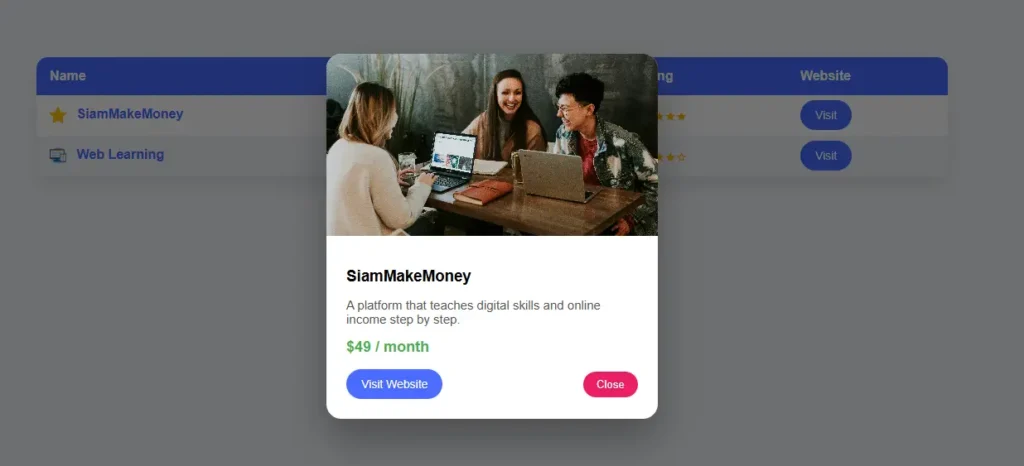
<!DOCTYPE html>
<html lang="en">
<head>
<meta charset="UTF-8">
<title>Advanced Table with Popup</title>
<meta name="viewport" content="width=device-width, initial-scale=1.0">

<style>
body {
  font-family: Arial, sans-serif;
  background: #f5f7fa;
  padding: 40px;
}

/* Table container */
.table-container {
  max-width: 1100px;
  margin: auto;
  overflow-x: auto;
  background: #fff;
  border-radius: 14px;
  box-shadow: 0 10px 25px rgba(0,0,0,0.1);
}

table {
  width: 100%;
  border-collapse: collapse;
  min-width: 800px;
}

thead {
  background: #4a6cff;
  color: #fff;
}

th, td {
  padding: 14px 16px;
  text-align: left;
}

tbody tr:nth-child(even) {
  background: #f2f4f8;
}

/* Icon image */
.icon-img {
  width: 20px;
  height: 20px;
  vertical-align: middle;
  margin-right: 8px;
}

/* Clickable name */
.name {
  color: #4a6cff;
  font-weight: bold;
  cursor: pointer;
}

/* Stars */
.stars {
  color: #ffb400;
  font-size: 16px;
}

/* Popup */
.popup-overlay {
  position: fixed;
  inset: 0;
  background: rgba(0,0,0,0.55);
  display: none;
  justify-content: center;
  align-items: center;
}

.popup-card {
  background: #fff;
  width: 400px;
  border-radius: 18px;
  overflow: hidden;
  box-shadow: 0 25px 50px rgba(0,0,0,0.3);
  animation: popup 0.3s ease;
}

@keyframes popup {
  from { transform: scale(0.9); opacity: 0; }
  to { transform: scale(1); opacity: 1; }
}

.popup-card img {
  width: 100%;
  height: 220px;
  object-fit: cover;
}

.popup-content {
  padding: 24px;
}

.popup-content h3 {
  margin: 10px 0;
}

.popup-content p {
  color: #555;
  font-size: 15px;
}

.price {
  margin: 12px 0;
  font-size: 18px;
  font-weight: bold;
  color: #4caf50;
}

.popup-actions {
  display: flex;
  justify-content: space-between;
  align-items: center;
  margin-top: 16px;
}

.visit-btn {
  padding: 10px 18px;
  background: #4a6cff;
  color: #fff;
  text-decoration: none;
  border-radius: 22px;
  font-size: 14px;
}

.close-btn {
  padding: 8px 16px;
  border: none;
  background: #e91e63;
  color: #fff;
  border-radius: 20px;
  cursor: pointer;
}
</style>
</head>

<body>

<h2>Recommended Platforms</h2>

<div class="table-container">
<table>
  <thead>
    <tr>
      <th>Name</th>
      <th>Category</th>
      <th>Rating</th>
      <th>Website</th>
    </tr>
  </thead>
  <tbody>
    <tr>
      <td>
        <img src="https://cdn-icons-png.flaticon.com/512/1828/1828884.png" class="icon-img" alt="icon">
        <span class="name"
          onclick="openPopup(
            'SiamMakeMoney',
            'https://images.unsplash.com/photo-1522202176988-66273c2fd55f',
            'A platform that teaches digital skills and online income step by step.',
            '$49 / month',
            'https://siammakemoney.com'
          )">
          SiamMakeMoney
        </span>
      </td>
      <td>Online Business</td>
      <td class="stars">★★★★★</td>
      <td>
        <a class="visit-btn" href="https://siammakemoney.com" target="_blank">Visit</a>
      </td>
    </tr>

    <tr>
      <td>
        <img src="https://cdn-icons-png.flaticon.com/512/1055/1055687.png" class="icon-img" alt="icon">
        <span class="name"
          onclick="openPopup(
            'Web Learning',
            'https://images.unsplash.com/photo-1518770660439-4636190af475',
            'Learn HTML, CSS, and JavaScript from beginner to advanced.',
            'Free',
            'https://www.w3schools.com'
          )">
          Web Learning
        </span>
      </td>
      <td>Programming</td>
      <td class="stars">★★★★☆</td>
      <td>
        <a class="visit-btn" href="https://www.w3schools.com" target="_blank">Visit</a>
      </td>
    </tr>
  </tbody>
</table>
</div>

<!-- Popup -->
<div class="popup-overlay" id="popup" onclick="closePopup()">
  <div class="popup-card" onclick="event.stopPropagation()">
    <img id="popupImage" src="" alt="">
    <div class="popup-content">
      <h3 id="popupTitle"></h3>
      <p id="popupDescription"></p>
      <div class="price" id="popupPrice"></div>

      <div class="popup-actions">
        <a id="popupLink" class="visit-btn" href="#" target="_blank">Visit Website</a>
        <button class="close-btn" onclick="closePopup()">Close</button>
      </div>
    </div>
  </div>
</div>

<script>
function openPopup(title, image, description, price, link) {
  document.getElementById("popupTitle").textContent = title;
  document.getElementById("popupImage").src = image;
  document.getElementById("popupDescription").textContent = description;
  document.getElementById("popupPrice").textContent = price;
  document.getElementById("popupLink").href = link;
  document.getElementById("popup").style.display = "flex";
}

function closePopup() {
  document.getElementById("popup").style.display = "none";
}
</script>

</body>
</html>
8
The simplest link code
Link Button is to bring a website link that is normally a plain text to be designed to look like a button In order for users to see clearly, clickable and immediately understand what they will do, such as going to another website, registering or looking at more details The link buttons are often built from HTML in conjunction with CSS, making them still working like normal links (good for SEO and easy to use), but with a beautiful appearance and increase the chances of users clicking.
<style>
.btn {
  display: inline-block;
  padding: 12px 24px;
  background: #4a6cff;
  color: #ffffff;
  text-decoration: none;
  border-radius: 25px;
  font-size: 16px;
}
</style>
<a href="https://siammakemoney.com" class="btn" target="_blank">
  Visit Website
</a>
8.1 Link button with Hover effect
<style>
.btn {
  padding: 12px 24px;
  background: #4a6cff;
  color: white;
  text-decoration: none;
  border-radius: 30px;
  transition: 0.3s;
}

.btn:hover {
  background: #324de3;
  transform: translateY(-2px);
}
</style>

<br>
<a href="https://siammakemoney.com" class="btn" target="_blank">
  Visit Website
</a>
9
Menu code is a set of commands used to create a menu bar on a website. In order for users to click to navigate to pages such as the Home About us, Services or Contact us, the menu code generally consists of HTML for link structures, CSS for decorations, and may contain JavaScript to enhance special capabilities, such as zoom menus or mobile menus. The menu code makes the website easy to use, organized and allows users to find the information they need faster.
<!DOCTYPE html>
<html lang="en">
<head>
<meta charset="UTF-8">
<title>Simple Menu</title>
<style>
body {
  margin: 0;
  font-family: Arial, sans-serif;
}

nav {
  background: #4a6cff;
  padding: 12px 24px;
}

nav a {
  color: #fff;
  text-decoration: none;
  margin-right: 20px;
  font-weight: bold;
}
</style>
</head>

<body>

<nav>
  <a href="#">Home</a>
  <a href="#">About</a>
  <a href="#">Services</a>
  <a href="#">Contact</a>
</nav>

</body>
</html>
<!DOCTYPE html>
<html lang="en">
<head>
<meta charset="UTF-8">
<title>Responsive Menu</title>
<meta name="viewport" content="width=device-width, initial-scale=1.0">

<style>
body {
  margin: 0;
  font-family: Arial, sans-serif;
}

nav {
  background: #4a6cff;
  padding: 14px 20px;
  display: flex;
  justify-content: space-between;
  align-items: center;
}

.logo {
  color: #fff;
  font-size: 20px;
  font-weight: bold;
}

.menu {
  display: flex;
  gap: 20px;
}

.menu a {
  color: #fff;
  text-decoration: none;
  font-weight: bold;
}

.menu-btn {
  display: none;
  font-size: 24px;
  color: #fff;
  cursor: pointer;
}

/* Mobile */
@media (max-width: 768px) {
  .menu {
    display: none;
    flex-direction: column;
    background: #4a6cff;
    position: absolute;
    top: 56px;
    right: 0;
    width: 100%;
    text-align: center;
    padding: 20px 0;
  }

  .menu.show {
    display: flex;
  }

  .menu-btn {
    display: block;
  }
}
</style>
</head>

<body>

<nav>
  <div class="logo">MyWebsite</div>

  <div class="menu-btn" onclick="toggleMenu()">☰</div>

  <div class="menu" id="menu">
    <a href="#">Home</a>
    <a href="#">About</a>
    <a href="#">Services</a>
    <a href="#">Contact</a>
  </div>
</nav>

<script>
function toggleMenu() {
  document.getElementById("menu").classList.toggle("show");
}
</script>

</body>
</html>
10
Code Grid Card (Card Grid)
Grid Card It is the format of the content on the website using several “cards” arranged in a grid (grid). Suitable for listing products, articles, services or courses. The advantage of a grid card is that it looks organized, beautiful, easy to read, and the number of columns can be adjusted automatically according to the screen size. Make it work well on both computers and mobile phones.
10.1 Card Grid – Responsive
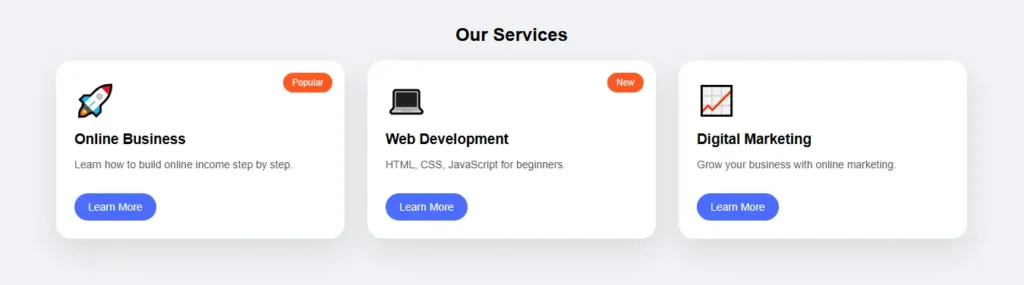
<!DOCTYPE html>
<html lang="en">
<head>
<meta charset="UTF-8">
<title>Beautiful Card Grid</title>
<meta name="viewport" content="width=device-width, initial-scale=1.0">

<style>
body {
  margin: 0;
  padding: 40px;
  font-family: Arial, sans-serif;
  background: #f0f2f5;
}

/* Grid */
.grid {
  max-width: 1200px;
  margin: auto;
  display: grid;
  grid-template-columns: repeat(auto-fit, minmax(280px, 1fr));
  gap: 30px;
}

/* Card */
.card {
  background: #fff;
  border-radius: 20px;
  padding: 24px;
  box-shadow: 0 15px 35px rgba(0,0,0,0.1);
  position: relative;
  transition: 0.3s;
}

.card:hover {
  transform: translateY(-8px);
  box-shadow: 0 25px 50px rgba(0,0,0,0.15);
}

/* Badge */
.badge {
  position: absolute;
  top: 16px;
  right: 16px;
  background: #ff5722;
  color: #fff;
  font-size: 12px;
  padding: 6px 12px;
  border-radius: 20px;
}

/* Icon */
.icon {
  font-size: 40px;
  margin-bottom: 16px;
}

/* Content */
.card h3 {
  margin: 0 0 10px;
}

.card p {
  font-size: 14px;
  color: #555;
}

/* Button */
.card a {
  display: inline-block;
  margin-top: 16px;
  padding: 10px 18px;
  background: #4a6cff;
  color: #fff;
  text-decoration: none;
  border-radius: 24px;
  font-size: 14px;
}
</style>
</head>

<body>

<h2 style="text-align:center;">Our Services</h2>

<div class="grid">

  <div class="card">
    <span class="badge">Popular</span>
    <div class="icon">🚀</div>
    <h3>Online Business</h3>
    <p>Learn how to build online income step by step.</p>
    <a href="#">Learn More</a>
  </div>

  <div class="card">
    <span class="badge">New</span>
    <div class="icon">💻</div>
    <h3>Web Development</h3>
    <p>HTML, CSS, JavaScript for beginners.</p>
    <a href="#">Learn More</a>
  </div>

  <div class="card">
    <div class="icon">📈</div>
    <h3>Digital Marketing</h3>
    <p>Grow your business with online marketing.</p>
    <a href="#">Learn More</a>
  </div>

</div>

</body>
</html>

 Thai
Thai  English
  Japanese
  Korean
  German
  French
  Russian
  Spanish
  Chinese
  Hindi
Hindi