

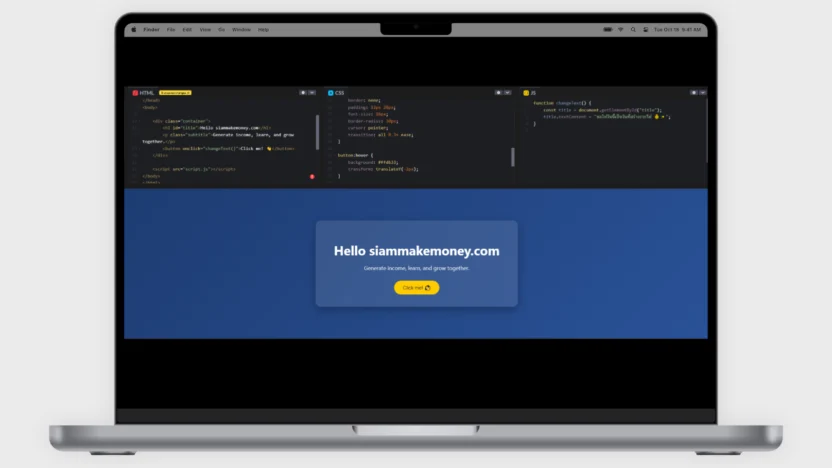
इसमें बेसिक HTML, CSS और JS कोड शामिल है।
सामग्री की सूची
दिखाओ
टेक्स्ट और छवियों में सरल लिंक।
संदेश में लिंक डालें।
<p>
  Visit my website:
  <a href="https://siammakemoney.com" target="_blank">
    SiamMakeMoney
  </a>
</p>
लिंक को इमेज में डालें।
<a href="https://siammakemoney.com" target="_blank">
  <img src="https://via.placeholder.com/300x200" alt="SiamMakeMoney">
</a>
साधारण तस्वीर
<img src="https://via.placeholder.com/300x200" alt="Sample Image">1
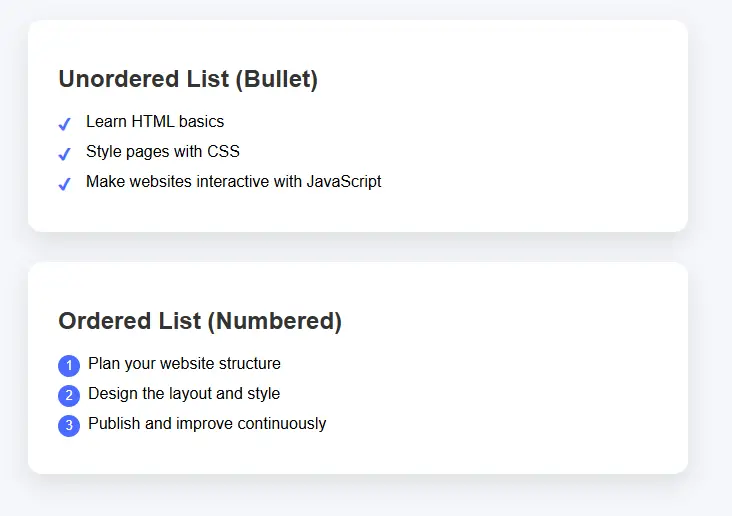
बुलेटेड लिस्ट के लिए उदाहरण कोड।
यह एक HTML टैग है जिसका उपयोग सूची में उप-आइटम बनाने के लिए किया जाता है। इसका उपयोग बिंदीदार सूचियों या क्रमांकित सूचियों के साथ किया जा सकता है, जहाँ प्रत्येक आइटम सूची में एक आइटम को दर्शाता है। उदाहरणों में उत्पाद सूचियाँ, मेनू या चरण-दर-चरण निर्देश शामिल हैं। यह सूची में "एक आइटम" होने जैसा है, जिससे जानकारी व्यवस्थित, पढ़ने में आसान और स्पष्ट रूप से समझ में आने योग्य हो जाती है।
<style>
body {
  font-family: Arial, sans-serif;
  background: #f5f7fa;
  padding: 40px;
}

/* Section box */
.list-box {
  max-width: 600px;
  background: #fff;
  padding: 25px 30px;
  border-radius: 14px;
  box-shadow: 0 10px 25px rgba(0,0,0,0.1);
  margin-bottom: 30px;
}

h2 {
  color: #333;
}

/* Unordered list */
ul.custom-ul {
  list-style: none;
  padding-left: 0;
}

ul.custom-ul li {
  padding-left: 28px;
  margin-bottom: 12px;
  position: relative;
}

ul.custom-ul li::before {
  content: "✔";
  position: absolute;
  left: 0;
  color: #4a6cff;
  font-weight: bold;
}

/* Ordered list */
ol.custom-ol {
  counter-reset: item;
  list-style: none;
  padding-left: 0;
}

ol.custom-ol li {
  counter-increment: item;
  margin-bottom: 12px;
  padding-left: 30px;
  position: relative;
}

ol.custom-ol li::before {
  content: counter(item);
  position: absolute;
  left: 0;
  background: #4a6cff;
  color: #fff;
  width: 22px;
  height: 22px;
  border-radius: 50%;
  text-align: center;
  line-height: 22px;
  font-size: 13px;
}
</style>


<div class="list-box">
  <h2>Unordered List (Bullet)</h2>
  <ul class="custom-ul">
    <li>Learn HTML basics</li>
    <li>Style pages with CSS</li>
    <li>Make websites interactive with JavaScript</li>
  </ul>
</div>

<div class="list-box">
  <h2>Ordered List (Numbered)</h2>
  <ol class="custom-ol">
    <li>Plan your website structure</li>
    <li>Design the layout and style</li>
    <li>Publish and improve continuously</li>
  </ol>
</div>
डॉट हटाने के लिए सीएसएस कोड। <li> गोली
सभी बुलेट पॉइंट्स हटा दें। <ul> और <ol> कोई फर्क नहीं पड़ता आप कहां हो।
ul, ol {
  list-style: none !important;
  padding-left: 0 !important;
  margin-left: 0 !important;
}
छद्म तत्वों से उत्पन्न होने वाले बुलेट बिंदुओं को हटा दें।
li::before {
  content: none !important;
}
2
एक आइकन छवि जोड़ें।
आइकन छोटे चित्र होते हैं जो विशिष्ट अर्थ या कार्य को दर्शाते हैं। उदाहरण के लिए, घर का आइकन होमपेज को दर्शाता है, आवर्धक लेंस का आइकन खोज फ़ंक्शन को दर्शाता है, और कूड़ेदान का आइकन डिलीट करने को दर्शाता है। ये उपयोगकर्ताओं को अधिक टेक्स्ट पढ़े बिना ही वेबसाइट या ऐप के संदेश को शीघ्रता से समझने में मदद करते हैं, जिससे इसका उपयोग आसान, आधुनिक और त्वरित संचार संभव हो जाता है।
2.1 एक साधारण 20x20 px छवि जोड़ें।
<img src="https://example.com/icon.png" alt="icon" width="20" height="20">3
फ़ॉन्ट ऑसम आइकन
Font Awesome आइकन वेबसाइटों पर उपयोग के लिए तैयार आइकनों का एक सेट है। ये फॉन्ट और वेक्टर दोनों फॉर्मेट में उपलब्ध हैं, जिससे इन्हें फॉन्ट की तरह ही आसानी से रीसाइज़, रंग और स्टाइल किया जा सकता है। इनका उपयोग होम, फोन, ईमेल या सोशल मीडिया आइकनों जैसे विभिन्न प्रतीकों को बदलने के लिए किया जा सकता है, जिससे वेबसाइटें सुंदर, आधुनिक दिखती हैं और कई इमेज फाइलों की आवश्यकता के बिना तेजी से लोड होती हैं।
3.1 फॉन्ट ऑसम सीडीएन जोड़ें (यदि आपके पास पहले से नहीं है)।
<head>
  <!-- Font Awesome CDN -->
  <link rel="stylesheet" href="https://cdnjs.cloudflare.com/ajax/libs/font-awesome/6.5.0/css/all.min.css">
</head>
3.2 आइकन जोड़ें और उनका आकार समायोजित करें।
<i class="fa-solid fa-house" style="font-size:20px;"></i>

<i class="fa-solid fa-star" style="font-size:20px;"></i>
3.3 (यदि आपको सीएसएस को अलग करने की आवश्यकता है)
<style>
.icon-small {
  font-size: 20px;
  color: #000;
}
</style>

<i class="fa-solid fa-heart icon-small"></i>
4
किसी अन्य वेबसाइट से वेबपेज को एम्बेड करने के लिए iFrame का उपयोग किया जाता है।
आईफ्रेम एक HTML टैग है जिसका उपयोग अन्य वेबसाइटों के वेब पेजों या सामग्री को अपने वेबपेज में एम्बेड करने के लिए किया जाता है। इसमें YouTube वीडियो, Google मैप्स या अन्य बाहरी वेबसाइटें शामिल हो सकती हैं। यह ऐसा है जैसे किसी अन्य वेबसाइट की "छोटी विंडो" को अपने वेबपेज के अंदर रखना, जहाँ सामग्री मूल वेबसाइट से ही आती है, लेकिन उपयोगकर्ता उस पेज को छोड़े बिना उसे देख और उपयोग कर सकते हैं।
4.1 वेब पेजों को एम्बेड करने के लिए iFrame।
<iframe
  src="https://www.example.com"
  width="800"
  height="600">
</iframe>
4.2 आईफ्रेम में यूट्यूब वीडियो एम्बेड करना।
<iframe
  width="1349"
  height="759"
  src="https://www.youtube.com/embed/DZIASl9q90s"
  frameborder="0"
  allow="accelerometer; autoplay; clipboard-write; encrypted-media; gyroscope; picture-in-picture"
  allowfullscreen>
</iframe>
5
व्याख्यात्मक पाठ दिखाएँ (टूलटिप)
टूलटिप एक छोटा टेक्स्ट बॉक्स होता है जो उपयोगकर्ता द्वारा टेक्स्ट, आइकन या बटन पर माउस ले जाने या टैप करने पर अतिरिक्त स्पष्टीकरण प्रदर्शित करता है। यह मुख्य स्क्रीन को बाधित नहीं करता है, जिससे अर्थ समझाने या किसी चीज़ का उपयोग करने का तरीका सरल तरीके से समझने में मदद मिलती है। यह संक्षिप्त निर्देश प्रदान करने के लिए आदर्श है, जिससे वेबसाइट या ऐप्स का उपयोग आसान हो जाता है और वे अधिक पेशेवर दिखते हैं।
5.1 बुनियादी टूलटिप्स
<style>
.tooltip {
  position: relative;
  cursor: pointer;
  color: #6a5acd;
  font-weight: bold;
}

.tooltip::after {
  content: attr(data-text);
  position: absolute;
  bottom: 140%;
  left: 50%;
  transform: translateX(-50%);
  background: #333;
  color: #fff;
  padding: 8px 12px;
  border-radius: 8px;
  white-space: nowrap;
  opacity: 0;
  pointer-events: none;
  transition: 0.3s;
}

.tooltip::before {
  content: "";
  position: absolute;
  bottom: 120%;
  left: 50%;
  transform: translateX(-50%);
  border: 6px solid transparent;
  border-top-color: #333;
  opacity: 0;
  transition: 0.3s;
}

.tooltip:hover::after,
.tooltip:hover::before {
  opacity: 1;
}
</style>

<p>
  Hover over <span class="tooltip" data-text="HTML defines the structure of a web page">HTML</span>
</p>
5.2 टूलटिप फेड + स्लाइड - प्रीमियम लुक
<style>
.tooltip-box {
  position: relative;
  display: inline-block;
  color: #009688;
  cursor: pointer;
}

.tooltip-box .tooltip-text {
  position: absolute;
  bottom: 130%;
  left: 50%;
  transform: translateX(-50%) translateY(10px);
  background-color: #009688;
  color: #fff;
  padding: 8px 14px;
  border-radius: 20px;
  opacity: 0;
  white-space: nowrap;
  transition: all 0.3s ease;
}

.tooltip-box:hover .tooltip-text {
  opacity: 1;
  transform: translateX(-50%) translateY(0);
}
</style>

<p>
  Hover over
  <span class="tooltip-box">
    CSS
    <span class="tooltip-text">CSS styles the website</span>
  </span>
</p>
5.3 टेक्स्ट पर क्लिक करने पर टूलटिप दिखाई देता है।
<style>
.click-tooltip {
  position: relative;
  display: inline-block;
  color: #e91e63;
  cursor: pointer;
}

.click-tooltip .tooltip-content {
  display: none;
  position: absolute;
  top: 120%;
  left: 50%;
  transform: translateX(-50%);
  background-color: #e91e63;
  color: #fff;
  padding: 10px;
  border-radius: 10px;
  white-space: nowrap;
}
</style>

<p>
  <span class="click-tooltip" onclick="toggleTooltip(this)">
    JavaScript
    <span class="tooltip-content">JavaScript makes websites interactive</span>
  </span>
</p>

<script>
function toggleTooltip(element) {
  const tooltip = element.querySelector(".tooltip-content");
  tooltip.style.display = tooltip.style.display === "block" ? "none" : "block";
}
</script>
6
पॉपअप कार्ड - पॉपअप कार्ड पर क्लिक करें।
क्लिक करने योग्य पॉप-अप कार्ड जानकारी प्रदर्शित करने का एक तरीका है, जिसमें उपयोगकर्ता द्वारा किसी बटन, टेक्स्ट या छवि पर क्लिक करने पर, वेबपेज बदले बिना ही स्क्रीन पर एक "कार्ड" खुल जाता है, जिसमें छवि, नाम, आइकन या विवरण जैसी अधिक जानकारी दिखाई देती है। इससे जानकारी देखना सुविधाजनक हो जाता है, वेबसाइट साफ-सुथरी रहती है और उपयोगकर्ता को आधुनिक और पेशेवर लुक मिलता है।
6.1 पॉप-अप कार्ड पर क्लिक करें (HTML + CSS + JS)
<style>
body {
  font-family: Arial, sans-serif;
  background: #f4f6f8;
  text-align: center;
  padding-top: 100px;
}

/* Button */
.open-btn {
  padding: 12px 24px;
  font-size: 16px;
  background: #4a6cff;
  color: #fff;
  border: none;
  border-radius: 30px;
  cursor: pointer;
}

/* Overlay */
.overlay {
  position: fixed;
  top: 0;
  left: 0;
  width: 100%;
  height: 100%;
  background: rgba(0,0,0,0.5);
  display: none;
  justify-content: center;
  align-items: center;
}

/* Card */
.popup-card {
  background: #fff;
  width: 360px;
  padding: 30px;
  border-radius: 16px;
  box-shadow: 0 20px 40px rgba(0,0,0,0.2);
  animation: pop 0.3s ease;
}

@keyframes pop {
  from {
    transform: scale(0.8);
    opacity: 0;
  }
  to {
    transform: scale(1);
    opacity: 1;
  }
}

/* Close button */
.close-btn {
  margin-top: 20px;
  padding: 8px 18px;
  border: none;
  background: #e91e63;
  color: #fff;
  border-radius: 20px;
  cursor: pointer;
}
</style>


<body>

<button class="open-btn" onclick="openCard()">Click Me</button>

<div class="overlay" id="overlay">
  <div class="popup-card">
    <h2>Hello 👋</h2>
    <p>This is a popup card shown after clicking.</p>
    <button class="close-btn" onclick="closeCard()">Close</button>
  </div>
</div>

<script>
function openCard() {
  document.getElementById("overlay").style.display = "flex";
}

function closeCard() {
  document.getElementById("overlay").style.display = "none";
}
</script>

</body>
6.2 छवि, आइकन और विवरण वाले पॉप-अप कार्ड पर क्लिक करें।
<!DOCTYPE html>
<html lang="en">
<head>
<meta charset="UTF-8">
<title>Popup Card with Image</title>

<!-- Font Awesome -->
<link rel="stylesheet" href="https://cdnjs.cloudflare.com/ajax/libs/font-awesome/6.5.0/css/all.min.css">

<style>
body {
  font-family: Arial, sans-serif;
  background: #f2f4f8;
  text-align: center;
  padding-top: 100px;
}

/* Button */
.open-btn {
  padding: 12px 26px;
  background: #4a6cff;
  color: #fff;
  border: none;
  border-radius: 30px;
  font-size: 16px;
  cursor: pointer;
}

/* Overlay */
.overlay {
  position: fixed;
  inset: 0;
  background: rgba(0,0,0,0.5);
  display: none;
  justify-content: center;
  align-items: center;
}

/* Card */
.card {
  background: #fff;
  width: 360px;
  border-radius: 18px;
  overflow: hidden;
  box-shadow: 0 20px 40px rgba(0,0,0,0.25);
  animation: pop 0.3s ease;
}

@keyframes pop {
  from { transform: scale(0.85); opacity: 0; }
  to { transform: scale(1); opacity: 1; }
}

/* Image */
.card img {
  width: 100%;
  height: 200px;
  object-fit: cover;
}

/* Content */
.card-content {
  padding: 24px;
}

.card-content h2 {
  margin: 10px 0;
}

.icon {
  font-size: 32px;
  color: #4a6cff;
}

.description {
  color: #555;
  margin-top: 10px;
  font-size: 15px;
}

/* Close button */
.close-btn {
  margin-top: 20px;
  padding: 8px 20px;
  border: none;
  background: #e91e63;
  color: #fff;
  border-radius: 20px;
  cursor: pointer;
}
</style>
</head>

<body>

<button class="open-btn" onclick="openCard()">Show Card</button>

<div class="overlay" id="overlay" onclick="closeCard()">
  <div class="card" onclick="event.stopPropagation()">

    <img src="https://images.unsplash.com/photo-1522202176988-66273c2fd55f" alt="Image">

    <div class="card-content">
      <div class="icon">
        <i class="fa-solid fa-lightbulb"></i>
      </div>

      <h2>SiamMakeMoney</h2>

      <p class="description">
        Learn digital skills and build online income with practical knowledge.
      </p>

      <button class="close-btn" onclick="closeCard()">Close</button>
    </div>

  </div>
</div>

<script>
function openCard() {
  document.getElementById("overlay").style.display = "flex";
}

function closeCard() {
  document.getElementById("overlay").style.display = "none";
}
</script>

</body>
</html>
6.3 सुंदर और एसईओ-अनुकूल पॉप-अप कार्ड
<!DOCTYPE html>
<html lang="en">
<head>
<meta charset="UTF-8">
<title>SiamMakeMoney – SEO Friendly Popup</title>
<meta name="description" content="Learn digital skills and build online income with SiamMakeMoney">

<!-- Font Awesome -->
<link rel="stylesheet" href="https://cdnjs.cloudflare.com/ajax/libs/font-awesome/6.5.0/css/all.min.css">

<style>
body {
  font-family: Arial, sans-serif;
  background: #f5f7fa;
  padding: 60px;
  text-align: center;
}

/* Main content */
h1 {
  color: #333;
}

p {
  color: #555;
  max-width: 600px;
  margin: 20px auto;
}

/* Button */
.open-btn {
  padding: 10px 22px;
  border-radius: 25px;
  border: none;
  background: #4a6cff;
  color: #fff;
  cursor: pointer;
  font-size: 15px;
}

/* Overlay */
.popup-overlay {
  position: fixed;
  inset: 0;
  background: rgba(0,0,0,0.5);
  display: none;
  justify-content: center;
  align-items: center;
}

/* Card */
.popup-card {
  background: #fff;
  width: 380px;
  border-radius: 18px;
  overflow: hidden;
  box-shadow: 0 20px 40px rgba(0,0,0,0.25);
  animation: popup 0.3s ease;
}

@keyframes popup {
  from { transform: scale(0.9); opacity: 0; }
  to { transform: scale(1); opacity: 1; }
}

/* Image */
.popup-card img {
  width: 100%;
  height: 200px;
  object-fit: cover;
}

/* Content */
.card-content {
  padding: 24px;
}

.card-content h2 {
  margin: 12px 0;
  color: #333;
}

.icon {
  font-size: 30px;
  color: #4a6cff;
}

.description {
  font-size: 15px;
  color: #555;
  margin-top: 10px;
}

/* Close button */
.close-btn {
  margin-top: 18px;
  padding: 8px 18px;
  border: none;
  background: #e91e63;
  color: #fff;
  border-radius: 20px;
  cursor: pointer;
}
</style>
</head>

<body>

<main>
  <!-- SEO main content -->
  <h1>SiamMakeMoney</h1>
  <p>
    SiamMakeMoney helps people learn digital skills and build sustainable
    online income with practical knowledge.
  </p>

  <button class="open-btn" onclick="openPopup()">Learn More</button>

  <!-- Popup (content already in HTML = SEO friendly) -->
  <section class="popup-overlay" id="popup" onclick="closePopup()">
    <article class="popup-card" onclick="event.stopPropagation()">

      <img src="https://images.unsplash.com/photo-1522202176988-66273c2fd55f" alt="Digital learning">

      <div class="card-content">
        <div class="icon">
          <i class="fa-solid fa-lightbulb"></i>
        </div>

        <h2>Digital Knowledge</h2>

        <p class="description">
          Learn online business, marketing, and digital skills with step-by-step
          guidance designed for real results.
        </p>

        <button class="close-btn" onclick="closePopup()">Close</button>
      </div>

    </article>
  </section>
</main>

<script>
function openPopup() {
  document.getElementById("popup").style.display = "flex";
}

function closePopup() {
  document.getElementById("popup").style.display = "none";
}
</script>

</body>
</html>
6.4 डायनामिक पॉपअप कार्ड (एकल एचटीएमएल फ़ाइल)
<!DOCTYPE html>
<html lang="en">
<head>
<meta charset="UTF-8">
<title>SiamMakeMoney – Dynamic Cards</title>
<meta name="description" content="Learn digital skills and build online income with SiamMakeMoney">

<link rel="stylesheet" href="https://cdnjs.cloudflare.com/ajax/libs/font-awesome/6.5.0/css/all.min.css">

<style>
body {
  font-family: Arial, sans-serif;
  background: #f5f7fa;
  padding: 40px;
  text-align: center;
}

/* Grid */
.card-grid {
  display: grid;
  grid-template-columns: repeat(auto-fit, minmax(220px, 1fr));
  gap: 20px;
  max-width: 900px;
  margin: 40px auto;
}

/* Card item */
.card-item {
  background: #fff;
  padding: 20px;
  border-radius: 16px;
  box-shadow: 0 10px 25px rgba(0,0,0,0.1);
  cursor: pointer;
  transition: transform 0.2s;
}

.card-item:hover {
  transform: translateY(-5px);
}

.card-item i {
  font-size: 32px;
  color: #4a6cff;
}

.card-item h3 {
  margin-top: 10px;
  color: #333;
}

/* Popup */
.popup-overlay {
  position: fixed;
  inset: 0;
  background: rgba(0,0,0,0.5);
  display: none;
  justify-content: center;
  align-items: center;
}

.popup-card {
  background: #fff;
  width: 380px;
  border-radius: 18px;
  overflow: hidden;
  box-shadow: 0 20px 40px rgba(0,0,0,0.25);
  animation: popup 0.3s ease;
}

@keyframes popup {
  from { transform: scale(0.9); opacity: 0; }
  to { transform: scale(1); opacity: 1; }
}

.popup-card img {
  width: 100%;
  height: 200px;
  object-fit: cover;
}

.popup-content {
  padding: 24px;
}

.popup-content h2 {
  margin: 10px 0;
}

.popup-content p {
  color: #555;
}

.close-btn {
  margin-top: 15px;
  padding: 8px 18px;
  border: none;
  background: #e91e63;
  color: #fff;
  border-radius: 20px;
  cursor: pointer;
}
</style>
</head>

<body>

<h1>SiamMakeMoney</h1>
<p>Click a card to learn more</p>

<!-- Cards -->
<div class="card-grid" id="cardGrid"></div>

<!-- Popup -->
<div class="popup-overlay" id="popup" onclick="closePopup()">
  <div class="popup-card" onclick="event.stopPropagation()">
    <img id="popupImage" src="" alt="">
    <div class="popup-content">
      <i id="popupIcon" class=""></i>
      <h2 id="popupTitle"></h2>
      <p id="popupDescription"></p>
      <button class="close-btn" onclick="closePopup()">Close</button>
    </div>
  </div>
</div>

<script>
// Card data (Dynamic)
const cards = [
  {
    title: "Online Business",
    icon: "fa-solid fa-briefcase",
    image: "https://images.unsplash.com/photo-1522202176988-66273c2fd55f",
    description: "Learn how to build and grow online businesses step by step."
  },
  {
    title: "Digital Marketing",
    icon: "fa-solid fa-bullhorn",
    image: "https://images.unsplash.com/photo-1557838923-2985c318be48",
    description: "Understand SEO, ads, and social media marketing strategies."
  },
  {
    title: "Passive Income",
    icon: "fa-solid fa-coins",
    image: "https://images.unsplash.com/photo-1605902711622-cfb43c44367f",
    description: "Create income streams that work for you automatically."
  }
];

// Render cards
const cardGrid = document.getElementById("cardGrid");

cards.forEach((card, index) => {
  const div = document.createElement("div");
  div.className = "card-item";
  div.innerHTML = `
    <i class="${card.icon}"></i>
    <h3>${card.title}</h3>
  `;
  div.onclick = () => openPopup(card);
  cardGrid.appendChild(div);
});

// Popup functions
function openPopup(card) {
  document.getElementById("popupImage").src = card.image;
  document.getElementById("popupImage").alt = card.title;
  document.getElementById("popupIcon").className = card.icon;
  document.getElementById("popupTitle").textContent = card.title;
  document.getElementById("popupDescription").textContent = card.description;
  document.getElementById("popup").style.display = "flex";
}

function closePopup() {
  document.getElementById("popup").style.display = "none";
}
</script>

</body>
</html>
7
बुनियादी तालिका कोड
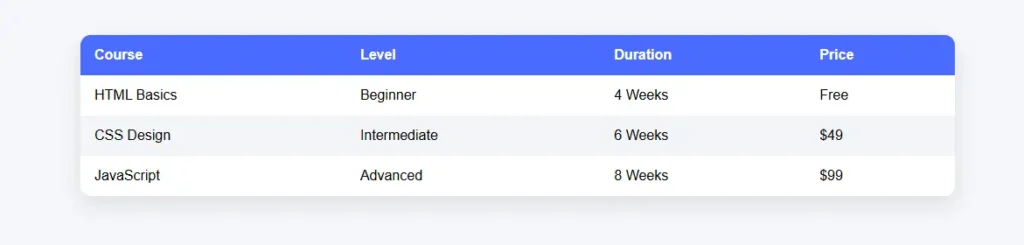
तालिका डेटा को व्यवस्थित करने का एक प्रारूप है, जिसमें जानकारी को पंक्तियों और स्तंभों में व्यवस्थित करके व्यवस्थित किया जाता है, ताकि जानकारी सुव्यवस्थित दिखे और उसकी तुलना करना आसान हो। उदाहरण के लिए, मूल्य तालिकाएँ, नामों की सूचियाँ या स्कोर परिणाम तालिकाएँ। इससे पाठकों को जानकारी स्पष्ट रूप से देखने, उसे शीघ्रता से समझने और आवश्यक जानकारी को आसानी से खोजने में मदद मिलती है।
7.1 बेसिक रिस्पॉन्सिव टेबल कोड (सभी डिवाइसों के साथ संगत)
<!DOCTYPE html>
<html lang="en">
<head>
<meta charset="UTF-8">
<title>Responsive Table</title>
<meta name="viewport" content="width=device-width, initial-scale=1.0">

<style>
body {
  font-family: Arial, sans-serif;
  background: #f5f7fa;
  padding: 40px;
}

/* Table wrapper */
.table-container {
  max-width: 1000px;
  margin: auto;
  overflow-x: auto;
  background: #fff;
  border-radius: 12px;
  box-shadow: 0 10px 25px rgba(0,0,0,0.1);
}

/* Table */
table {
  width: 100%;
  border-collapse: collapse;
  min-width: 600px;
}

thead {
  background: #4a6cff;
  color: #fff;
}

th, td {
  padding: 14px 16px;
  text-align: left;
}

th {
  font-weight: bold;
}

tbody tr:nth-child(even) {
  background: #f2f4f8;
}

tbody tr:hover {
  background: #eaf0ff;
}

/* Mobile view */
@media (max-width: 600px) {
  table {
    min-width: 100%;
  }
}
</style>
</head>

<body>

<h2>Course List</h2>

<div class="table-container">
  <table>
    <thead>
      <tr>
        <th>Course</th>
        <th>Level</th>
        <th>Duration</th>
        <th>Price</th>
      </tr>
    </thead>
    <tbody>
      <tr>
        <td>HTML Basics</td>
        <td>Beginner</td>
        <td>4 Weeks</td>
        <td>Free</td>
      </tr>
      <tr>
        <td>CSS Design</td>
        <td>Intermediate</td>
        <td>6 Weeks</td>
        <td>$49</td>
      </tr>
      <tr>
        <td>JavaScript</td>
        <td>Advanced</td>
        <td>8 Weeks</td>
        <td>$99</td>
      </tr>
    </tbody>
  </table>
</div>

</body>
</html>
7.2 क्लिक करने योग्य आइकन + नाम + पॉप-अप + वेबसाइट बटन वाली तालिका।
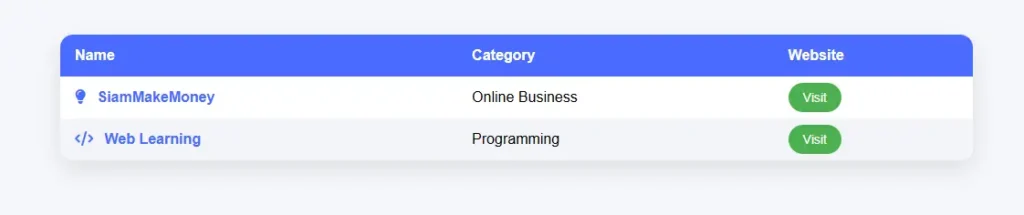
<!DOCTYPE html>
<html lang="en">
<head>
<meta charset="UTF-8">
<title>Interactive Table</title>
<meta name="viewport" content="width=device-width, initial-scale=1.0">

<!-- Font Awesome -->
<link rel="stylesheet" href="https://cdnjs.cloudflare.com/ajax/libs/font-awesome/6.5.0/css/all.min.css">

<style>
body {
  font-family: Arial, sans-serif;
  background: #f5f7fa;
  padding: 40px;
}

/* Table container */
.table-container {
  max-width: 1000px;
  margin: auto;
  overflow-x: auto;
  background: #fff;
  border-radius: 14px;
  box-shadow: 0 10px 25px rgba(0,0,0,0.1);
}

table {
  width: 100%;
  border-collapse: collapse;
  min-width: 700px;
}

thead {
  background: #4a6cff;
  color: #fff;
}

th, td {
  padding: 14px 16px;
  text-align: left;
}

tbody tr:nth-child(even) {
  background: #f2f4f8;
}

/* Name clickable */
.name {
  color: #4a6cff;
  font-weight: bold;
  cursor: pointer;
}

.icon {
  margin-right: 8px;
  color: #4a6cff;
}

/* Button */
.visit-btn {
  padding: 8px 16px;
  background: #4caf50;
  color: #fff;
  text-decoration: none;
  border-radius: 20px;
  font-size: 14px;
}

/* Popup */
.popup-overlay {
  position: fixed;
  inset: 0;
  background: rgba(0,0,0,0.5);
  display: none;
  justify-content: center;
  align-items: center;
}

.popup-card {
  background: #fff;
  width: 360px;
  border-radius: 16px;
  padding: 24px;
  box-shadow: 0 20px 40px rgba(0,0,0,0.25);
  animation: pop 0.3s ease;
}

@keyframes pop {
  from { transform: scale(0.9); opacity: 0; }
  to { transform: scale(1); opacity: 1; }
}

.close-btn {
  margin-top: 16px;
  padding: 8px 18px;
  border: none;
  background: #e91e63;
  color: #fff;
  border-radius: 20px;
  cursor: pointer;
}
</style>
</head>

<body>

<h2>Learning Platforms</h2>

<div class="table-container">
<table>
  <thead>
    <tr>
      <th>Name</th>
      <th>Category</th>
      <th>Website</th>
    </tr>
  </thead>
  <tbody>
    <tr>
      <td>
        <i class="fa-solid fa-lightbulb icon"></i>
        <span class="name" onclick="openPopup('SiamMakeMoney','A platform that teaches digital skills and online income step by step.')">
          SiamMakeMoney
        </span>
      </td>
      <td>Online Business</td>
      <td>
        <a class="visit-btn" href="https://siammakemoney.com" target="_blank">
          Visit
        </a>
      </td>
    </tr>

    <tr>
      <td>
        <i class="fa-solid fa-code icon"></i>
        <span class="name" onclick="openPopup('Web Learning','Learn HTML, CSS, and JavaScript from beginner to advanced.')">
          Web Learning
        </span>
      </td>
      <td>Programming</td>
      <td>
        <a class="visit-btn" href="https://www.w3schools.com" target="_blank">
          Visit
        </a>
      </td>
    </tr>
  </tbody>
</table>
</div>

<!-- Popup -->
<div class="popup-overlay" id="popup" onclick="closePopup()">
  <div class="popup-card" onclick="event.stopPropagation()">
    <h3 id="popupTitle"></h3>
    <p id="popupDescription"></p>
    <button class="close-btn" onclick="closePopup()">Close</button>
  </div>
</div>

<script>
function openPopup(title, description) {
  document.getElementById("popupTitle").textContent = title;
  document.getElementById("popupDescription").textContent = description;
  document.getElementById("popup").style.display = "flex";
}

function closePopup() {
  document.getElementById("popup").style.display = "none";
}
</script>

</body>
</html>
7.3 क्लिक करने योग्य आइकन + नाम + पॉप-अप + वेबसाइट बटन वाली तालिका।
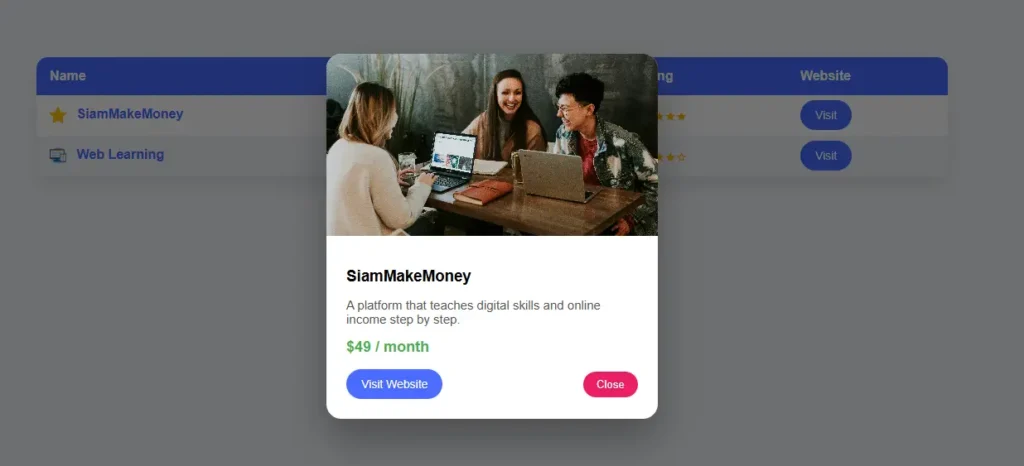
<!DOCTYPE html>
<html lang="en">
<head>
<meta charset="UTF-8">
<title>Advanced Table with Popup</title>
<meta name="viewport" content="width=device-width, initial-scale=1.0">

<style>
body {
  font-family: Arial, sans-serif;
  background: #f5f7fa;
  padding: 40px;
}

/* Table container */
.table-container {
  max-width: 1100px;
  margin: auto;
  overflow-x: auto;
  background: #fff;
  border-radius: 14px;
  box-shadow: 0 10px 25px rgba(0,0,0,0.1);
}

table {
  width: 100%;
  border-collapse: collapse;
  min-width: 800px;
}

thead {
  background: #4a6cff;
  color: #fff;
}

th, td {
  padding: 14px 16px;
  text-align: left;
}

tbody tr:nth-child(even) {
  background: #f2f4f8;
}

/* Icon image */
.icon-img {
  width: 20px;
  height: 20px;
  vertical-align: middle;
  margin-right: 8px;
}

/* Clickable name */
.name {
  color: #4a6cff;
  font-weight: bold;
  cursor: pointer;
}

/* Stars */
.stars {
  color: #ffb400;
  font-size: 16px;
}

/* Popup */
.popup-overlay {
  position: fixed;
  inset: 0;
  background: rgba(0,0,0,0.55);
  display: none;
  justify-content: center;
  align-items: center;
}

.popup-card {
  background: #fff;
  width: 400px;
  border-radius: 18px;
  overflow: hidden;
  box-shadow: 0 25px 50px rgba(0,0,0,0.3);
  animation: popup 0.3s ease;
}

@keyframes popup {
  from { transform: scale(0.9); opacity: 0; }
  to { transform: scale(1); opacity: 1; }
}

.popup-card img {
  width: 100%;
  height: 220px;
  object-fit: cover;
}

.popup-content {
  padding: 24px;
}

.popup-content h3 {
  margin: 10px 0;
}

.popup-content p {
  color: #555;
  font-size: 15px;
}

.price {
  margin: 12px 0;
  font-size: 18px;
  font-weight: bold;
  color: #4caf50;
}

.popup-actions {
  display: flex;
  justify-content: space-between;
  align-items: center;
  margin-top: 16px;
}

.visit-btn {
  padding: 10px 18px;
  background: #4a6cff;
  color: #fff;
  text-decoration: none;
  border-radius: 22px;
  font-size: 14px;
}

.close-btn {
  padding: 8px 16px;
  border: none;
  background: #e91e63;
  color: #fff;
  border-radius: 20px;
  cursor: pointer;
}
</style>
</head>

<body>

<h2>Recommended Platforms</h2>

<div class="table-container">
<table>
  <thead>
    <tr>
      <th>Name</th>
      <th>Category</th>
      <th>Rating</th>
      <th>Website</th>
    </tr>
  </thead>
  <tbody>
    <tr>
      <td>
        <img src="https://cdn-icons-png.flaticon.com/512/1828/1828884.png" class="icon-img" alt="icon">
        <span class="name"
          onclick="openPopup(
            'SiamMakeMoney',
            'https://images.unsplash.com/photo-1522202176988-66273c2fd55f',
            'A platform that teaches digital skills and online income step by step.',
            '$49 / month',
            'https://siammakemoney.com'
          )">
          SiamMakeMoney
        </span>
      </td>
      <td>Online Business</td>
      <td class="stars">★★★★★</td>
      <td>
        <a class="visit-btn" href="https://siammakemoney.com" target="_blank">Visit</a>
      </td>
    </tr>

    <tr>
      <td>
        <img src="https://cdn-icons-png.flaticon.com/512/1055/1055687.png" class="icon-img" alt="icon">
        <span class="name"
          onclick="openPopup(
            'Web Learning',
            'https://images.unsplash.com/photo-1518770660439-4636190af475',
            'Learn HTML, CSS, and JavaScript from beginner to advanced.',
            'Free',
            'https://www.w3schools.com'
          )">
          Web Learning
        </span>
      </td>
      <td>Programming</td>
      <td class="stars">★★★★☆</td>
      <td>
        <a class="visit-btn" href="https://www.w3schools.com" target="_blank">Visit</a>
      </td>
    </tr>
  </tbody>
</table>
</div>

<!-- Popup -->
<div class="popup-overlay" id="popup" onclick="closePopup()">
  <div class="popup-card" onclick="event.stopPropagation()">
    <img id="popupImage" src="" alt="">
    <div class="popup-content">
      <h3 id="popupTitle"></h3>
      <p id="popupDescription"></p>
      <div class="price" id="popupPrice"></div>

      <div class="popup-actions">
        <a id="popupLink" class="visit-btn" href="#" target="_blank">Visit Website</a>
        <button class="close-btn" onclick="closePopup()">Close</button>
      </div>
    </div>
  </div>
</div>

<script>
function openPopup(title, image, description, price, link) {
  document.getElementById("popupTitle").textContent = title;
  document.getElementById("popupImage").src = image;
  document.getElementById("popupDescription").textContent = description;
  document.getElementById("popupPrice").textContent = price;
  document.getElementById("popupLink").href = link;
  document.getElementById("popup").style.display = "flex";
}

function closePopup() {
  document.getElementById("popup").style.display = "none";
}
</script>

</body>
</html>
8
सबसे सरल लिंक बटन कोड।
लिंक बटन वेब लिंक, जो आमतौर पर सादे टेक्स्ट होते हैं, बटन की तरह दिखने के लिए डिज़ाइन किए जाते हैं, जिससे वे अधिक दृश्यमान, अधिक आकर्षक बन जाते हैं और स्पष्ट रूप से यह बताते हैं कि क्लिक करने पर क्या होगा (जैसे, किसी अन्य वेबसाइट पर जाना, साइन अप करना या अधिक विवरण देखना)। ये बटन आमतौर पर HTML और CSS का उपयोग करके बनाए जाते हैं, जिससे वे नियमित लिंक की तरह काम करते हैं (SEO के लिए अच्छे और उपयोग में आसान) लेकिन उनका डिज़ाइन अधिक आकर्षक होता है जिससे क्लिक की संभावना बढ़ जाती है।
<style>
.btn {
  display: inline-block;
  padding: 12px 24px;
  background: #4a6cff;
  color: #ffffff;
  text-decoration: none;
  border-radius: 25px;
  font-size: 16px;
}
</style>
<a href="https://siammakemoney.com" class="btn" target="_blank">
  Visit Website
</a>
8.1 होवर प्रभाव वाला लिंक बटन।
<style>
.btn {
  padding: 12px 24px;
  background: #4a6cff;
  color: white;
  text-decoration: none;
  border-radius: 30px;
  transition: 0.3s;
}

.btn:hover {
  background: #324de3;
  transform: translateY(-2px);
}
</style>

<br>
<a href="https://siammakemoney.com" class="btn" target="_blank">
  Visit Website
</a>
9
मेन्यू कोड निर्देशों का एक समूह है जिसका उपयोग वेबसाइट पर मेन्यू बार बनाने के लिए किया जाता है। यह उपयोगकर्ताओं को होम पेज, हमारे बारे में, सेवाएं या हमसे संपर्क करें जैसे विभिन्न पृष्ठों पर जाने की सुविधा देता है। सामान्यतः, मेन्यू कोड में लिंक संरचना के लिए HTML, स्टाइलिंग के लिए CSS शामिल होता है, और ज़ूम करने योग्य/विस्तार योग्य मेन्यू या मोबाइल मेन्यू जैसी विशेष सुविधाएं जोड़ने के लिए इसमें जावास्क्रिप्ट भी शामिल हो सकता है। मेन्यू कोड वेबसाइटों को उपयोगकर्ता के अनुकूल, व्यवस्थित बनाने में मदद करता है और उपयोगकर्ताओं को आवश्यक जानकारी अधिक तेज़ी से खोजने में सक्षम बनाता है।
<!DOCTYPE html>
<html lang="en">
<head>
<meta charset="UTF-8">
<title>Simple Menu</title>
<style>
body {
  margin: 0;
  font-family: Arial, sans-serif;
}

nav {
  background: #4a6cff;
  padding: 12px 24px;
}

nav a {
  color: #fff;
  text-decoration: none;
  margin-right: 20px;
  font-weight: bold;
}
</style>
</head>

<body>

<nav>
  <a href="#">Home</a>
  <a href="#">About</a>
  <a href="#">Services</a>
  <a href="#">Contact</a>
</nav>

</body>
</html>
<!DOCTYPE html>
<html lang="en">
<head>
<meta charset="UTF-8">
<title>Responsive Menu</title>
<meta name="viewport" content="width=device-width, initial-scale=1.0">

<style>
body {
  margin: 0;
  font-family: Arial, sans-serif;
}

nav {
  background: #4a6cff;
  padding: 14px 20px;
  display: flex;
  justify-content: space-between;
  align-items: center;
}

.logo {
  color: #fff;
  font-size: 20px;
  font-weight: bold;
}

.menu {
  display: flex;
  gap: 20px;
}

.menu a {
  color: #fff;
  text-decoration: none;
  font-weight: bold;
}

.menu-btn {
  display: none;
  font-size: 24px;
  color: #fff;
  cursor: pointer;
}

/* Mobile */
@media (max-width: 768px) {
  .menu {
    display: none;
    flex-direction: column;
    background: #4a6cff;
    position: absolute;
    top: 56px;
    right: 0;
    width: 100%;
    text-align: center;
    padding: 20px 0;
  }

  .menu.show {
    display: flex;
  }

  .menu-btn {
    display: block;
  }
}
</style>
</head>

<body>

<nav>
  <div class="logo">MyWebsite</div>

  <div class="menu-btn" onclick="toggleMenu()">☰</div>

  <div class="menu" id="menu">
    <a href="#">Home</a>
    <a href="#">About</a>
    <a href="#">Services</a>
    <a href="#">Contact</a>
  </div>
</nav>

<script>
function toggleMenu() {
  document.getElementById("menu").classList.toggle("show");
}
</script>

</body>
</html>
10
कार्ड ग्रिड कोड
ग्रिड कार्ड ग्रिड एक वेबसाइट कंटेंट लेआउट फॉर्मेट है जिसमें कई "कार्ड" एक ग्रिड में व्यवस्थित होते हैं। प्रत्येक कार्ड में आमतौर पर एक इमेज, टाइटल, डिस्क्रिप्शन और एक बटन या महत्वपूर्ण जानकारी होती है। यह प्रोडक्ट लिस्टिंग, आर्टिकल, सर्विस या कोर्स दिखाने के लिए उपयुक्त है। कार्ड ग्रिड के फायदे यह हैं कि यह व्यवस्थित दिखता है, देखने में आकर्षक है, पढ़ने में आसान है और स्क्रीन साइज के अनुसार कॉलम की संख्या अपने आप एडजस्ट हो जाती है, जिससे यह कंप्यूटर और मोबाइल दोनों डिवाइस पर इस्तेमाल किया जा सकता है।
10.1 कार्ड ग्रिड (रिस्पॉन्सिव)
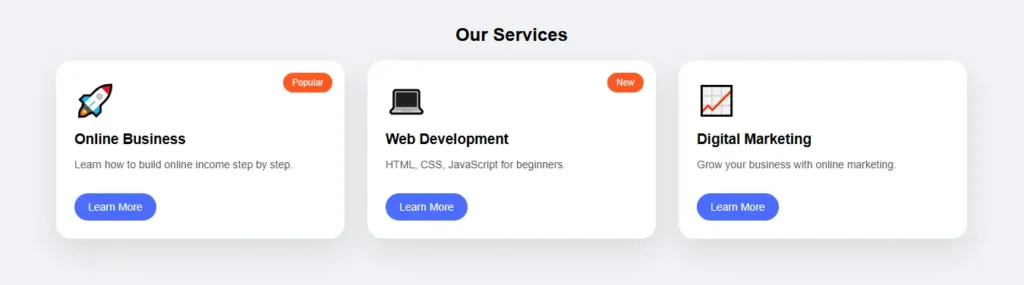
<!DOCTYPE html>
<html lang="en">
<head>
<meta charset="UTF-8">
<title>Beautiful Card Grid</title>
<meta name="viewport" content="width=device-width, initial-scale=1.0">

<style>
body {
  margin: 0;
  padding: 40px;
  font-family: Arial, sans-serif;
  background: #f0f2f5;
}

/* Grid */
.grid {
  max-width: 1200px;
  margin: auto;
  display: grid;
  grid-template-columns: repeat(auto-fit, minmax(280px, 1fr));
  gap: 30px;
}

/* Card */
.card {
  background: #fff;
  border-radius: 20px;
  padding: 24px;
  box-shadow: 0 15px 35px rgba(0,0,0,0.1);
  position: relative;
  transition: 0.3s;
}

.card:hover {
  transform: translateY(-8px);
  box-shadow: 0 25px 50px rgba(0,0,0,0.15);
}

/* Badge */
.badge {
  position: absolute;
  top: 16px;
  right: 16px;
  background: #ff5722;
  color: #fff;
  font-size: 12px;
  padding: 6px 12px;
  border-radius: 20px;
}

/* Icon */
.icon {
  font-size: 40px;
  margin-bottom: 16px;
}

/* Content */
.card h3 {
  margin: 0 0 10px;
}

.card p {
  font-size: 14px;
  color: #555;
}

/* Button */
.card a {
  display: inline-block;
  margin-top: 16px;
  padding: 10px 18px;
  background: #4a6cff;
  color: #fff;
  text-decoration: none;
  border-radius: 24px;
  font-size: 14px;
}
</style>
</head>

<body>

<h2 style="text-align:center;">Our Services</h2>

<div class="grid">

  <div class="card">
    <span class="badge">Popular</span>
    <div class="icon">🚀</div>
    <h3>Online Business</h3>
    <p>Learn how to build online income step by step.</p>
    <a href="#">Learn More</a>
  </div>

  <div class="card">
    <span class="badge">New</span>
    <div class="icon">💻</div>
    <h3>Web Development</h3>
    <p>HTML, CSS, JavaScript for beginners.</p>
    <a href="#">Learn More</a>
  </div>

  <div class="card">
    <div class="icon">📈</div>
    <h3>Digital Marketing</h3>
    <p>Grow your business with online marketing.</p>
    <a href="#">Learn More</a>
  </div>

</div>

</body>
</html>
फेसबुक टिप्पणी बॉक्स

 Thai
Thai  English
  Japanese
  Korean
  German
  French
  Russian
  Spanish
  Chinese
  Hindi
Hindi